Chapter 6: Week 3, Session B — Copilot in Word
Drafting, Summarization, and the End of the Blank Page
1Chapter 6: Week 3, Session B — Copilot in Word
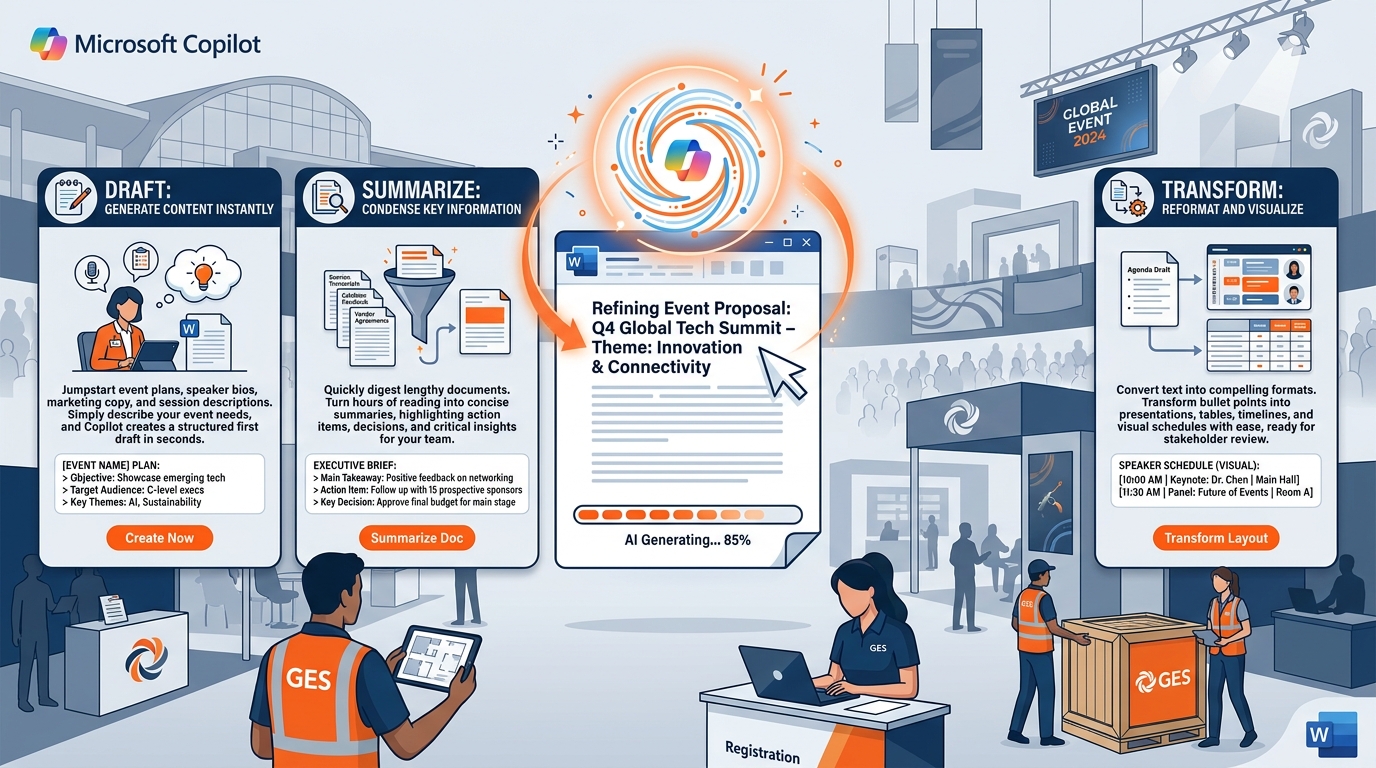
Figure 1:Copilot in Word gives live events professionals three distinct capabilities for document creation. Each one addresses a specific moment in the writing process — and all three share the same endpoint: a human professional reviewing every word before it reaches an organizer, an exhibitor, or a crew standing on a show floor at 5 a.m.
“The blank page is the enemy. Copilot kills the blank page.”
Here is a scene that plays out across GES dozens of times every day.
A show operations manager has just finished a two-day site survey at a convention center where GES will serve as General Service Contractor for a 900-booth industry exposition. She has photos on her phone, a venue floor plan on her laptop, a page of scribbled notes about dock access and freight door heights, and the kind of mental clarity that only comes from physically walking a hall — knowing exactly where the marshaling yard bottleneck will be, which aisles will choke during move-in, and which union jurisdiction covers what.
She sits down in the hotel lobby, opens Microsoft Word, and stares at a blank white document.
Her task: write the show operations manual. Move-in and move-out sequencing, freight targets, labor calls, aisle carpet installation windows, I&D schedules, dock assignments, safety protocols, escalation contacts. Clear, precise, operational. Something a crew of 200 people across three shifts can execute against without calling her at midnight. Something the show organizer can read and feel confident about.
She knows exactly what needs to be said. She knows the venue, the show, the freight volumes, the crew. She just needs to say it — and saying it properly, in the right structure, at the right length, in the language every party on that floor will read the same way, will take her the better part of a day. Because that’s how long it has always taken.
Now she opens Copilot in Word.
She describes what she needs in a prompt. She references the site survey notes and the previous edition’s operations manual, both already saved in SharePoint. Copilot produces a structured first draft in under a minute. Not a finished manual — a serious starting point. The structure is right. The sections are labeled. The register is operational and unambiguous. Now she is not writing from a blank page. She is editing from a solid foundation.
Her eight-hour task becomes ninety minutes of focused revision and verification — and the ninety minutes she spends are spent on the parts only she can do: the dock sequencing judgment, the union jurisdiction nuance, the note about the freight elevator that has been unreliable since the last show at that venue.
This chapter is about that shift. It is about how Copilot in Word works — based on Microsoft’s own documented capabilities — what it can and cannot do, and how GES professionals apply it to the documents that define our business: exhibitor service kits, show operations manuals, scopes of work, RFP responses to organizers, design briefs, labor and freight estimates, post-show reconciliation reports, site survey writeups, incident reports, client proposals, QBR narratives, and the standard operating procedures that keep 24 facilities across 75+ countries pulling in the same direction.
There is one rule that Microsoft itself has built into the product’s design — and that we will return to throughout this chapter: every draft Copilot generates requires your verification before it leaves your hands. Microsoft states this explicitly in their own documentation: “Remember that Copilot generates a draft. You’ll need to verify and modify details to make sure it’s accurate and fits your tone and style.” Not because Copilot is unreliable — it is genuinely impressive. Because the professional who sends the document is responsible for it. On a show floor, a document that is wrong does not produce a polite correction email. It produces a crew standing in the wrong aisle at the wrong hour with the wrong equipment, and a move-in window that does not move.
No AI changes that. Let’s start with the three capabilities.
1.11. The Three Capabilities of Copilot in Word
Copilot in Word is not a single button. It is three distinct capabilities, each designed for a different moment in the document lifecycle. Understanding which one to use — and when — is the first competency to develop.
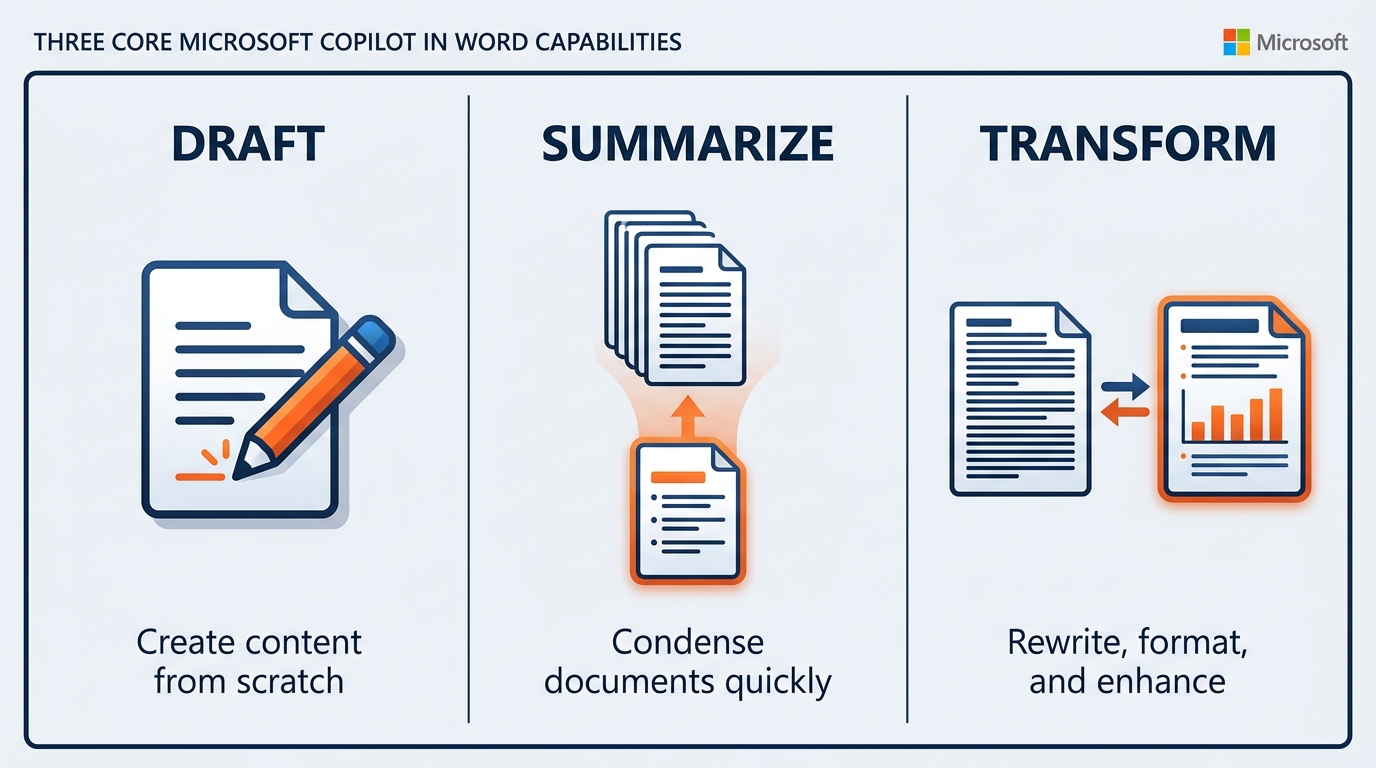
Figure 2:Three capabilities, three moments in the document workflow. Start a Draft when you have a blank page. Base on Existing File when you have source material already stored in SharePoint or OneDrive — last show’s operations manual, the venue rules and regulations, the site survey notes. Add to Existing Document when your draft is underway and needs more content.
1.1.1Capability 1: Start a Draft
This is the blank-page killer. When you open a new Word document — or click the Copilot icon in your document — you will see an option to draft with Copilot. Type a prompt describing what you need, and Copilot generates a full structured draft.
After Copilot produces its output, you have four choices: Keep it, Regenerate (ask Copilot to try again), Discard (start over), or refine with a follow-up prompt — for example, “Make it more concise” or “Add a section on freight targets and marshaling yard sequencing” or “Change the tone so a first-time exhibitor can follow it.” This iterative refinement loop is where Copilot becomes genuinely powerful: you do not have to get the perfect draft on the first try. You and Copilot work toward it together.
The critical insight about Start a Draft is that prompt quality is the primary driver of output quality. A thin prompt produces a generic draft. A rich prompt — one that includes the document’s purpose, intended audience, key points to cover, required structure, and tone — produces a draft that requires substantially less revision.
Compare these two prompts for the same document:
Thin prompt: “Write a scope of work for a trade show.”
Rich prompt: “Write a formal Scope of Work document for a GES General Service Contractor engagement. Show: Meridian Manufacturing Expo, 640 exhibiting companies, 310,000 net square feet, held at a convention center with two exhibit halls and shared dock access. GES responsibilities: general contracting, aisle carpet, exhibitor service kit production and distribution, material handling and drayage, advance warehouse receiving beginning 30 days prior, marshaling yard operation, I&D labor coordination under local union jurisdiction, show floor signage and wayfinding, and post-show reconciliation. Move-in: four days. Move-out: two days with a 26-hour hard-out driven by the venue’s next licensee. Excluded from scope: electrical, rigging, and internet, which the venue provides exclusively. Structure the document with these sections: Engagement Overview, Services Provided, Services Excluded, Move-In Sequence, Move-Out Sequence, Labor and Jurisdiction, Material Handling and Freight Targets, Exhibitor Services, Reporting and Reconciliation, Assumptions and Dependencies. Formal contractual register suitable for a show organizer’s operations and procurement teams.”
The thin prompt produces a template. The rich prompt produces a first draft that an operations director can actually work with. The difference is three minutes of additional prompt work — consistently the highest-leverage investment in Copilot productivity.
1.1.2Capability 2: Base a Draft on an Existing File, Email, or Meeting
This is where Copilot in Word becomes a different kind of tool entirely. Rather than generating content from a prompt alone, you can instruct Copilot to ground its draft in specific source material you already have — a SharePoint document, a OneDrive file, or a meeting transcript.
The mechanism is the slash reference (/). When composing your Copilot prompt in Word, type / and a file picker appears. You can reference up to 20 items in a single prompt — and those items become the factual foundation for what Copilot writes.
For example: “Summarize the operational lessons from / [post-show reconciliation report — last edition] and write a Risks and Mitigations section suitable for this year’s show operations manual. Focus on freight target compliance, marshaling yard throughput, and move-out overtime exposure.”
Copilot reads the referenced file, extracts the relevant content, and grounds its draft in what is actually in that document — not in what it generally knows about trade show operations.
The requirement: Files must be saved in SharePoint or OneDrive to be referenceable. Local files saved only to your desktop or C: drive cannot be pulled into a Copilot prompt. If you are working with documents that live on a local drive — and in a travel-heavy business, plenty of them do — save them to your OneDrive first. Do this at the venue, before you fly. Future-you, sitting in an airport lounge trying to draft the recap, will be grateful.
This capability is particularly powerful for:
Show operations manuals drafted from the actual site survey notes and the venue’s rules and regulations
Exhibitor service kits built from the current price list, venue restrictions, and show-specific deadlines
Post-show reconciliation reports grounded in the actual labor logs and material handling records
Design briefs and spec documents drawn from the client’s brand guidelines and the Spiro concept deck
RFP responses grounded in the organizer’s actual RFP document rather than your memory of it
SOP revisions based on the existing procedure document being updated
The output is not Copilot’s general knowledge about what a show operations manual looks like. It is Copilot’s synthesis of what is actually in your documents. That distinction matters enormously for accuracy — and on a show floor, accuracy is the whole job.
1.1.3Capability 3: Add Content to an Existing Document
The third capability addresses a different moment in the writing process: your document is already underway, and you need to add to it. Rather than starting over or switching contexts, you can position your cursor in the document, invoke Copilot, and ask it to add a new section, expand an existing section, or generate content that fits naturally with what is already written.
This is particularly useful for:
Adding a Safety and Incident Reporting section to an operations manual that was started without one
Drafting an executive summary for a long RFP response after the body is complete
Adding a “What Happens Next” section to an exhibitor communication
Expanding a bullet-point punch list into full narrative paragraphs for a client-facing report
Adding standard terms, deadline tables, or jurisdiction language to a service kit draft
Appending a lessons-learned section to a post-show report once the floor is clear
Copilot in this mode is context-aware: it reads what you have already written and matches the tone, structure, and register of your existing content. If your document is formal and contractual, Copilot’s additions will be formal and contractual. If it is exhibitor-facing and plain-spoken, additions will match that register.
1.22. Drafting from Scratch — Real GES Examples
Nothing teaches Copilot drafting better than watching it applied to the documents you actually write. Here are three scenarios drawn from GES’s real professional environment: an RFP response to a show organizer, a venue and jurisdiction operations brief, and a standard operating procedure update rolled across facilities.
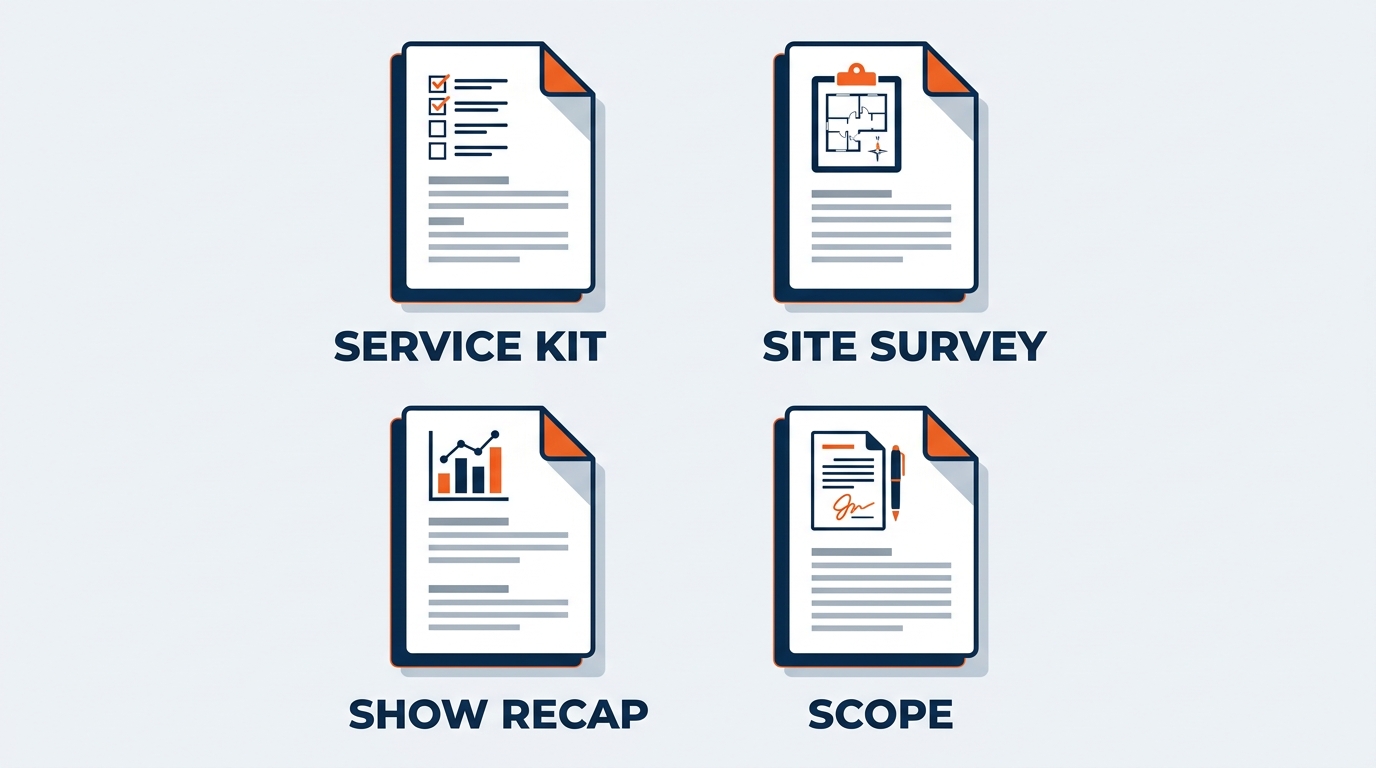
Figure 3:Three of the most common document types across the GES Collective — each with a distinct structure, register, and audience. The Copilot prompting pattern is consistent across all three: name your role, the document’s purpose, the required sections, and the audience.
1.2.1Example 1: The RFP Response to a Show Organizer
The RFP response is the centerpiece document of GES’s organizer business. It is the formal narrative that supports every general service contractor award — the document that tells the show’s story back to the organizer, describes the operational plan, and demonstrates that GES understands this specific venue, this specific move-in window, and this specific exhibitor base better than anyone else bidding.
Writing an RFP response from scratch is skilled work. It requires understanding the show, knowing what the organizer’s evaluation committee needs to see, organizing complex operational and pricing information into a coherent narrative, and doing all of this in the register that a procurement process demands.
Copilot does not replace that skill. It eliminates the scaffolding problem — the time spent setting up the structure, writing the section headers, and producing the required boilerplate before the real work of strategy and judgment can begin.
Prompting approach:
Open a new Word document. Invoke Copilot (click the Copilot icon or select Draft with Copilot). If you have the organizer’s RFP document and the prior-year post-show report in SharePoint or OneDrive, reference them with /. Then use this prompt structure:
“Write a formal RFP response for GES as candidate General Service Contractor. Base the operations plan on / [organizer RFP document] and / [prior-year post-show reconciliation report]. Show: [name], [net square feet], [number of exhibiting companies], [venue and city], [show dates]. Move-in window: [days]. Move-out window: [days and any hard-out constraint]. Key organizer priorities stated in the RFP: [list]. GES differentiators to emphasize: global footprint across 75+ countries, 24 production and warehouse facilities, 4,000+ live experiences delivered annually, 150,000+ exhibitors served each year, and the GES Collective — GES Exhibitions, Spiro, onPeak, SHOWTECH, and Visit by GES — under one accountable team. Include these sections: Understanding of the Show, Proposed Operations Approach, Move-In and Move-Out Plan, Labor and Jurisdiction Management, Material Handling and Freight Strategy, Exhibitor Experience and Service Kit Plan, Technology and Data, Sustainability Approach, Reporting and Post-Show Reconciliation, Team and Escalation Structure. Confident, partnership-oriented, operationally precise register.”
Copilot produces a structured draft in under a minute. Your work then becomes:
Verifying every operational figure — square footage, exhibitor counts, dock counts, freight volumes, labor rates — against the actual RFP and the venue’s published specifications
Reviewing every factual claim about the show, the venue, and the organizer’s history with GES
Adding the strategic narrative that comes from your direct knowledge of this account and this show floor
Adjusting the jurisdiction and labor section to reflect the actual local agreements, which Copilot cannot know
Confirming that every commitment made in the narrative is a commitment operations can actually deliver
Applying the five-point verification checklist before the response goes to the organizer
The division of labor is clear: Copilot handles structure. You handle facts, judgment, and accountability.
1.2.2Example 2: A Venue and Jurisdiction Operations Brief
Operations and safety professionals across GES regularly produce briefing documents: summaries of a venue’s updated rules and regulations, assessments of how new local labor jurisdiction terms apply to GES’s specific practices, safety bulletins following an incident, or documentation responding to a venue or organizer inquiry. These documents require a specific structure and register — formal, precise, defensible, and grounded in the actual source text rather than in institutional memory.
Copilot handles this document type well when you reference the actual source material using /. Here is the recommended approach:
Step 1: Save the source document — the venue’s exhibitor rules and regulations, the local union agreement summary, the updated fire marshal requirements, the customs and carnet guidance for an international show — to your OneDrive or a SharePoint folder you have access to.
Step 2: Invoke Copilot in a new Word document. Reference the saved document with /.
Step 3: Prompt:
“I am an operations manager at GES preparing for a show at [venue]. Using the source document / [venue rules and regulations], write an internal operations brief suitable for the show team and the exhibitor services desk. Include these sections: (1) Summary — plain-language description of what the venue requires; (2) Key Requirements — the specific obligations it creates for GES as General Service Contractor; (3) Applicability to Our Operating Practices — how these requirements map to how we currently run move-in, material handling, and I&D; (4) Recommended Actions — what the show team needs to change or confirm before move-in; (5) Timeline — realistic sequencing against the move-in calendar. Formal operational register.”
Step 4: Review the draft critically, section by section:
Summary — compare Copilot’s characterization against the actual source text. Verify nothing was omitted or reframed in a way that changes meaning. A venue’s rule about aisle obstruction during move-in either says what Copilot claims it says or it does not.
Applicability to Our Operating Practices — Copilot will make reasonable assumptions about how GES currently operates. Each assumption must be verified by someone who actually runs the floor at that venue.
Recommended Actions — these require operations, safety, and where relevant legal review before distribution. Copilot’s suggestions are a starting point, not authoritative guidance. Union jurisdiction in particular is local, negotiated, and frequently misunderstood by anyone reading a general summary — including an AI.
Jurisdiction and safety briefs are high-stakes documents. Copilot gives you a professional structure and a strong first draft. Human expertise validates every substantive claim.
1.2.3Example 3: A Standard Operating Procedure Update
SOPs are among the most tedious documents to write — long, carefully structured, laden with defined terms and cross-references. They are also typically written by a single person working alone, which creates both efficiency problems (one person doing everything) and quality problems (one person self-editing without a second perspective).
And at GES the stakes are unusual, because an SOP does not live in one building. It lives across 24 global production and warehouse facilities, in markets from Las Vegas to London to Dubai, each with its own venue relationships, labor agreements, and local practice. A procedure that reads clearly in Nevada and confusingly in the Netherlands is not a finished procedure.
Copilot in Word significantly accelerates SOP drafting when you reference the existing procedure using /. This grounds the revision in the actual current document rather than in Copilot’s general sense of what a warehouse procedure looks like.
“I am updating the GES Advance Warehouse Receiving SOP. Using the existing procedure in / [current advance warehouse SOP], revise and expand it to address the following additions: (1) a standardized inbound freight documentation checklist to be applied at every receiving facility; (2) a revised discrepancy and damage reporting workflow, including photo documentation requirements and a 24-hour notification standard to the show team; (3) an explicit section noting where local variation is permitted — venue-specific dock scheduling, market-specific carrier practices, and country-specific customs and carnet handling — so the procedure standardizes outcomes without overriding local operating reality. Maintain the existing document’s formal register, numbering, and section structure. Effective date: [date].”
The result is a procedure revision that builds on your actual existing document rather than starting from scratch — which means section numbers, defined terms, and cross-references stay consistent, and the facilities that already trained against version 4 are not handed a version 5 that reorganizes everything for no reason.
1.33. Summarization at Scale — Condensing 80 Pages into One
Here is one of the most underappreciated capabilities in Copilot for Word, and one of the highest-leverage use cases in the live events business: document summarization at scale.
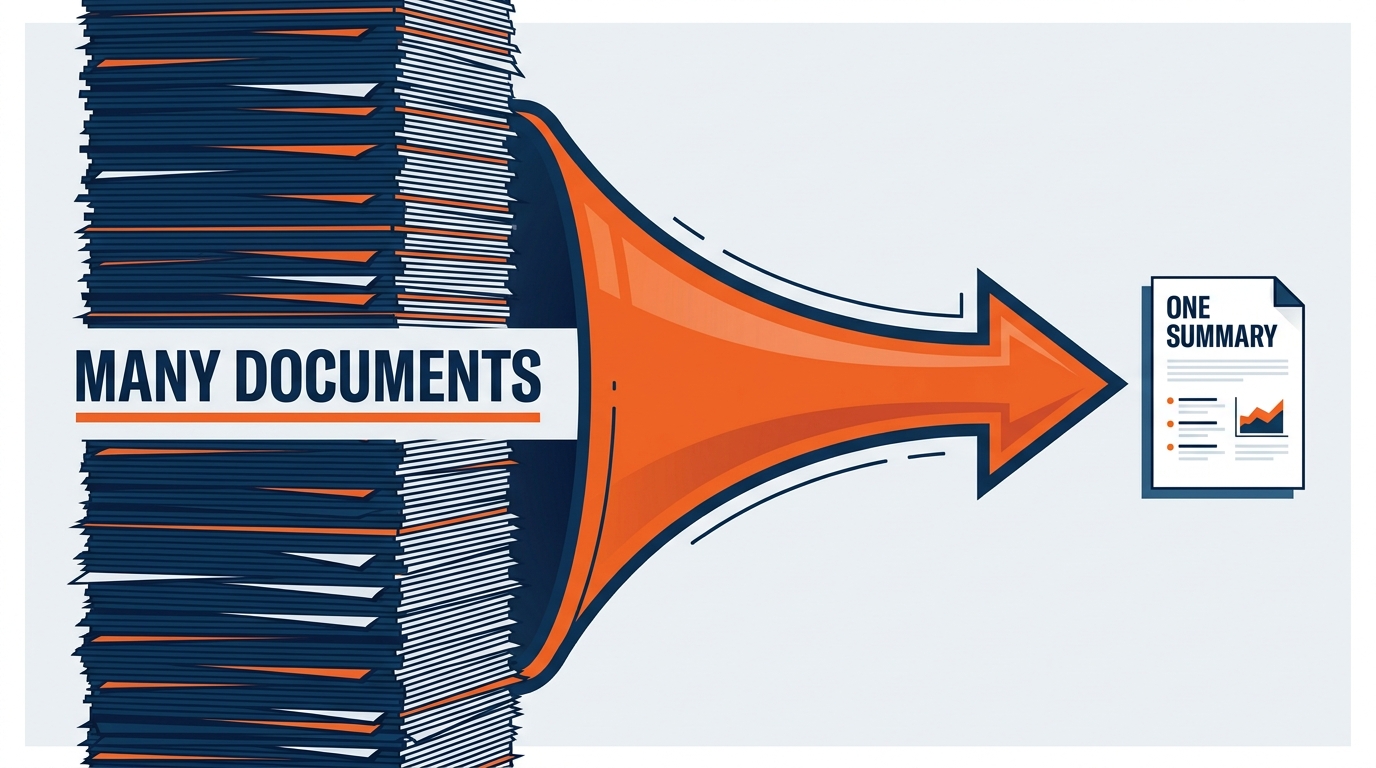
Figure 4:An 80-page venue services agreement and rules package condensed to a one-page operations summary — referencing the actual document with / so Copilot works from the real text, not general knowledge. The extraction takes under a minute. The verification — checking key provisions against the source — takes a professional another 20 minutes. That is still a very good trade.
1.3.1The 80-Page Venue Package Scenario
GES teams review an enormous volume of long, dense documents every year: venue services agreements, exhibitor rules and regulations packages, organizer contracts, local labor agreements, customs and carnet documentation for international shipments, and the service manuals of shows we are inheriting from another contractor. A venue package for a major convention center can run 40, 60, even 80 pages. Reading one thoroughly — extracting move-in access windows, dock and freight door specifications, aisle obstruction rules, hanging sign and rigging restrictions, exclusive service designations, EAC certificate-of-insurance requirements, and penalty provisions — is a 90-minute minimum task for a trained professional.
Multiply that by 4,000+ live experiences a year, across 75+ countries, and you begin to see the scale of the opportunity.
Here is how to do it:
Step 1: If the package is a PDF, convert it to Word (File → Open → select the PDF — Word converts automatically). Save the converted document to SharePoint or OneDrive.
Step 2: Open a new Word document. Invoke Copilot.
Step 3: Reference the package with / and prompt:
“Summarize this venue services and rules package for a GES show operations team preparing a General Service Contractor engagement. Base your summary on / [venue package]. Extract and organize: (1) Venue identification, parties, and licensed dates; (2) Access windows — move-in start, move-out hard-out, after-hours and overtime rules; (3) Dock, freight door, and marshaling yard specifications and any staging restrictions; (4) Exclusive services — what the venue provides exclusively and what GES may provide; (5) Labor and jurisdiction provisions; (6) Rigging, hanging sign, and height restrictions; (7) EAC access requirements, insurance, and credentialing; (8) Aisle, fire lane, and safety obligations; (9) Penalty, cleanup, and damage provisions; (10) Material risk flags — anything unusual or operationally problematic for a general service contractor. Format as a structured one-page operations summary.”
Copilot processes the referenced document and produces the extraction. What you receive is a roadmap: a structured summary that surfaces the material provisions and flags potential risk areas for deeper investigation.
The verification step — non-negotiable: Review every extracted provision against the source document. Check the access windows against the actual licensed dates. Verify the freight door dimensions against the venue’s published specifications. Confirm the exclusive-services list, because getting that wrong is the difference between a profitable show and a change order argument. Copilot’s summarization is highly reliable on well-structured documents, but numerical details — dimensions, dates, weights, rates, percentages — must always be verified against the source. An operations plan built on a misread hard-out time is an error regardless of which tool produced it, and the venue’s next licensee will not be flexible about it.
1.3.2Summarization Beyond Venue Packages
The same workflow applies across the document types GES professionals work with:
Post-show reconciliation inputs saved in SharePoint:
“Using / [post-show labor logs] and / [material handling records], identify trends in labor hours against forecast, drayage volumes against freight targets, and overtime exposure by day. Flag any metrics that fall outside our planning assumptions for a show of this size. Write an operational narrative suitable for inclusion in the post-show reconciliation report.”
Organizer RFP documents saved in OneDrive:
“Using / [organizer RFP], write a one-page summary of the mandatory requirements, the evaluation criteria and their weighting, and the submission deadlines. Identify the three requirements that will most affect our operations plan and pricing.”
Site survey writeups:
“Using / [site survey notes and photo log], summarize the key findings. Identify any venue conditions — dock constraints, column placement, ceiling heights, freight elevator limitations, floor load limits — that would materially affect our move-in sequence or a custom exhibit build.”
Incident and safety documentation:
“Using / [incident report], produce a factual summary suitable for internal safety review: what happened, when, where on the floor, who was involved by role, immediate actions taken, and any corrective actions identified. Neutral, factual register. Do not speculate about cause beyond what the report states.”
Prior meeting notes or call transcripts:
“Using / [meeting notes — organizer pre-con], extract the key points relevant to the show operations manual: organizer commitments, changes to the floor plan, revised deadlines, and open items requiring follow-up with owners.”
Design and brand inputs for a Spiro build:
“Using / [client brand guidelines] and / [Spiro concept deck], write a design brief section describing the intended visual language, material palette, and brand expression for the stand. Note any constraints the guidelines impose on color, logo treatment, or messaging hierarchy.”
In every case, the Copilot output is grounded in your actual document — not in general knowledge — because you referenced it with /. That grounding is what makes summarization useful in a professional context where accuracy matters and the show date does not move.
1.44. Tone Adjustment — Same Content, Three Audiences
This is where Copilot in Word earns its highest praise from experienced live events professionals. The ability to take a single set of facts and express them in the right voice for three different audiences is a skill that separates good communicators from exceptional ones. Copilot accelerates this navigation dramatically — without replacing the professional judgment that makes it reliable.
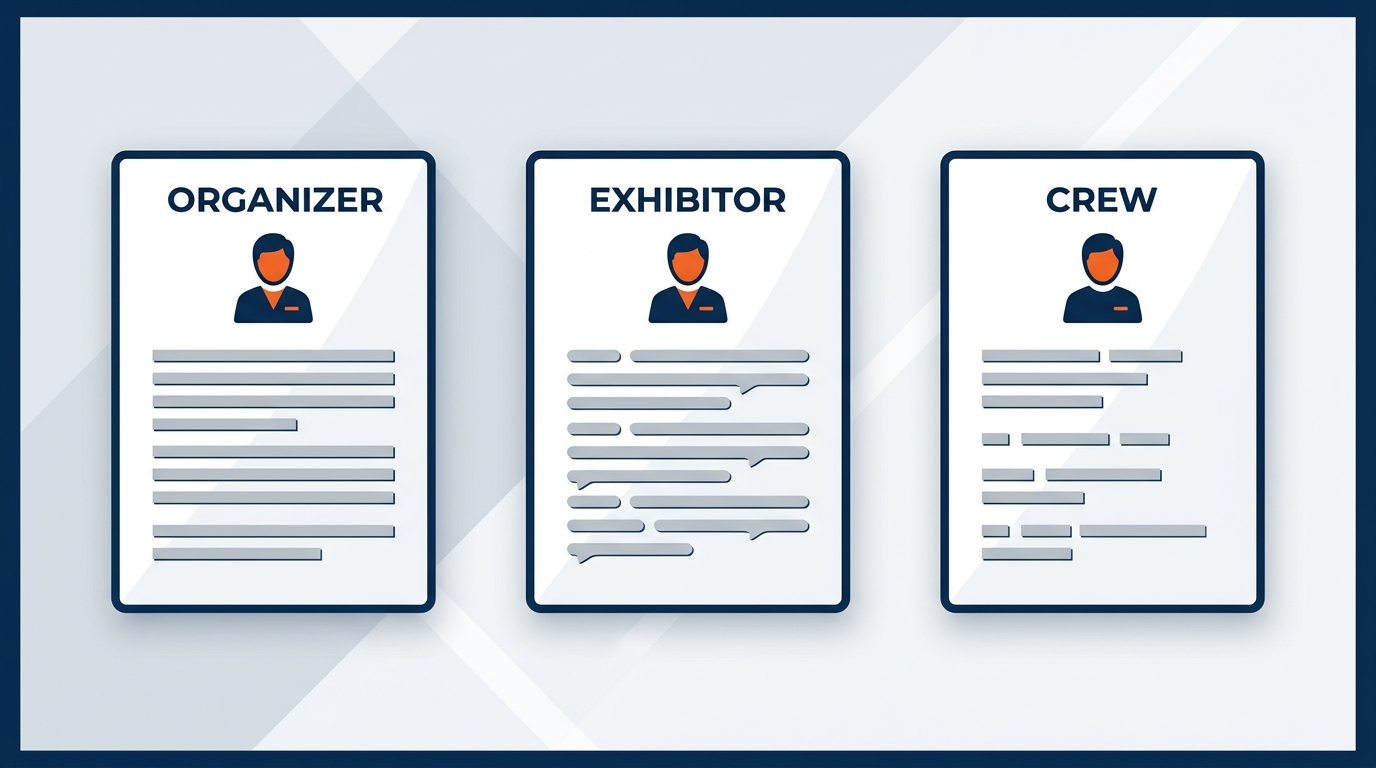
Figure 5:One show, three audiences, three completely different documents. Copilot navigates the structural and tonal differences quickly. The professional’s judgment ensures that each version is not just tonally appropriate but factually accurate and contextually complete.
1.4.1The Three-Audience Challenge
Consider a show GES has just been awarded — a 310,000 net-square-foot industry exposition with 640 exhibiting companies, a four-day move-in, and a 26-hour move-out. The same engagement needs to be described three different ways:
For GES leadership: Leadership wants strategic context. How does this show fit the regional portfolio? What does the margin profile look like? What is the labor and equipment utilization impact across the facility network? Does this account represent the kind of business we should be pursuing more aggressively, particularly now that — since the Truelink Capital acquisition closed on December 31, 2024, giving GES its first independent ownership in 55 years — we control our own investment roadmap? They do not want to read the freight target table. They want to know what it means for the business.
For the show organizer: The organizer wants precision, documentation, and confidence. They want to see the operations plan, the staffing model, the service level commitments, the exhibitor communication schedule, the escalation path, and the reporting cadence. They want to know that when 640 exhibitors call with questions in the two weeks before move-in, somebody at GES has a plan for answering all of them. They want language that survives scrutiny in a pre-con meeting.
For the exhibitor: The exhibitor wants to know what to do and by when. Order deadlines. Freight target dates. Where to ship. What material handling will cost and why. What they can install themselves and where union jurisdiction applies. Who to call on the floor. They want confidence, warmth, and clarity — not contractor jargon that makes a first-time exhibitor feel like they are already behind.
That last audience deserves emphasis. GES serves more than 150,000 exhibitors a year. A meaningful share of them are exhibiting for the first time, in a country that is not their own, reading a service kit in a second language. Every sentence of unnecessary jargon in that document becomes a phone call to the exhibitor services desk during the busiest week of the show.
1.4.2Using Copilot to Navigate Tone
Step 1: Write — or have Copilot draft — a neutral factual summary of the engagement. All the facts, no audience-specific framing. Save it to OneDrive so you can reference it.
Step 2: Open a new document. Prompt Copilot for the first audience version, referencing the factual summary:
“Using / [show fact summary], write a one-paragraph description of this engagement for GES leadership. Emphasize strategic fit with our regional portfolio, the utilization impact across our production facilities, and the key operational risks at a business level. Avoid granular freight and labor detail. Formal but accessible register.”
Step 3: Repeat for each audience, each time referencing the same source document:
“Using / [show fact summary], write an operations narrative for the show organizer’s pre-con package. Include move-in and move-out sequencing, labor plan and jurisdiction handling, material handling and freight target strategy, exhibitor service kit distribution schedule, on-site staffing and escalation structure, and the post-show reporting commitment. Precise, operationally confident register suitable for the organizer’s operations team.”
“Using / [show fact summary], write the welcome section of the exhibitor service kit. Tell exhibitors what GES is doing for this show, the three dates they must not miss, where to ship freight and by when, and who to contact with questions. Warm, plain-spoken, and clear. Assume the reader may be exhibiting for the first time. No industry jargon without a plain-language explanation — if you use terms like drayage or material handling, define them in one short sentence.”
Step 4: Review each version against its intended audience:
The leadership version needs your judgment about what is strategically material right now, not what is generically true
The organizer version needs independent verification of every operational number, date, and service commitment
The exhibitor version needs your knowledge of what actually confuses exhibitors at this venue — Copilot can write clear language but cannot know that the freight elevator at this particular hall has generated three years of complaints
Copilot gets each version to 80–90% of where it needs to be. The final 10–20% is yours — and it is the part that makes the document genuinely excellent rather than merely competent.
1.55. One Company, 24 Facilities, 75+ Countries — Copilot as a Consistency Engine
There is a document problem that is specific to a company of GES’s shape, and it is worth naming directly.
GES produces the same kinds of documents over and over, in enormous volume, across an enormous footprint. Exhibitor service kits. Show operations manuals. Scopes of work. Site survey writeups. Labor and freight estimates. Post-show reconciliation reports. Incident reports. Standard operating procedures. Across 4,000+ live experiences a year, 24 global production and warehouse facilities, and 75+ countries, thousands of versions of these documents exist — written by different people, in different markets, at different times, in different levels of quality.
That is not a criticism of anyone. It is the natural consequence of a business that has been executing live events since 1939 and has grown from a small Kansas City sign and exhibit shop into a global operation with roughly 2,600 employees. Documents accumulate the way sediment accumulates.
The problem it creates is real, though. When an exhibitor works a show with GES in Las Vegas and then works another one with GES in London, they should recognize us. When an organizer moves a show from Chicago to Dubai, the operations manual should feel like it came from the same company — because it did. And when a new operations manager joins in Toronto, the SOP they are handed should not be a document that only makes sense to the person who wrote it four years ago.
1.5.1What Copilot Actually Does Here
Copilot in Word is unusually good at this problem, for a simple reason: with the slash reference, you can point it at the version of a document you consider right and ask it to bring another version into line — without losing what is legitimately local.
Pattern 1 — Standardize structure, preserve local content.
“Using / [reference exhibitor service kit — approved template] as the structural model and / [current service kit for this show] as the content source, rewrite the current service kit so it follows the approved structure, section order, and heading language exactly. Preserve every show-specific and venue-specific detail from the content source: deadlines, addresses, rates, venue restrictions, and local labor jurisdiction notes. Do not standardize anything that is genuinely local. Where the content source is missing a section that the approved structure requires, insert the heading and mark it clearly as [TO BE COMPLETED] rather than inventing content.”
That last instruction matters more than it looks. Telling Copilot to flag gaps instead of filling them is the difference between a consistency tool and a fabrication engine.
Pattern 2 — Harmonize terminology across markets.
Terminology drift is a genuine operational risk in this industry. Booth and stand. Drayage and material handling. Show floor, exhibit hall, venue. Different markets use different words for the same thing, and some of that is correct and should stay. But within a single document set it should be deliberate.
“Review / [document] and produce a terminology consistency report: list every instance where the same operational concept is described with different terms, and every instance where an industry term is used without a plain-language definition on first use. Do not rewrite the document — just produce the list, with the section reference for each instance.”
Pattern 3 — Bring an inherited document up to GES standard.
When GES takes over a show from another contractor, the inherited service manual is written in someone else’s voice, structure, and assumptions.
“Using / [inherited show service manual] as the content source, rewrite it to match the structure and register of / [GES approved operations manual template]. Retain all factual show and venue content from the inherited manual. Flag with [VERIFY] any statement about services, rates, or responsibilities that would need to be confirmed against GES’s actual scope for this show rather than carried over from the previous contractor.”
Pattern 4 — Localize without fragmenting.
“Using / [global SOP], produce a market-adapted version for our [market] facility. Keep every requirement, numbered section, and defined term from the global SOP unchanged. Add a clearly labeled ‘Local Application’ subsection under each affected section describing how the requirement is executed given local venue practice, labor jurisdiction, and customs handling. Do not delete or soften any global requirement. Mark clearly where local practice creates a conflict that needs escalation rather than resolving it yourself.”
1.5.2The Discipline Behind the Capability
None of these patterns work without one prerequisite: somebody has to decide what “right” looks like, and that document has to live in SharePoint where Copilot can reach it.
This is the unglamorous part. Copilot cannot standardize toward a template that only exists in one person’s head or on one person’s laptop. Building and maintaining a small, well-governed library of approved reference documents — the approved service kit structure, the approved operations manual template, the approved SOP format, the approved post-show report shape — is what converts Copilot from a drafting assistant into a genuine consistency engine across the network.
1.66. Document Restructuring — Turning Bullets into Narrative
One of the most common writing tasks in a professional’s queue is the reformed bullet list — the email, the site survey note, the rushed floor update written in bullets because that was the fastest way to capture the content, but that now needs to become a formal report, a client memo, or a structured briefing.
Copilot in Word handles this conversion with impressive consistency.
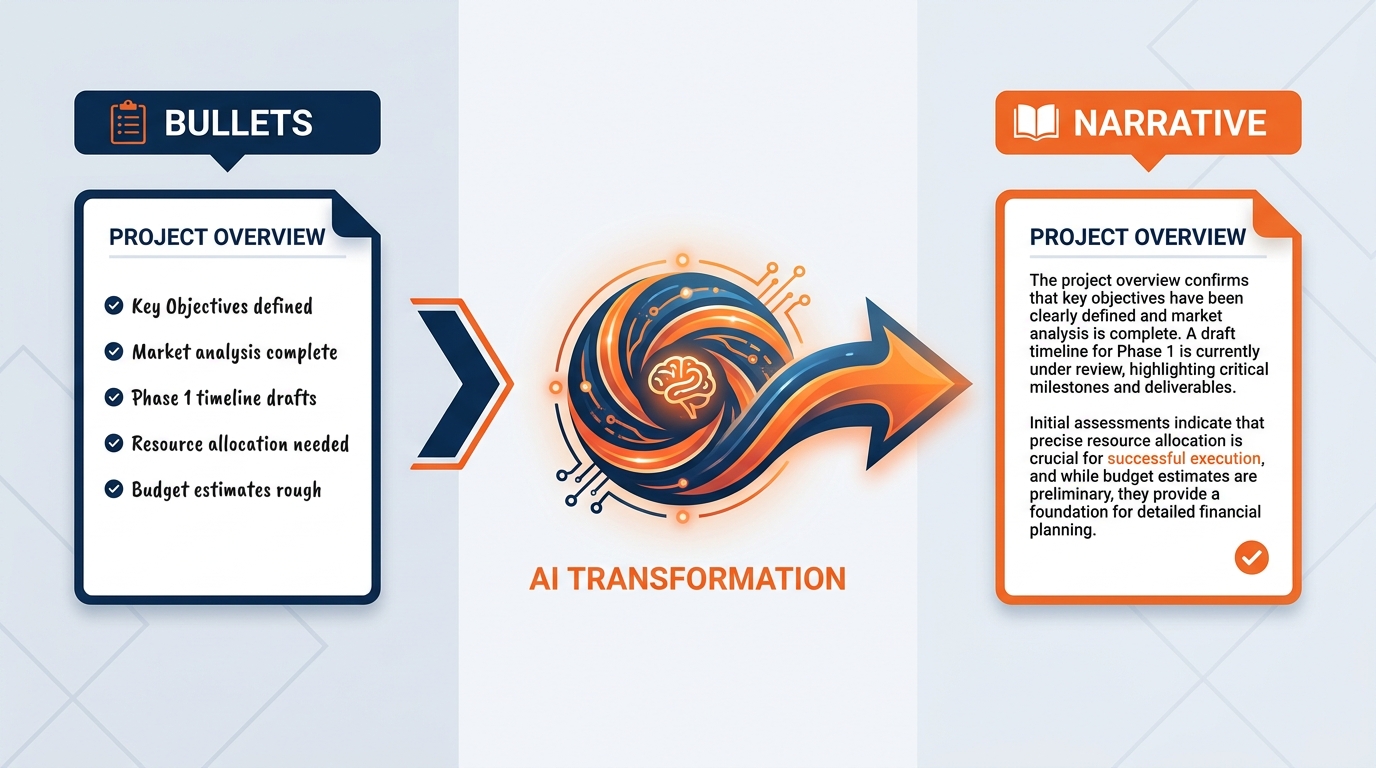
Figure 6:Bullets capture thinking. Narrative communicates it. Copilot converts the capture format into the communication format — preserving all the content while adding the structure, transitions, and professional flow that formal documents require.
1.6.1Why This Matters in Live Events
Live events professionals are expert bullet-point writers. When you are standing on a show floor with a radio in one hand and a phone in the other, bullets are the only realistic capture format. They are fast, scannable, and great for internal handoffs between the pre-show team and the on-site crew.
But external documents — client proposals, QBR narratives, post-show reconciliation reports, organizer-facing operations plans, incident documentation — require narrative flow. They require transitions, logical connectors, and a prose structure that guides the reader from context through analysis to conclusion.
The gap between “what the operations manager knows” and “what the document says” is often a formatting gap, not an information gap. Copilot closes that gap in under a minute — and the Rewrite capability lets you refine the result with follow-up prompts until it lands exactly right.
This is also, bluntly, a quality-of-life improvement. The post-show report has historically been written by exhausted people in airports. Anything that shortens the distance between a bulleted punch list and a finished, professional document is time returned to people who have just worked a fourteen-hour move-out.
1.6.2The Conversion Workflow
Step 1: Copy your bullet-point content. If it is from an email already in Outlook or SharePoint, save it to OneDrive and reference it with /.
Step 2: Invoke Copilot in a new Word document.
Step 3: Prompt:
“Convert the following bullet points into a formal, client-facing memo from GES with three clearly labeled sections: (1) Context — a brief paragraph establishing the background and purpose of this communication; (2) Recommendation — a clear, direct statement of what GES is recommending and why; (3) Next Steps — a numbered list of specific actions with responsible parties and target dates. Professional tone suitable for sending directly to a show organizer’s operations director. Bullets: [paste bullets]”
Step 4: Review the output. Use a follow-up refinement prompt if needed: “Make the recommendation section more direct” or “The context section is too long — condense to two sentences.”
Step 5: Apply the verification checklist. Then read the final version from the organizer’s perspective: does it answer their most important question, which is almost always “What do you need from me and when?”
1.6.3Rewrite — The Related Capability
The Rewrite capability in Copilot in Word is the specialized version of this for existing text. Select any passage in a document you have already written, invoke Copilot, and choose Rewrite. Copilot offers alternative versions of the selected text — and you can keep any one of them, ask it to try again, or combine elements from multiple suggestions.
Rewrite is the mode for:
Making dense contractual or venue-regulation language readable for a first-time exhibitor
Sharpening an executive summary in an RFP response that is running too long
Tightening a post-show narrative that has become repetitive
Converting passive constructions to active voice throughout a procedure — critical in an SOP, where “the freight will be staged” is meaningfully worse than “the receiving lead stages the freight”
Adjusting a single paragraph’s register without rewriting the whole document
The important thing to understand about Rewrite is that it revises within the boundaries of the meaning you have already established. It is principled editing, not creative reinvention. The facts do not change. The structure does not change. The prose quality improves.
1.6.4The Restructuring Prompt Library
These prompts cover the most common restructuring tasks across GES:
Pre-con notes → formal minutes:
“Convert these pre-con meeting notes into formal meeting minutes with sections for: Attendees and Roles, Key Decisions, Changes to the Operations Plan, Action Items (with owner and due date), and Next Meeting date. Formal register suitable for the show file and for distribution to the organizer.”
Internal show update → executive briefing:
“Convert this internal show update into a one-page executive briefing for GES leadership. Lead with the key decision or finding, follow with supporting context, end with recommended action. Two paragraphs maximum. Executive audience.”
Punch list → client-facing status report:
“Convert this install punch list into a client-facing status report. Group items by area of the stand, state current status plainly, and give a target resolution time for each open item. Confident and factual — acknowledge open items directly rather than minimizing them.”
Data points → narrative analysis:
“I have these labor hour, drayage weight, and cost figures from the last three editions of this show. Write a coherent three-paragraph operational narrative suitable for a post-show reconciliation report — covering trend, interpretation, and implications for next year’s planning assumptions.”
Venue rules → exhibitor-facing summary:
“Convert this venue rules and regulations extract into a clear, readable summary for exhibitors with no trade show experience. Plain language, no jargon, highlight the three restrictions most likely to cause a problem on move-in day.”
Design notes → design brief:
“Convert these client meeting notes into a formal design brief for the Spiro team. Sections: Client and Brand Context, Objectives, Experience Requirements, Physical and Technical Constraints, Budget Parameters, Deliverables and Milestones. Note explicitly anything the client stated as a hard requirement versus a preference.”
1.77. Multi-File Grounding — Referencing Up to 20 Sources in a Single Draft
One of the most powerful and least-understood capabilities of Copilot in Word is the ability to reference multiple source files simultaneously — up to 20 items — in a single draft prompt. This multi-file grounding is what separates Copilot from a general-purpose writing assistant and makes it genuinely useful for complex show documents.
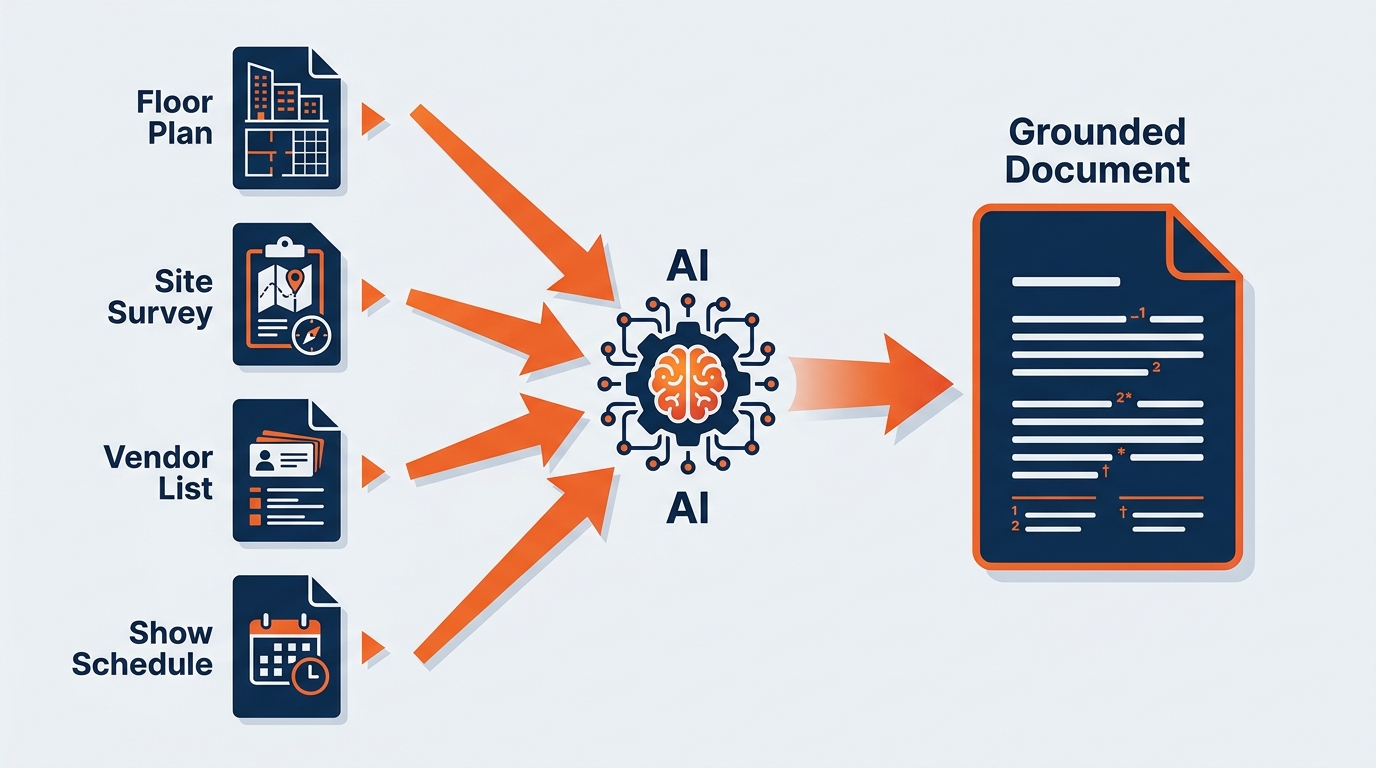
Figure 7:Up to 20 source files referenced in a single Copilot prompt — site survey notes, venue rules, prior post-show reports, labor forecasts, organizer contracts, pre-con notes — all grounding the draft in actual documents rather than general knowledge. This is the capability that makes show operations manuals, RFP responses, and multi-source client briefs genuinely efficient to produce.
1.7.1Why Multi-File Grounding Matters
Consider what a complete show operations manual actually requires:
The site survey notes and photo log from the venue walkthrough
The venue’s rules and regulations package
The organizer’s contract and any addenda
The prior edition’s post-show reconciliation report
The labor forecast and jurisdiction summary for that market
The freight plan, advance warehouse schedule, and marshaling yard procedures
The floor plan and booth count breakdown
Previously, an operations manager would open each of these documents, read them, take notes, and then write the manual from those notes and their memory of what each document contained. The process was accurate — experienced show managers are extremely good at this — but it was slow, and the quality depended heavily on one person’s ability to hold seven complex documents in mind simultaneously, usually while also running a live show somewhere else.
With multi-file grounding, you reference all relevant documents in your prompt. Copilot synthesizes across them in real time, producing a draft that is grounded in all of the source material simultaneously.
1.7.2The Workflow in Practice
Setup: Ensure all relevant documents are saved in SharePoint or OneDrive. Create a show folder in SharePoint for every engagement — this discipline of organizing show documents in SharePoint pays dividends not just for Copilot but for team collaboration, for the handoff between the pre-show team and the on-site crew, and for whoever inherits this show in three years when nobody currently on it is still on it.
Prompting: When you are ready to draft the operations manual, invoke Copilot and use / to reference each source:
“Write a comprehensive show operations manual for the Meridian Manufacturing Expo, where GES is the General Service Contractor. Use the following sources: / [site survey notes], / [venue rules package], / [organizer contract], / [prior-year post-show report], / [labor forecast], / [freight and warehouse plan]. Structure the manual with: Show Overview and Key Dates, Team and Escalation Contacts, Venue Access and Dock Assignments, Move-In Sequence by Day, Material Handling and Freight Targets, Advance Warehouse and Marshaling Yard Procedures, Labor Plan and Union Jurisdiction, Aisle Carpet and Common Area Installation, Exhibitor Services Desk Operations, Safety Protocols and Incident Reporting, Move-Out Sequence and Hard-Out Plan, Post-Show Reconciliation Requirements. Operational, directive register — written to be executed by crew leads across three shifts.”
Copilot produces a draft that draws from all six referenced documents. The venue access section will reflect the actual rules package. The freight target schedule will reflect the actual warehouse plan. The move-out sequence will reflect the actual hard-out in the organizer contract. The risk notes will reflect what actually went wrong last year.
Your verification work: Compare each section against its source document. Verify every date, dimension, and dock assignment against the actual venue package. Confirm every labor and jurisdiction statement against the actual market agreement. Check that the freight targets are internally consistent with the move-in sequence — a common and expensive class of error that a document can carry all the way to the floor.
The multi-file grounding reduces the likelihood of Copilot inventing details, because it is working from your actual documents rather than its general training. But it does not eliminate the need for verification — it makes verification faster and more targeted, because you know exactly which source document to check for each section.
1.88. When the Document Is Bigger Than One Session — Copilot Cowork
Everything so far in this chapter happens inside Word, in a session where you are present, steering each prompt. That is the right model for most document work. But there is a category of GES document work where it is not the right model — and that is where Copilot Cowork comes in.
Cowork became generally available worldwide on June 16, 2026, after being the fastest-growing feature in the history of Microsoft’s Frontier early-access program. It is not a bigger version of Copilot in Word. It is a different way of working.
1.8.1The Distinction That Matters
| Copilot in Word | Copilot Cowork | |
|---|---|---|
| What you give it | A prompt, in a document you have open | An outcome, described once |
| Where the work happens | In your Word session, with you steering | In a secure cloud environment, across apps |
| What you get back | A draft in the document in front of you | Finished files, saved where you asked, plus the emails and messages that go with them |
| Your role | Author with an assistant | Manager reviewing delivered work |
| If you close your laptop | Work stops | Work keeps running |
That last row is not a footnote for this company. It is the entire point. GES people are on planes, in venues, on show floors, and in timezones that do not overlap with their own team’s. A show operations manager standing in a hall in Las Vegas can assign a document task and review the finished result between meetings. The work does not require her to be sitting still at a desk, which is a state that many GES roles genuinely never enter.
1.8.2What Cowork Can Do With Documents
Per Microsoft’s documentation, Cowork can:
Create Word documents, Excel workbooks, PowerPoint decks, and PDFs from scratch — not draft content into a file you opened, but produce the file itself
Edit and refine existing documents shared into the session
Browse OneDrive and SharePoint to find and select the files it needs, rather than requiring you to attach every source up front
Create SharePoint and OneDrive folders and reorganize existing files into them
Run on a schedule — recurring document tasks that happen without anyone remembering to trigger them
Run on an event — kicked off when an email arrives or a Teams message posts
Everything runs inside your Microsoft 365 trust boundary, with your permissions, seeing only what you can see. Actions are auditable. Cowork pauses and asks before sensitive actions — sending an email, posting in Teams — and you can approve once, approve for the session, approve all, or cancel.
1.8.3A GES Example: The Service Kit Refresh Across a Show Season
Here is the kind of task that is painful in Word and natural in Cowork.
It is the start of a season. Rates have changed. Two deadline policies have changed. A new sustainability section needs to be added to every kit. And there are nineteen shows in the regional portfolio, each with its own service kit sitting in its own SharePoint show folder, each with its own venue-specific content that must not be touched.
In Word, that is nineteen separate sessions of open-file, prompt, review, save. It is a full week of work that nobody wants and everybody postpones.
In Cowork, it is one assignment. And the way you write that assignment follows Microsoft’s five-part structure:
Outcome: Updated exhibitor service kits for all shows in the Q3 regional portfolio, reflecting the new rate card, the two revised deadline policies, and the new sustainability section.
Inputs: The approved service kit template in / [Operations SharePoint — Templates], the Q3 rate card, the deadline policy memo dated [date], the sustainability section copy block, and the existing service kit for each show in the Q3 show folders under / [Regional Operations SharePoint].
Definition of done: A revised service kit saved as a new version in each show’s SharePoint folder, named to the existing convention with the revision date appended. Plus one summary document listing every show updated, every change applied, and every item flagged for human follow-up.
Constraints: Do not modify any venue-specific, jurisdiction-specific, or show-specific content — deadlines tied to a specific venue, local labor notes, addresses, or drayage instructions. Apply the new rate card only where the old rate card values appear exactly. Where a kit’s structure differs from the approved template in a way that cannot be resolved without a judgment call, do not resolve it — flag it in the summary document. Do not send anything to exhibitors or organizers.
Approval scope: Ask before creating or overwriting any file. Do not send any email or post any Teams message without explicit approval.
Cowork works through it — browsing the SharePoint folders, opening each kit, applying the changes, saving new versions, and building the summary. You check in at milestones. When it is done, you have nineteen updated kits and, more valuable, a single list of the places where a human decision is genuinely required.
The word finished is doing real work in that sentence. Cowork’s stated purpose is to return completed artifacts, not recommendations — a document saved where you asked, not a suggestion about how you might write it.
1.8.4The Skill Shift
This is worth stating plainly because it is a genuine change in professional behavior.
The skill of Copilot in Word is describing a task well. The skill of Cowork is describing an outcome well and then reviewing like a manager. If you have ever handed a piece of work to a capable new team member, you already know how to do this: be specific about what done looks like, be explicit about what not to touch, name the deliverable, and then actually review what comes back instead of assuming it is fine.
The verification discipline in the next section does not get weaker with Cowork. It gets more important — because Cowork produces more finished work, faster, and finished work is exactly the kind that people are tempted to send without reading.
1.99. The Verification Discipline — Every Paragraph Gets Human Eyes
We have covered a set of distinct capabilities. Now we come to the principle that makes all of them safe to use — and one that Microsoft has built directly into the product’s design philosophy.
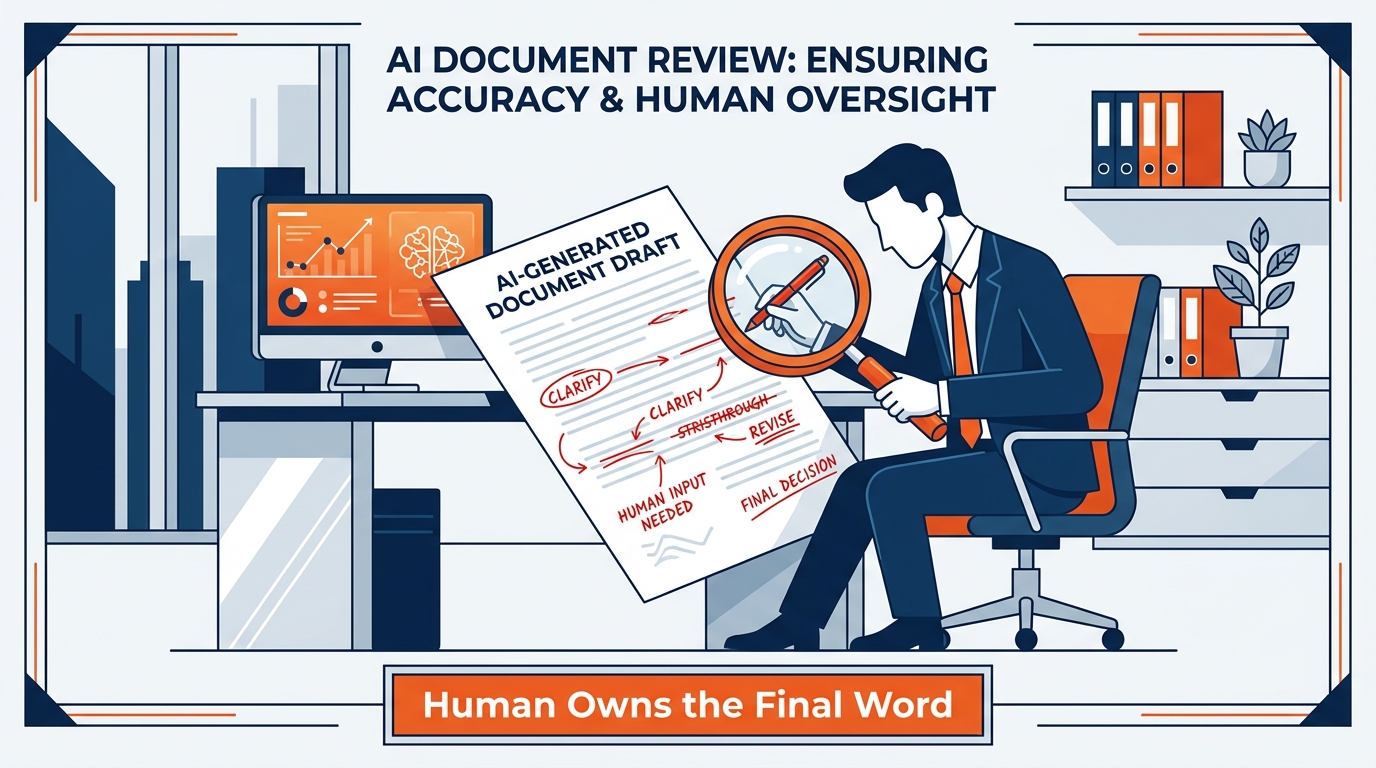
Figure 8:The verification discipline is the professional standard that makes AI-assisted work trustworthy. Microsoft explicitly calls for it in their own documentation. Every Copilot draft at GES gets human eyes before it reaches an organizer, an exhibitor, or a crew — not as bureaucracy, but as professional responsibility.
1.9.1Microsoft’s Own Words
It is worth pausing on something important: Microsoft itself has built the verification requirement into the product’s design documentation. Their guidance on Copilot in Word states explicitly: “Remember that Copilot generates a draft. You’ll need to verify and modify details to make sure it’s accurate and fits your tone and style.”
This is not a legal disclaimer buried in fine print. It is the core message of how Microsoft explains the product to users. The AI generates the draft. The human verifies and owns the final document. This is the intended workflow — not a workaround for AI limitations, but the correct division of labor between human expertise and AI assistance.
At GES, the stakes make this more than a best practice. A wrong document does not get quietly corrected in a follow-up. It gets executed. By a crew. At a venue. On a date that cannot move.
1.9.2Why Verification Is Non-Negotiable
Fabrication is real. Copilot can generate plausible-sounding freight rates, venue restrictions, deadline dates, or jurisdiction rules that are simply inaccurate. This is more likely when prompts are vague, when source documents are complex, or when Copilot is working from general knowledge rather than grounded source material. A service kit with a wrong ship-to address or a wrong advance warehouse deadline is not a productivity win. It is 640 exhibitors’ freight arriving in the wrong place, and a show team spending move-in solving a problem that a document created.
Multi-file grounding reduces fabrication but does not eliminate it. When you reference documents with /, Copilot works from real source material. This significantly improves accuracy for factual details. But Copilot can still misread a table, attach a figure to the wrong hall, or mischaracterize a contractual provision. Verification remains essential regardless of how well-grounded the prompt was.
Nuance is yours to supply. Copilot cannot know the relationship history between GES and this specific organizer. It cannot know that the venue’s freight elevator has been unreliable for two years. It cannot know that this market’s labor steward has a standing position on a specific jurisdiction question, or that this client’s CMO reacts badly to the word “activation.” Professional judgment supplies the context that makes documents reliable — not just grammatically correct.
The sender is responsible. Documents carry the implicit or explicit endorsement of the professional who sends them. The account manager who submits a proposal owns that document — whether Copilot wrote the first draft or not. The operations manager who publishes a show operations manual is accountable for every instruction in it. AI assists the process. It does not transfer the responsibility.
1.9.3The Five-Point Verification Checklist
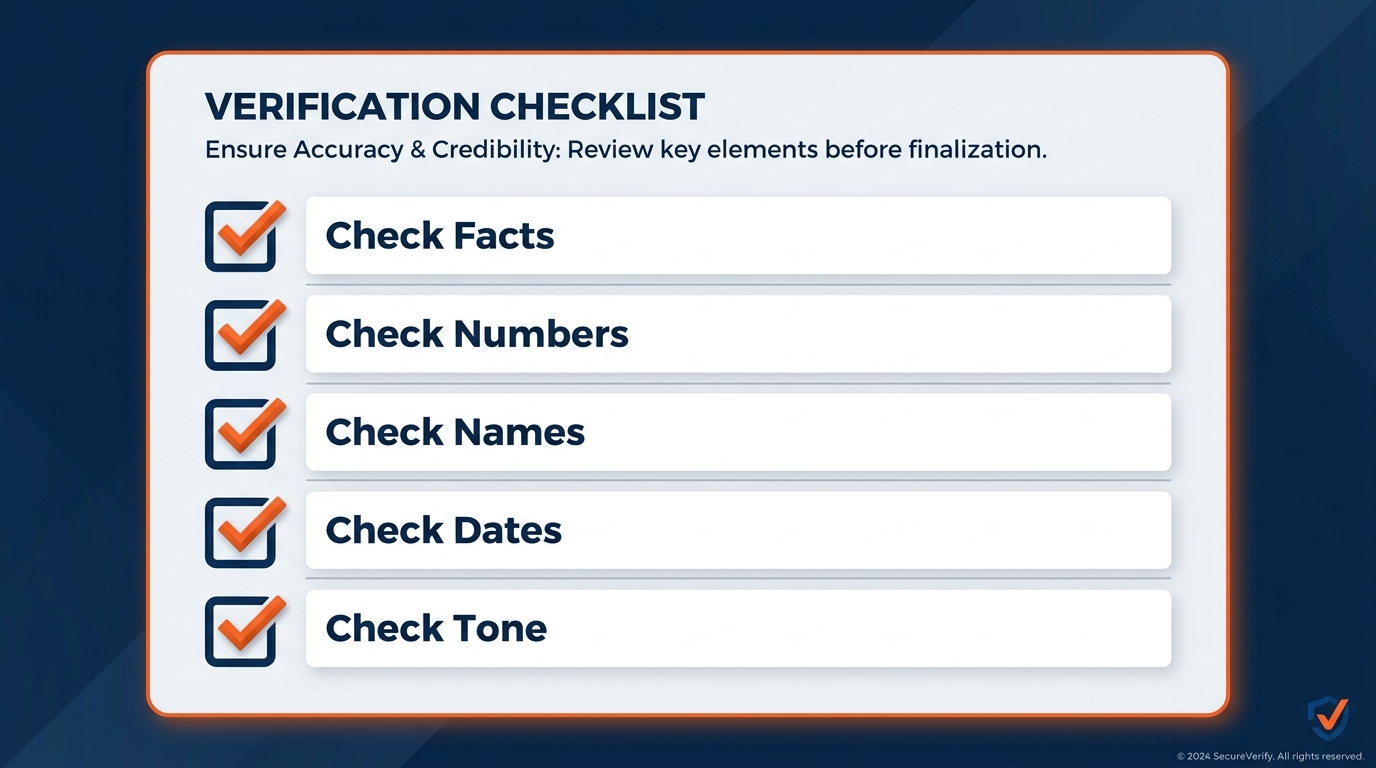
Figure 9:Five items. Every document. Every time. Post this at your desk, tape it inside the show binder, or save it in your OneDrive. The professional who applies this consistently is not slower than one who skips it — they are protected.
Apply this checklist to every Copilot-drafted document before it leaves your hands:
1. Every fact verified against the source. Specific facts — dates, addresses, dock assignments, hall numbers, square footage, exhibitor counts, contact names — have been checked against the actual source document. No fact is assumed correct because it appeared in the Copilot draft.
2. Every number independently confirmed. Rates, weights, dimensions, deadlines, labor hours, freight targets, and cost calculations have been verified against the actual source. Numbers are the most likely element to be misread or miscalculated in a Copilot draft. In this business they are also the most consequential. Verify them every time.
3. Every interpretation reviewed. Where Copilot has added analytical language — “move-out risk is manageable given the available dock capacity,” “this floor plan supports the projected freight volume” — you have confirmed that the interpretation is accurate for this specific show and venue, not just generically reasonable.
4. Venue, jurisdiction, and safety language validated. Where the document references venue rules, union jurisdiction, customs and carnet requirements, insurance and credentialing, or safety obligations, a qualified professional has confirmed the reference is accurate and current. This is the highest-risk category in GES documents, and it is the category where a generally-plausible answer is most dangerous, because it reads exactly like a correct one.
5. The document is yours. Before sending, publishing, or filing: read the document from beginning to end as if you wrote every word. If something does not sound right, does not read right, or would not survive a question from a crew lead at 6 a.m. — revise it. The document leaves your desk under your professional reputation. It should represent your judgment, not just Copilot’s first attempt.
1.9.4Building the Habit
The verification discipline is a habit, and like all habits, it must be built deliberately before it becomes automatic.
For your first 30 days of using Copilot in Word, commit to applying the five-point checklist explicitly — checking each item consciously, not just scanning through the document once. This will feel slower than you expect at first. That is normal. You are building the mental model for what kinds of outputs Copilot produces reliably and where your verification attention needs to concentrate.
After 30 days of consistent verification, you will have developed professional intuition for Copilot’s patterns: document structure is almost always right; prose quality is generally high; tone calibrations are usually close; specific numbers, dates, venue rules, and jurisdiction statements require careful independent confirmation every single time.
That intuition is what makes you an effective Copilot user. Not blind trust, and not blanket skepticism — calibrated professional judgment. The same judgment you already apply to a floor plan, a labor estimate, or a freight manifest that someone else prepared.
1.1010. Putting It All Together — The GES Copilot in Word Workflow
Let’s put the entire chapter into a practical workflow that a GES professional can begin using on Monday morning.
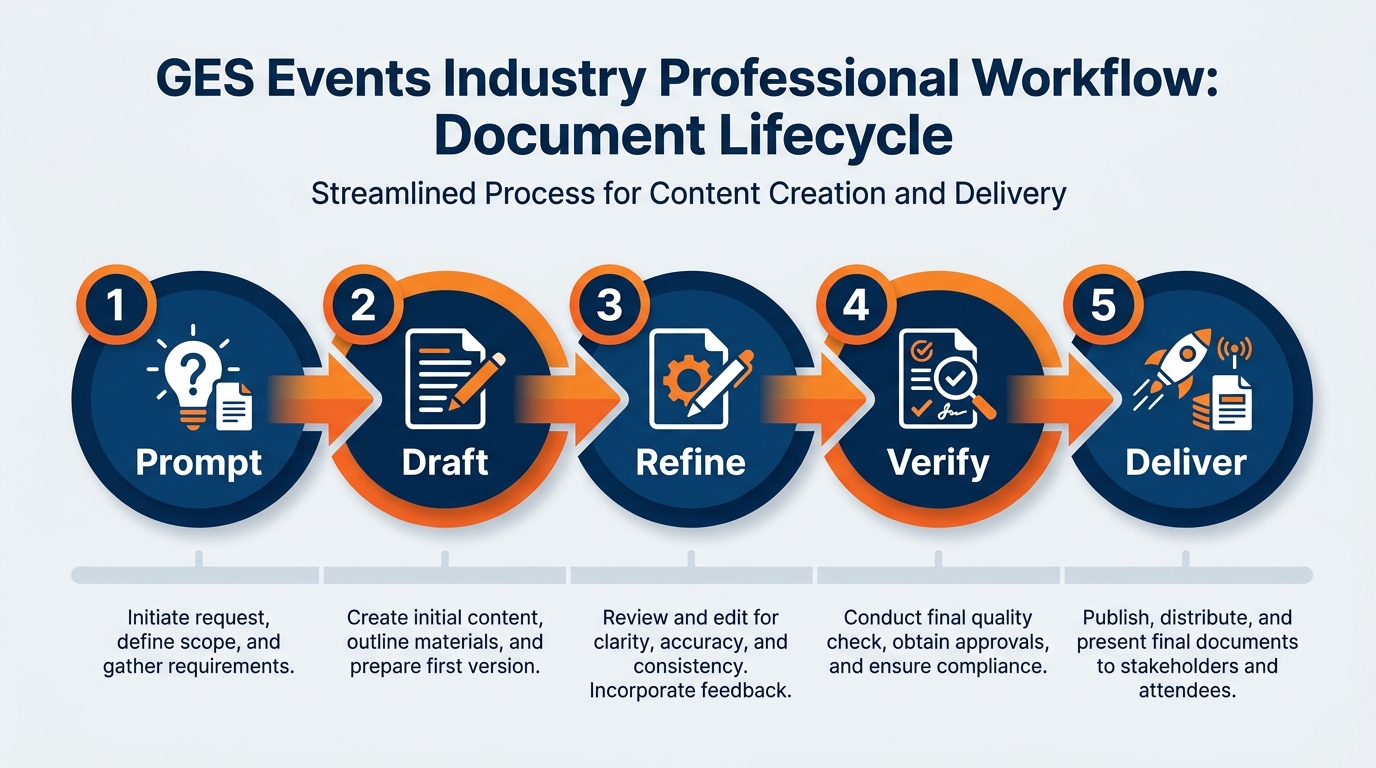
Figure 10:The complete Copilot in Word workflow: source documents flow in through slash references, Copilot produces grounded drafts, and the verification discipline ensures that every document reaching its audience is accurate, professional, and owned by the person who sends it.
1.10.1The Monday Morning Protocol
Before you start: Make sure the relevant source documents are saved to SharePoint or OneDrive. If you are working from a show folder, confirm it is organized and current. Documents that live only on your local drive — or on a thumb drive in a show binder — cannot be referenced by Copilot.
Choosing the right capability:
Starting from nothing with only a set of facts in your head → Start a Draft, with a rich five-element prompt
Starting from site survey notes, venue packages, prior show documents already in SharePoint → Base on Existing File, referencing up to 20 items with
/Your document is underway and needs a new section or an expanded section → Add to Existing Document
You have a paragraph that isn’t working → Rewrite the selected text with a follow-up prompt
The job spans many files, many folders, or many shows — and you would rather review finished work than steer every step → Cowork, with an outcome-shaped assignment
The refinement loop: After Copilot produces its first output, use follow-up prompts rather than editing manually where possible. “Make the recommendation section more direct” or “The move-in sequence section is too long — condense to a table plus two paragraphs” or “Adjust the tone to be warmer — this is going to a long-standing organizer” — each of these gives Copilot a chance to improve the draft before you invest editing time.
The verification gate: Before any document moves to its next stage — organizer submission, exhibitor distribution, crew briefing, client delivery, or the show file — apply the five-point checklist. Every time.
The time math: A show operations manual that previously required a full day now requires 90 minutes to two hours: ten minutes of prompt preparation, two minutes of generation, and the balance in verification, operational enrichment, and refinement. The time is not eliminated — it is reallocated from scaffolding to judgment. That reallocation is the real productivity gain, and across 4,000+ events a year it compounds into something significant.
1.11📋 Try This — Bullets to Formal Memo in 15 Minutes
This is the hands-on exercise for this session. It is based on a realistic GES scenario and can be completed with any set of bullet-point notes from your current workflow.
1.12Chapter Summary
The blank page is no longer the enemy. Copilot in Word provides three verified, production-ready capabilities: Start a Draft when you are beginning from nothing; Base on Existing File when you have source material already in SharePoint or OneDrive, referenceable with / for up to 20 items; and Add to Existing Document when your draft is underway and needs expansion. The Rewrite capability handles the revision side — transforming selected passages, adjusting tone, and tightening prose through a simple refinement prompt.
Multi-file grounding — referencing multiple documents simultaneously in a single prompt — is the capability that makes complex show documents efficient to produce. A show operations manual that previously required reading seven source documents independently and synthesizing from notes can now be drafted from those seven documents referenced directly, with Copilot synthesizing across all of them in real time.
Summarization at scale gives operations and exhibitor services professionals a 90-minute task back: an 80-page venue package condensed to a structured one-page operations summary, with every material provision extracted and organized for review. The professional’s work shifts from reading to verification — which is a better use of trained expertise.
Tone adjustment enables the same facts to reach GES leadership, a show organizer, and a first-time exhibitor in the language each audience needs. The professional’s judgment ensures that the register is not just structurally correct but contextually accurate — that the organizer version reflects what this organizer cares about, not what organizers generically care about.
Consistency across the network is the capability that is uniquely valuable at GES’s shape and scale. With 24 production and warehouse facilities, 75+ countries, and 4,000+ events a year, the same document types are produced continuously by different people in different markets. Copilot, pointed at a well-governed set of approved reference documents, standardizes structure and terminology while explicitly preserving what is legitimately local — venue rules, union jurisdiction, customs handling, market practice.
Copilot Cowork extends all of it beyond a single Word session. Cowork creates documents from scratch, edits existing files, browses OneDrive and SharePoint on its own, and returns finished artifacts saved where you asked — while your laptop is closed and you are standing on a show floor. The skill shifts from describing a task to describing an outcome and then reviewing like a manager.
And underlying all of it: the verification discipline. Microsoft itself states in their documentation: “You’ll need to verify and modify details to make sure it’s accurate and fits your tone and style.” At GES, the stakes make this more than a guideline. The five-point checklist — facts, numbers, interpretations, venue and jurisdiction language, and end-to-end ownership — is the professional standard that makes AI-assisted work trustworthy, defensible, and excellent.
The AI generates the draft. The professional generates the judgment. That division of labor is the design. And it is the right one.
Start a Draft (Copilot in Word) The Copilot in Word capability that generates a full structured document draft from a user prompt in a new or empty document — addressing the blank-page starting challenge for professional documents.
Base on Existing File (Copilot in Word)
The Copilot in Word capability that grounds a new document draft in specific source files — Word documents, emails, meeting transcripts, and other content saved in SharePoint or OneDrive — referenced using the / slash command.
Add to Existing Document (Copilot in Word) The Copilot in Word capability that generates new content within an already-started document — adding sections, expanding existing sections, or producing content that matches the register and structure of what is already written.
Rewrite (Copilot in Word) The Copilot in Word capability that generates alternative versions of selected text — enabling tone adjustment, register improvement, and prose refinement through iterative follow-up prompts.
Slash Reference
The / mechanism in Copilot prompts that opens a file picker, allowing users to reference up to 20 SharePoint or OneDrive files as grounding sources for a Copilot-generated draft.
Multi-File Grounding
The practice of referencing multiple source documents in a single Copilot prompt using / — producing a draft that synthesizes across all referenced sources simultaneously rather than relying on general AI knowledge.
Copilot Cowork The Microsoft 365 Copilot capability, generally available June 16, 2026, that executes long-running, multi-step work across apps in a secure cloud environment and returns finished artifacts — including Word documents created from scratch, edits to existing files, and reorganized SharePoint and OneDrive folders — with tasks continuing to run while the user’s device is off.
Verification Discipline The professional practice of applying a five-point checklist — facts, numbers, interpretations, venue and jurisdiction language, and end-to-end ownership — to every AI-generated document before it leaves the professional’s hands, as explicitly recommended by Microsoft’s own product documentation.
Hallucination The AI phenomenon in which a model generates factually incorrect information with apparent confidence — including inaccurate rates, mischaracterized venue rules, or fabricated deadlines — requiring human verification of all factual outputs regardless of how grounded the prompt was.
Refinement Loop The iterative process of improving a Copilot draft through follow-up prompts (such as “Make it more concise” or “Adjust the tone for a first-time exhibitor”) before committing to manual editing — a more efficient path to a high-quality draft than editing the first output directly.
Register The level and style of language appropriate to a specific professional context or audience — from formal contractual language in a scope of work, to operational and directive language in a show operations manual, to warm plain-spoken language in an exhibitor service kit.
Exhibitor Service Kit The document package GES provides to every exhibiting company for a show — containing order forms, rates, deadlines, shipping and advance warehouse instructions, venue rules, and labor jurisdiction guidance. One of the highest-volume and most consistency-sensitive document types GES produces.
Show Operations Manual The internal operational document governing a show’s execution — covering move-in and move-out sequencing, dock assignments, freight targets, labor plans, safety protocols, and escalation contacts — written to be executed by crews across multiple shifts.
Post-Show Reconciliation Report The document produced after move-out that reconciles forecast against actual across labor hours, material handling volumes, and costs — and captures the operational lessons that inform the next edition of the show.
Scope of Work (SOW) The contractual document defining precisely which services GES provides for an engagement, which are excluded, and the assumptions and dependencies on which the plan rests.