Chapter 9: Week 3, Session B — Copilot in Teams
Meeting Intelligence, Global Coordination, and the End of 'Did Anyone Take Notes?'
1Chapter 9: Week 3, Session B — Copilot in Teams
Figure 1:Copilot in Teams transforms every meeting into a structured intelligence asset — capturing who said what, surfacing decisions, extracting action items, and giving late joiners an instant catch-up. The meeting itself becomes the source document.
“The most expensive thing we do every day is meet. The least productive thing we do every day is try to remember what was decided.”
Here is a scene that plays out at GES — and at every organization that runs live events at scale — hundreds of times every week.
A pre-show planning call runs for ninety minutes. It is 8:00 a.m. in Las Vegas, which means 11:00 a.m. in Toronto, 4:00 p.m. in London, 7:00 p.m. in Dubai, and 9:30 p.m. for the colleague in India who joined anyway because the freight targets are being finalized on this call. Nine people are on it. The show organizer’s operations lead is presenting the updated floor plan. The GES account manager is walking the service schedule. The show operations manager is pushing back on the move-in sequence because the marshaling yard cannot absorb that many trucks on day one. The logistics coordinator raises a customs question about a carnet for the European exhibitors shipping in. Somebody commits to reconfirming the union jurisdiction rules with the venue. Somebody else agrees to re-cut the drayage estimate before Friday. Decisions are made. The call ends.
Now the race begins. Whoever gets back to their laptop first tries to reconstruct what just happened while it is still fresh. Someone types notes into an email. Someone else takes their own version. The two versions differ slightly — not because anyone was careless, but because memory is imperfect and attention during a fast-moving operations call is divided. The account manager who was actively presenting for most of the call has the worst notes of anyone on it. And the floor manager who was on a show floor in Frankfurt during the entire call, walking an install with a client, was not on it at all.
By end of day, the institutional record of a ninety-minute decision-making session is a three-paragraph email that captured maybe sixty percent of what was actually decided — and the person who most needs it is nine time zones away and will read it at 6:00 a.m. tomorrow with no context for why the move-in sequence changed.
This is not a technology problem. It is a human cognitive limitation problem, multiplied by a geography problem. And Microsoft Copilot in Teams is built precisely to solve both.
What Copilot does is deceptively simple on its surface: it listens to the meeting, and it answers questions about what happened. But the practical implications of that capability — in a company that runs 4,000+ live events a year, serves 150,000+ exhibitors, operates in 75+ countries from 24 global production and warehouse facilities, and does it with roughly 2,600 people, most of whom are not sitting at a desk — are genuinely transformative.
Here is the distinction worth holding onto for the rest of this chapter. In a company where everyone works in the same building on the same schedule, meeting recaps are a convenience. At GES, they are infrastructure. A meeting that is not captured is a meeting that only existed for the people who happened to be awake, available, and not standing in an aisle with a radio in one hand.
This chapter covers everything you need to know to use Copilot in Teams meetings effectively and responsibly at GES. We will work through how Copilot functions, the two operating modes and their critical differences, how organizers configure it, how to use it well during a live call, what it can produce after the call ends, the multilingual and multi-time-zone realities of a 75-country business, the consent and transparency practices that must accompany its use when organizers and exhibitors are on the line, how Copilot Cowork extends this work beyond the meeting, and the specific GES workflows where it delivers the most value.
We will also be honest about what Copilot in Teams cannot do — because understanding the limits is as important as understanding the capabilities.
1.11. Why Meetings Are the Biggest Time Drain in the Event Business — and What Copilot Changes
Before we get into mechanics, it is worth spending a moment on the underlying problem Copilot in Teams is solving — because if you understand the problem clearly, you will use the tool far more purposefully.
Knowledge workers across professional services spend an estimated 40 to 50 percent of their working hours in meetings. For account managers, show operations managers, Spiro designers, and senior leaders at GES, the proportion during peak show season is often higher — and it is fragmented across time zones in a way that most industries never experience. A single show can generate a standing weekly organizer call, an internal ops sync, a design review, a logistics coordination call, a safety briefing, and a daily stand-up once move-in begins. Multiply that across 4,000+ events a year.
That is not intrinsically bad. Meetings are where complex operational problems get resolved, where competing constraints get tested, where decisions get made that require more than one person’s judgment. In an industry where the show opens on a fixed date whether or not you are ready, coordination is the job.
The problem is not the meeting itself. The problem is what happens — and what fails to happen — after the meeting ends.
Meeting output degrades rapidly. Studies of organizational memory consistently show that meeting participants forget approximately 40 percent of what was discussed within 24 hours, and more than 70 percent within a week. This is not a reflection of individual capability. It is how human memory works: we remember the emotional valence of a conversation (it was tense, it was productive, it ran long) better than we remember the specific content (exactly what was decided about the freight target windows, which drawing revision was approved, who was supposed to reconfirm the union call times by Friday).
For GES, this degradation has direct, expensive, and highly visible costs:
Operational accuracy. Show operations run on precise commitments: truck arrival windows, labor call times, freight targets, booth set sequences, power drops. When the record of those commitments lives in fallible human memory, the gap shows up on the show floor — where it is most expensive to fix and most visible to the client.
Action item completion. Research consistently shows that action items without clear ownership, specificity, and deadlines are completed at far lower rates than those written down explicitly. When someone says “I’ll follow up with the venue on that” on a planning call and no one captures it precisely, follow-up often does not happen. On a show with a hard open date, “often does not happen” is not an acceptable failure rate.
Meeting recurrence. A significant percentage of recurring calls exist not because they are necessary, but because the previous call’s outcomes were so poorly captured that the group has to reconvene to re-establish shared understanding. Fix the documentation, and you reduce the meeting load. For teams already running twelve-hour move-in days, that is not a small gift.
Onboarding people mid-show-cycle. Shows have long tails. People join a show team partway through — a floor manager brought in three weeks before move-in, a Spiro designer pulled onto a project after the concept is locked, an exhibitor services rep covering for a colleague. They attend their first call about a program that has been in planning for eight months. The amount of catch-up required — and the proportion of live call time spent providing it — is enormous.
The time-zone tax. This is the one that is specific to GES. With teams across North America, Europe, the Middle East, and India, there is no hour of the day when everyone is available. A call scheduled to work for Las Vegas and Toronto excludes Dubai. A call that works for London and Dubai excludes the West Coast. Someone is always absent, and today that absence is usually resolved with a hurried “can you catch me up?” message that costs a colleague fifteen minutes.
Copilot in Teams addresses each of these directly. It creates a documented record of the meeting in real time. It extracts action items at the end. It gives late joiners an instant summary when they arrive. And it does all of this without requiring anyone on the call to shift their attention away from the conversation.
Here is the key reframe: Copilot does not attend the meeting instead of you. It attends the meeting alongside you, so that you can be fully present in the conversation instead of furiously typing notes in the corner of your attention. The intellectual work — listening actively, catching the sequencing problem in the move-in plan, pushing back on a labor estimate that will not hold — remains entirely human. Copilot handles the documentation layer.
That distinction matters for how you show up. You do not need to be the scribe. You can be the operator.
And it matters even more for the people who could not be there at all. When a call is captured properly, the floor manager in Frankfurt does not have to ask anyone to catch her up. She opens the recap between hall walks, reads it in four minutes, and arrives at tomorrow’s stand-up fully current. That is not a nice-to-have in a company where the normal case is that someone essential is on a show floor somewhere else.
1.22. How Copilot in Teams Meetings Works — The Two Modes
Copilot in Teams meetings operates in one of two fundamental modes, and the difference between them is not cosmetic. It determines what Copilot can do before, during, and after your meeting. Understanding this distinction is the single most important technical concept in this chapter.
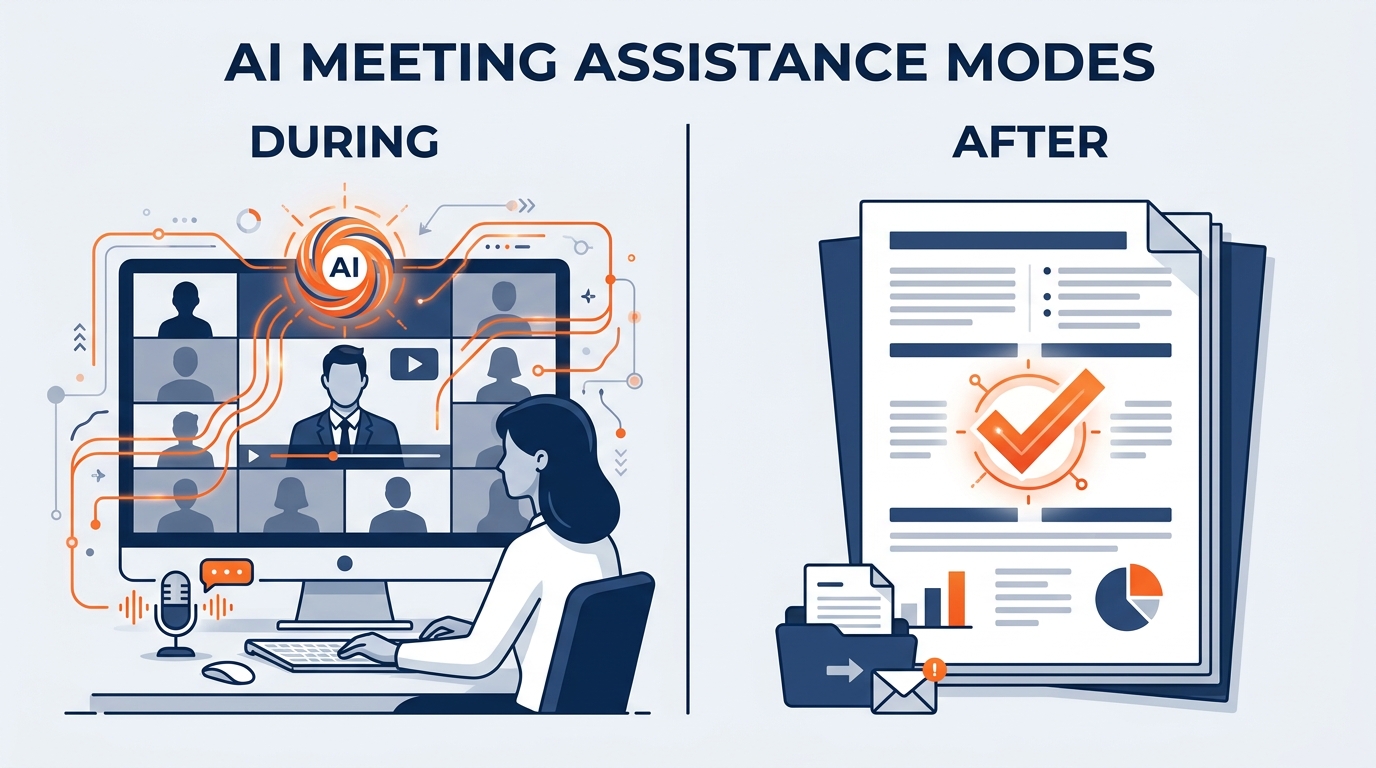
Figure 2:The two Copilot modes represent fundamentally different commitments: “Only during the meeting” leaves no persistent record; “During and after” creates a transcript that enables post-meeting intelligence — but requires explicit activation of live transcription.
1.2.1Mode 1: Only During the Meeting
When a meeting is configured for “only during the meeting,” Copilot uses speech-to-text technology to follow the conversation in real time. You can ask Copilot questions, request summaries, and get answers about what has been said so far — but only while the meeting is active.
The critical characteristic of this mode: there is no persistent transcript. When the meeting ends, Copilot’s access to the speech-to-text data ends with it. You cannot return to the meeting afterward and ask Copilot what was decided. You cannot generate a recap thirty minutes after everyone has hung up. The intelligence is available in the moment, and only in the moment.
This mode is appropriate for certain conversations — particularly those involving sensitive personnel matters, commercially confidential negotiations with an organizer, early-stage pricing discussions, or situations where participants have not been informed that a transcript is being created and the organizer wants to limit the data footprint. The trade-off is clear: more privacy protection, less post-meeting utility.
For a globally distributed team, the trade-off has a specific cost. Choosing “only during” means choosing that the absent colleague gets nothing. That is sometimes the right call. It should never be the accidental call.
1.2.2Mode 2: During and After the Meeting
When a meeting is configured for “during and after the meeting,” Copilot works in conjunction with live transcription. The transcript is the foundation. When transcription is turned on, Copilot activates and can answer questions in real time during the meeting and after the meeting ends.
This mode unlocks the full power of Copilot in Teams: full meeting summaries, comprehensive action item extraction, the ability to revisit specific exchanges (“What did the venue’s operations lead say about the loading dock restriction?”), and the ability to export Copilot’s output to Word or Excel for further use.
The requirement is explicit and important: transcription must be running during the meeting. If transcription was not turned on — even if Copilot was available during the meeting in speech-to-text mode — the post-meeting capabilities are not available. There is no retroactive option. If you end a call and realize you did not have transcription on, you cannot go back.
There is also an important organizational boundary: Copilot will not work in meetings hosted outside your organization. If a GES employee is invited to a meeting hosted by an external party — a show organizer, an exhibitor’s marketing agency, a venue, a general contractor partner — Copilot’s in-meeting capabilities are not available to that participant.
This boundary matters more at GES than it would at a company that mostly meets internally. A large share of GES calls are hosted by organizers and exhibitors. Know before you join whether the meeting is yours to configure, and plan your note-taking accordingly.
1.2.3The Practical Implication for GES
For any meeting where the documentation of decisions and commitments matters — which is most internal GES calls and most GES-hosted show calls — the “during and after” mode with transcription is the right choice. The post-meeting intelligence is where the productivity gain is most concrete and measurable, and it is the only mode that serves your absent colleagues.
For sensitive commercial conversations where all parties have not been informed of transcription, use “only during” mode or turn Copilot off entirely. We will return to the consent and transparency requirements in Section 8.
1.33. Setting Up Meetings with Copilot — Organizer Controls
The person who schedules the meeting controls how Copilot works in that meeting. This is by design: Microsoft has placed the consent and configuration decision with the organizer, not with participants. Understanding these controls is essential for anyone who regularly chairs calls at GES — which, in a show-driven business, is nearly every account manager, show operations manager, and project lead.
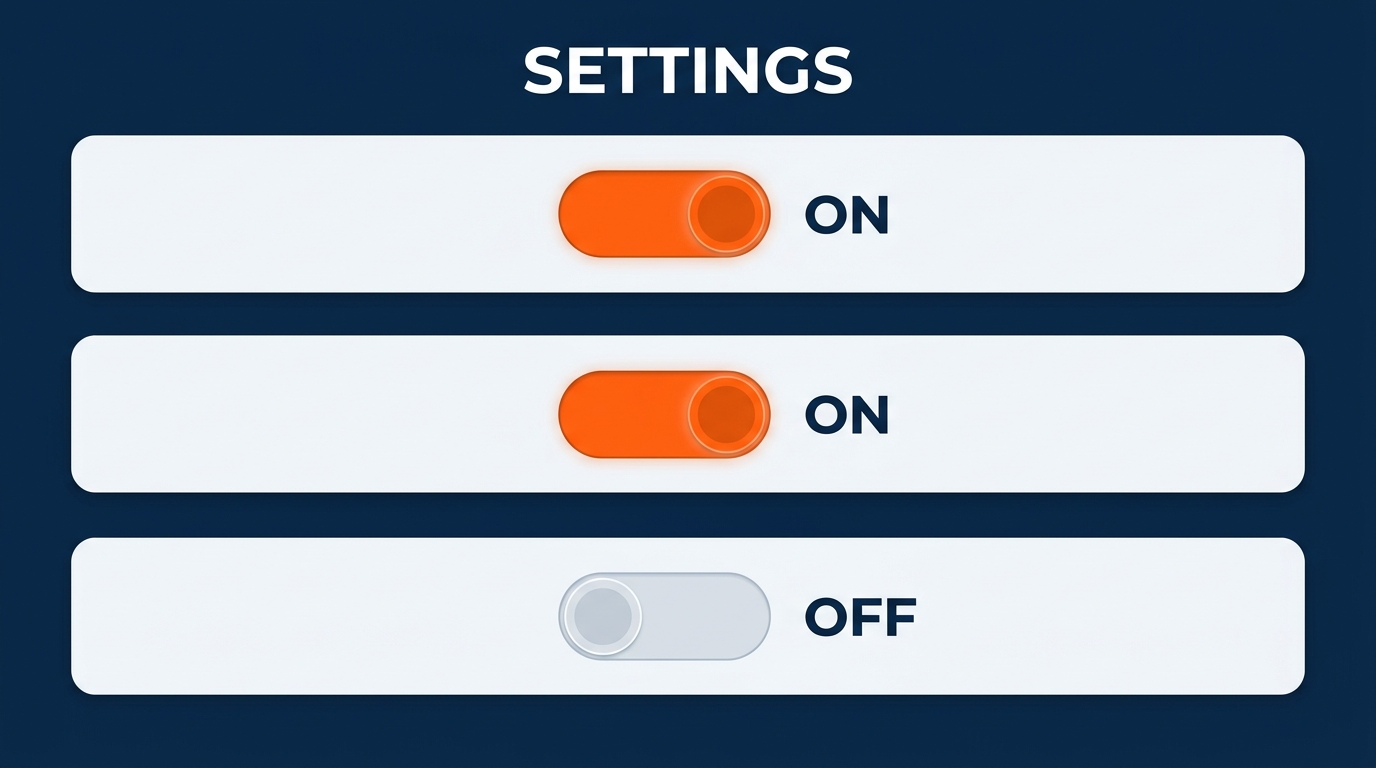
Figure 3:The meeting organizer controls Copilot access via Online meeting options. Three settings determine whether participants can use Copilot at all, and whether post-meeting intelligence is available.
1.3.1Accessing the Setting
In Teams, when you create or edit a meeting:
Open the meeting in your calendar
Select Edit to open the meeting details
Select Meeting options (this opens a browser-based settings panel)
Find the section labeled Copilot and other AI
Under Allow Copilot and Facilitator, select one of the three options
The three settings are:
Best for: Pre-show planning calls, daily move-in and move-out stand-ups, site survey debriefs, exhibitor kickoff calls, Spiro design reviews, cross-facility ops coordination, post-show reconciliation reviews — any meeting where post-meeting documentation matters and where someone essential is likely to be in another time zone.
How it works: Copilot is available from the moment transcription begins. When you start the meeting and turn on live transcription, Copilot activates. Participants with a Microsoft 365 Copilot license can open the Copilot pane and interact with it throughout the meeting.
Critical detail: If you stop transcription mid-meeting, Copilot stops with it. The transcript up to that point remains available for post-meeting use, but Copilot will not capture anything said after transcription stops. This is genuinely useful when a call moves from operational planning into confidential commercial terms — stop transcription at the transition point.
Post-meeting access: The meeting transcript and Copilot capabilities persist after the meeting ends. Participants can return to the meeting in Teams, open the recap section, and ask Copilot questions or generate summaries — at whatever hour of their local day that happens to be.
Requirement: Live transcription must be explicitly started during the meeting. Copilot does not activate on its own — someone (typically the organizer) must start transcription.
Best for: Commercially sensitive discussions, calls with external participants where transcription is not appropriate, early pricing or margin conversations, personnel matters, and preliminary internal conversations where the thinking is exploratory and formal documentation is premature.
How it works: Copilot uses speech-to-text in real time and answers questions during the meeting. No transcript is created or stored.
Post-meeting access: None. When the meeting ends, the speech-to-text data is no longer available. Copilot cannot be used after the meeting in this mode.
Participant awareness: Even in this mode, participants should be informed that Copilot is active. The visual indicator in the meeting controls shows when Copilot is being used.
Best for: Highly confidential meetings — competitive bid strategy, contract negotiation positions, employee relations matters, incident investigations — and any situation where the presence of any AI capability is inappropriate or where all forms of recording and transcription must be disabled.
How it works: Copilot is fully disabled. Recording and transcription are also disabled when this setting is active — the organizer cannot selectively disable Copilot while keeping recording enabled.
Note: This is the most restrictive setting. It should be used when the nature of the discussion requires it, not as a default out of habit. Defaulting to Off in a global company means defaulting to excluding the people who could not attend.
1.3.2Who Can Use Copilot in a Meeting
An important nuance: the organizer can allow participants to use Copilot even if they do not personally have a Microsoft 365 Copilot license. The organizer’s license and the meeting’s configuration determine availability. A participant without a Copilot license may still be able to interact with Copilot during a meeting if the organizer has configured it appropriately. For specific license requirements in GES’s configuration, consult your Microsoft 365 administrator or your regional IT lead.
This is worth knowing because GES teams are not licensed uniformly across every role and region. A show operations manager who chairs the daily move-in stand-up can extend meeting intelligence to a floor crew lead who does not have their own license — which is exactly the kind of asymmetry that a distributed, non-desk-bound workforce creates.
1.44. Using Copilot During a Live Meeting — Real-Time Intelligence
Once a meeting is underway and Copilot is active, the way you engage with it during the session is what separates people who get marginal value from it and people who find it genuinely indispensable.
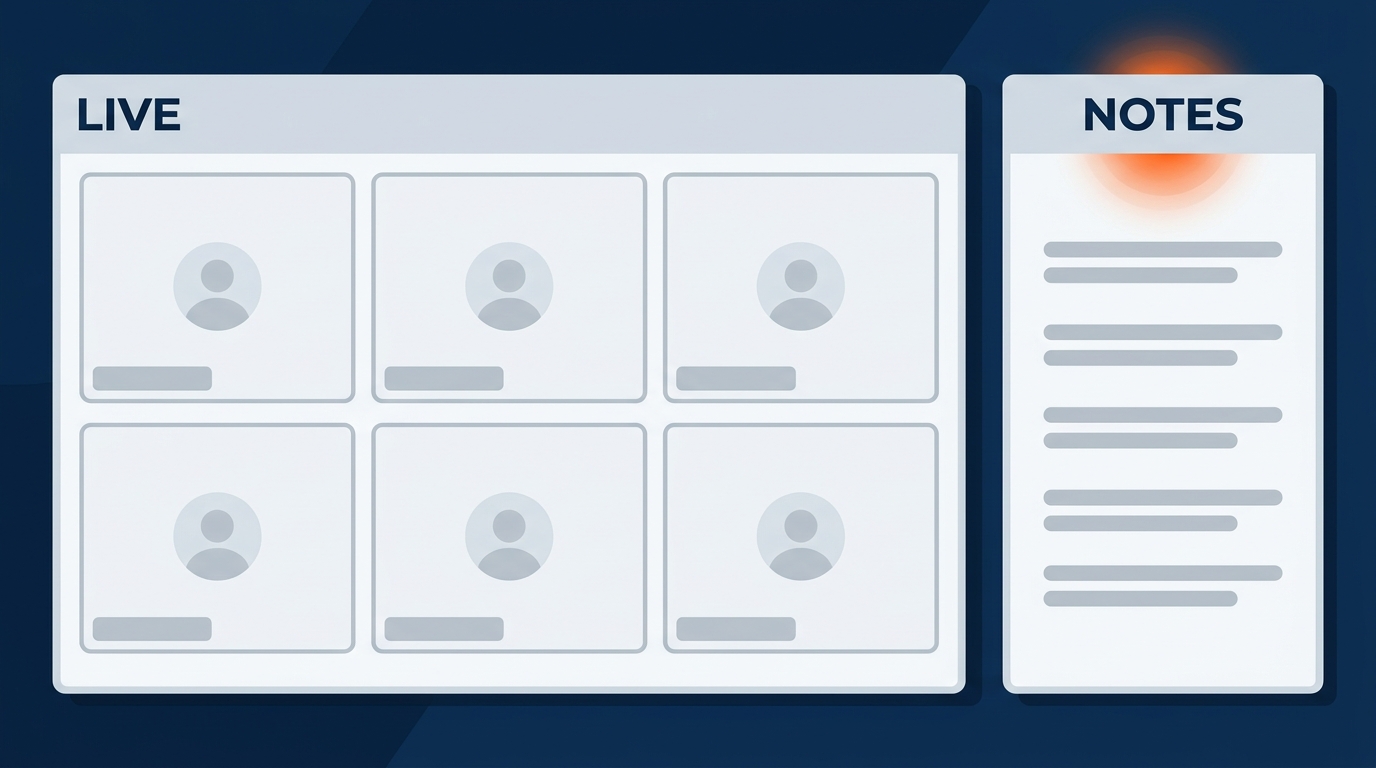
Figure 4:During a live Teams meeting, Copilot opens as a private chat panel on the right side of your screen. Your conversation with Copilot is visible only to you — other participants cannot see your questions or Copilot’s responses.
1.4.1Opening Copilot During a Meeting
During an active Teams meeting:
In the meeting controls (the bar at the bottom of your screen), select the Copilot button — it looks like the familiar Copilot sparkle icon
A private chat panel opens on the right side of your screen
You can type questions or prompts in the text box at the bottom
Select View prompts to see a set of suggested questions organized by category
Your conversation with Copilot during the meeting is private. Other participants cannot see your questions or Copilot’s responses. This matters for how you use it: you can ask Copilot to check your understanding of what was just said, ask for clarification on a point you may have missed, or get a quick summary of the discussion so far — all without interrupting the flow of the call or revealing that you needed clarification.
For GES teams, that privacy has a specific and underrated benefit. On a call with participants from six countries, not everyone is working in their first language, and not everyone catches every fast-spoken acronym on the first pass. Being able to quietly ask “What did the organizer just say about the freight target windows?” — without stopping a call that nine people are on — is a genuine dignity feature, not just a convenience.
1.4.2What to Ask Copilot During a Meeting
Microsoft has documented a specific set of question types that Copilot in Teams handles particularly well during live meetings. These are not invented capabilities — they are documented in Microsoft’s support materials and represent what the model is designed to do:
Understanding the conversation:
“Summarize the discussion so far.”
“What have we decided in this meeting?”
“What is the main topic we are currently discussing?”
Surfacing disagreement and tension:
“Where do we disagree on this topic?”
“What are the competing perspectives on this issue?”
Understanding individual contributions:
“How did [participant name] respond to this proposal?”
“What concerns has [participant name] raised so far?”
Moving the conversation forward:
“What questions can I ask to move the meeting forward?”
“What has not been addressed yet that was on the agenda?”
Analyzing the discussion:
“Where are there holes in the argument being made?”
“Create a table with the ideas discussed and their pros and cons.”
The last prompt — asking for a structured comparison table — is particularly powerful in GES contexts. Imagine a move-in sequencing discussion where three different marshaling and target-time approaches have been argued verbally over forty-five minutes, each with different implications for labor cost, dock congestion, and exhibitor experience. A single Copilot prompt can produce a table that organizes the trade-offs you have been holding in your head, ready to share with the organizer or use as the basis for a recommendation.
1.4.3Popping Out the Copilot Pane
On the Teams desktop application, you have one additional option that significantly improves usability during complex calls: “Open private Copilot in new window.”
This detaches the Copilot pane from the main Teams window and floats it as a separate panel — especially useful with a dual-monitor setup. You can keep the floor plan, the service schedule, or the design rendering on your primary screen and work with Copilot on a secondary screen without the two competing for space. For anyone who regularly runs calls while simultaneously working in a labor forecast spreadsheet or a booth drawing, this feature is worth knowing.
1.4.4The Late Joiner Catch-Up — The Feature Built for GES
One of the most immediately useful features of Copilot in Teams is what happens when you join a meeting that has already been running for more than five minutes.
If Copilot is active when you join late, Teams sends you a notification: “Copilot can catch you up — Open Copilot.” You click the notification, Copilot generates a summary of what has been discussed so far, and within about thirty seconds you know: what the meeting is about, what has been decided, and what is currently being discussed.
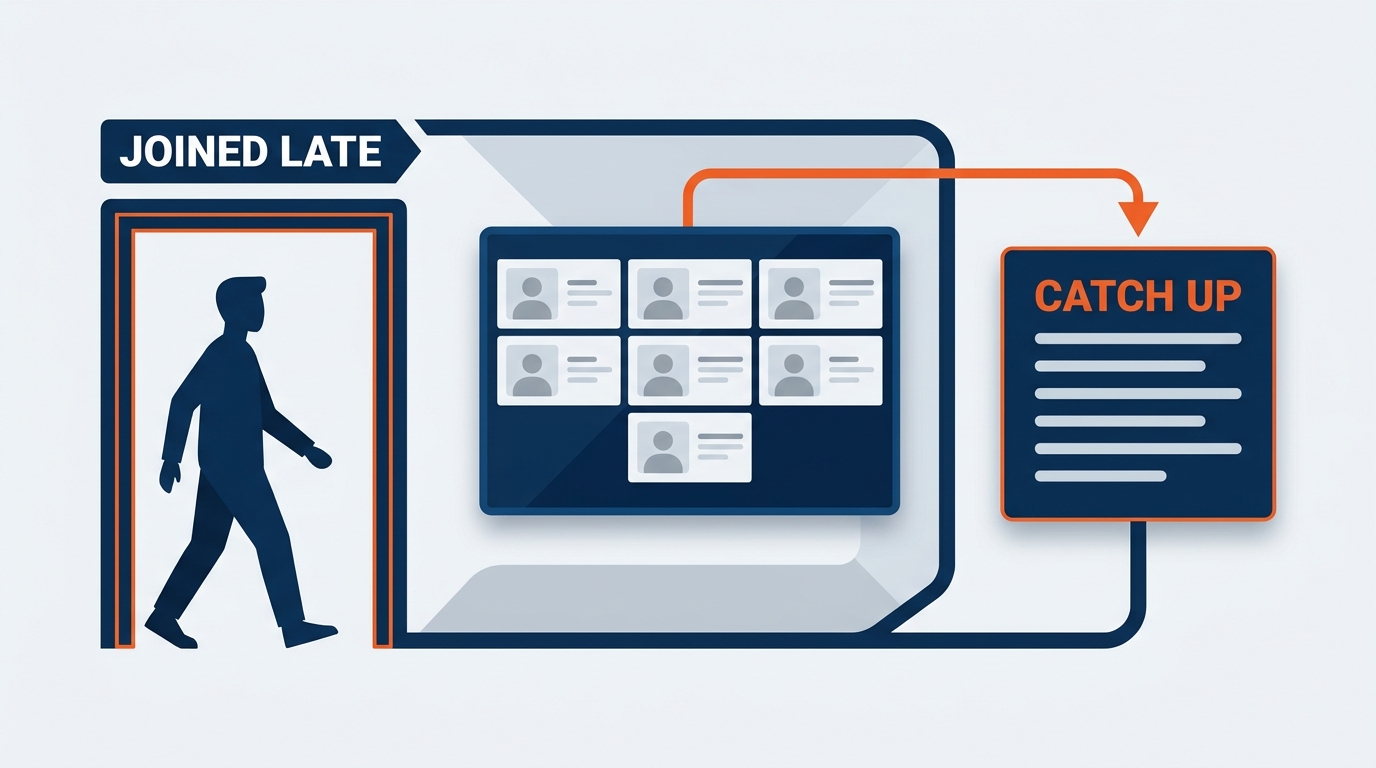
Figure 5:When you join a meeting more than five minutes late and Copilot is active, Teams automatically offers to catch you up. One click generates a summary of everything discussed before you arrived.
Think about what this eliminates. In current practice, joining a call late typically means either sitting in confusion while you try to figure out the context, or interrupting to ask someone to recap the last thirty minutes of a discussion they just had. Both options have costs. The first costs your effective participation. The second costs everyone else’s time and disrupts the flow.
Now consider how normal late joining is at GES. Move-in days do not respect calendar invites. A floor manager who said she would be on the 2:00 p.m. ops call is standing in front of a forklift and a freight discrepancy at 2:00 p.m., because that is the job. She joins at 2:35. In the old model, she either stays confused or costs the group ten minutes. With Copilot, she is current in thirty seconds and contributes for the last twenty-five minutes of the call.
Multiply that by a show floor’s worth of people, across 4,000+ events a year, and the catch-up feature stops being a nicety and starts being an operating advantage. At a desk-bound company, the late joiner is the exception. At GES, the late joiner is a category.
1.55. After the Meeting — The Recap, Action Items, and Exporting
The post-meeting capabilities of Copilot in Teams — available only when transcription was active — are where the tool’s impact on operational productivity becomes most concrete and measurable.
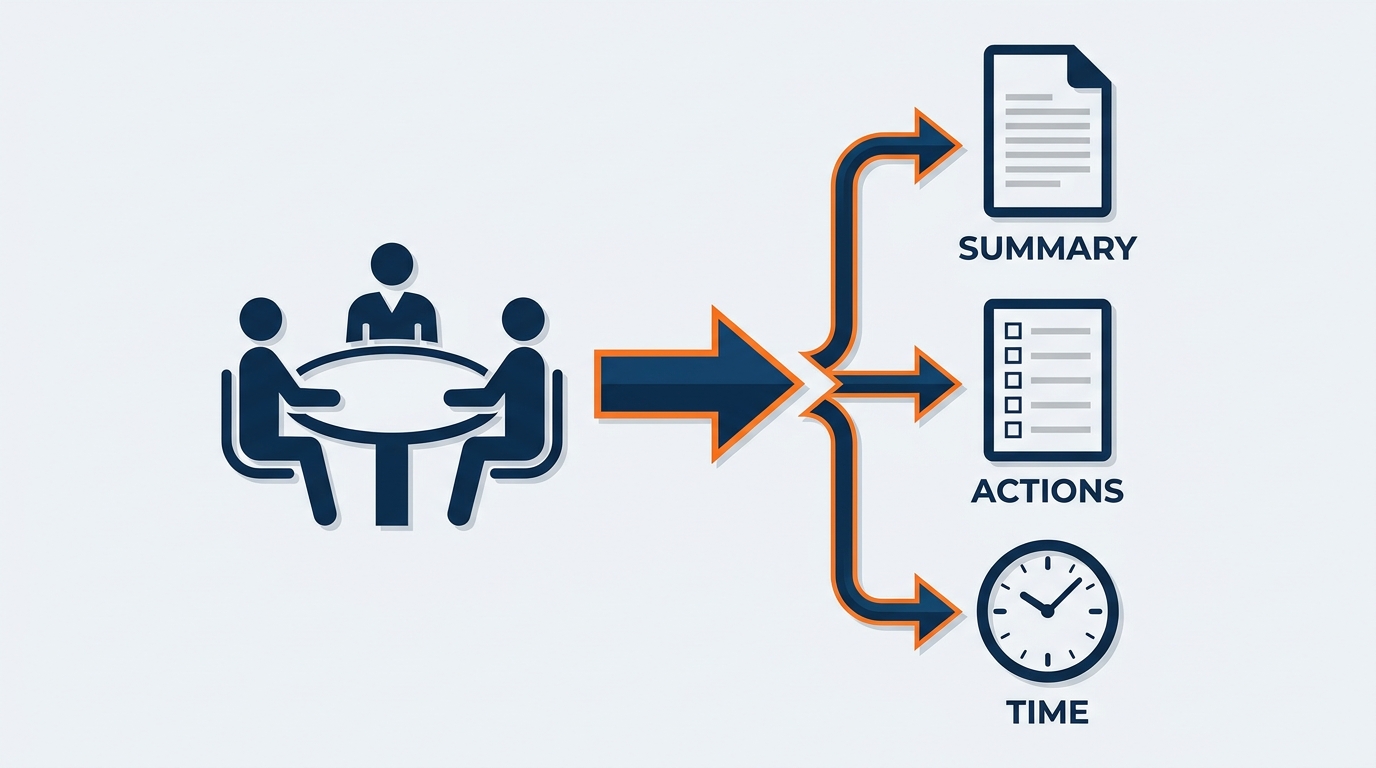
Figure 6:After a meeting with transcription enabled, Copilot can generate comprehensive summaries, extract action items with owners, and export its output to Word or Excel — transforming the conversation into a structured, distributable document.
1.5.1Accessing Post-Meeting Copilot
After a meeting with transcription ends:
In Teams, navigate to your Calendar and find the meeting in your history
Open the meeting and look for the Recap tab (in Teams, past meetings have a recap section)
The Copilot chat interface is available there
Type your post-meeting questions or prompts
You are not limited to a single question. You can have an extended conversation with Copilot about the meeting — asking follow-up questions, requesting different formats, drilling into specific parts of the discussion.
This is the part that matters most for a globally distributed workforce. The recap is not a static email that someone had to write. It is an interactive record that a colleague in Dubai can interrogate at 7:00 a.m. their time with the specific question they actually have: “Did anything change about the electrical order deadline for the hall two exhibitors?” No one had to anticipate that question in advance. No one had to be awake to answer it.
1.5.2What You Can Ask After the Meeting
The prompts you can use after the meeting are similar to during-meeting prompts, but the full meeting is now available as context, which makes them more powerful:
“Summarize the entire meeting in three paragraphs.”
“List all decisions made in this meeting.”
“List all action items from this meeting, with the person responsible for each.”
“What were the unresolved issues at the end of the meeting?”
“What did we decide about the move-in sequence?”
“What conditions did the organizer attach to the floor plan approval?”
“Who committed to reconfirming the union call times with the venue?”
“Create a timeline of the key topics discussed, in order.”
“What questions were raised but not fully answered?”
For GES show operations, that last prompt is particularly valuable. On a planning call it is common for issues to be raised without being resolved in the session — the group agrees to get the venue’s answer on dock access, or to wait for the organizer’s final exhibitor count, before locking the plan. A post-meeting prompt asking “what questions were raised but not fully answered” surfaces those open items before they fall through the cracks and reappear as a problem during move-in.
1.5.3The 1,300-Character Export Feature
When Copilot generates a response that is more than 1,300 characters — which will happen routinely when asking for comprehensive summaries or action item lists from substantive calls — Teams displays an export option. You can send that response directly to Word or Excel with a single click.
This is not a trivial convenience. It means that within minutes of a call ending, an account manager can have a formatted Word document containing the meeting summary, the decisions made, the action items with ownership, and the open questions. That document can go straight into the show folder in SharePoint, be distributed to the show team, or become the basis for the follow-up note to the organizer.
The Excel export is quietly powerful for operations work. Ask Copilot for action items as a table with owner, due date, show, and facility, export to Excel, and you have a tracker — not prose. For a show operations manager coordinating across multiple facilities and vendor teams, that structural difference is the difference between a document people read once and a document people work from.
The alternative — writing that document manually from notes — typically takes thirty to sixty minutes. The Copilot version takes three minutes, plus the time required to review and verify its accuracy.
1.5.4The Try This Prompt
At the end of your next internal show call — with all participants’ awareness and consent — try this single comprehensive prompt:
“Summarize the meeting, list every decision, list every action item with owner and date, and flag anything that requires follow-up before the next call.”
This one prompt produces the complete meeting output package that currently takes thirty to sixty minutes to write manually. The output may need light editing, but the structure is there, the decisions are documented, and the action items are named. That is the productivity shift in its most concrete form.
Then do the thing that actually creates the value: post it in the show’s Teams channel. Not an email to the six people who were on the call. The channel — where the floor manager in Frankfurt, the logistics coordinator in Toronto, and the exhibitor services rep who joins next week can all find it without asking anyone.
1.66. The Multilingual, Multi-Time-Zone Reality — Where Copilot Earns Its Keep at GES
Most guidance about meeting AI is written for companies where everyone speaks the same language, works the same hours, and sits within a few floors of each other. That is not GES. This section addresses the reality that actually defines collaboration here.
1.6.175+ Countries Means Meetings Across Languages
GES operates in more than 75 countries, with a North American headquarters in Las Vegas, European operations anchored in London and Paris, Visit by GES based in Amsterdam, a Middle East presence in Dubai, and teams in India. A single global account can involve a Las Vegas account manager, a London production lead, a Paris warehouse team, a Dubai show operations manager, and an exhibitor whose marketing team works in German.
English is the working language of most of these calls. That does not mean it is everyone’s first language, and it certainly does not mean that a fast, jargon-heavy, ninety-minute operations call in English lands the same way for everyone on it.
Copilot changes this in three practical ways:
1. Real-time comprehension support. A participant who missed a rapid exchange can privately ask Copilot to summarize the last ten minutes — without asking a room of colleagues to slow down. For a non-native speaker on a fast call, this is the difference between participating and enduring.
2. Recaps that can be translated. A Copilot-generated recap is text. Text can be translated — through Teams’ own translation features, through Copilot itself, or by asking Copilot to produce the summary in a specific language. A recap of a Las Vegas planning call, rendered in French for the Paris warehouse team, is a five-minute task instead of a project. Verify the translated output the same way you would verify the original: a mistranslated call time is still a wrong call time.
3. Terminology grounding. Ask Copilot to explain a term used in the meeting in the context of the meeting. “What did the team mean by ‘target windows’ in this discussion?” — a genuinely useful prompt for a new colleague, a colleague from a different part of the GES Collective, or anyone joining the exhibitions side from onPeak, SHOWTECH, or Visit by GES where the vocabulary differs.
1.6.2Time Zones Are Not a Scheduling Problem — They Are a Design Constraint
There is no meeting time that works for Las Vegas, London, Dubai, and India. Accept this. Then design around it.
The mature pattern for a globally distributed show team looks like this:
Async-First Meeting Design for Global GES Teams
Element | Traditional approach | Copilot-enabled approach |
|---|---|---|
Attendance | Try to get everyone on the call; schedule at a painful hour for someone | Core decision-makers live; everyone else consumes the recap |
The record | One person’s notes, emailed | Copilot recap posted in the show’s Teams channel, queryable by anyone |
Catch-up | “Can you fill me in?” costs a colleague 15 minutes | Recap plus Copilot Q&A, self-served in under 5 minutes |
Language | English only; some participants under-served | Recap translated on request; comprehension support during the call |
Follow-up | Action items live in someone’s inbox | Exported action item table with owners and dates, filed in the show folder |
Decision trail | Reconstructed from memory weeks later | Persistent, searchable transcript and recap tied to the show |
The shift is subtle but important: you stop treating the live call as the only place work happens, and start treating it as one input into a documented, asynchronous stream that the whole global team can participate in. For a company with people in 75+ countries and 24 facilities, this is not an optimization. It is the only way the model works at scale.
1.6.3The Non-Desk-Bound Workforce
The other GES-specific reality: a large portion of the workforce is not at a desk. Floor managers, I&D crews, warehouse and marshaling yard teams, on-site exhibitor services staff — these people are mobile, often in venues with imperfect connectivity, and frequently working hours dictated by move-in schedules rather than office hours.
For them, the meeting is often something that happened while they were doing the actual work. Copilot’s value is not “better meetings.” It is that the meeting becomes available to them at all — on a phone, between hall walks, in a form they can read in four minutes rather than a ninety-minute recording they will never play.
Two practical habits follow:
Write recaps to be read on a phone. Ask Copilot for a short-form version explicitly: “Summarize this call in under 200 words for the on-site team, focused only on what changes for move-in.” The comprehensive version goes in the file; the short version goes in the channel.
Separate “what changed” from “what was discussed.” On-site teams do not need the deliberation. They need the delta. Prompt for it directly: “List only the things that changed from the previous plan, and who is affected.”
1.77. Sample Prompts That Work — The GES Prompt Gallery
The effectiveness of Copilot in Teams is significantly influenced by the quality of the prompts you use. Microsoft maintains a Copilot Prompt Gallery at copilot
Below is a curated set of prompts developed specifically for the meeting types and workflows that matter most at GES.
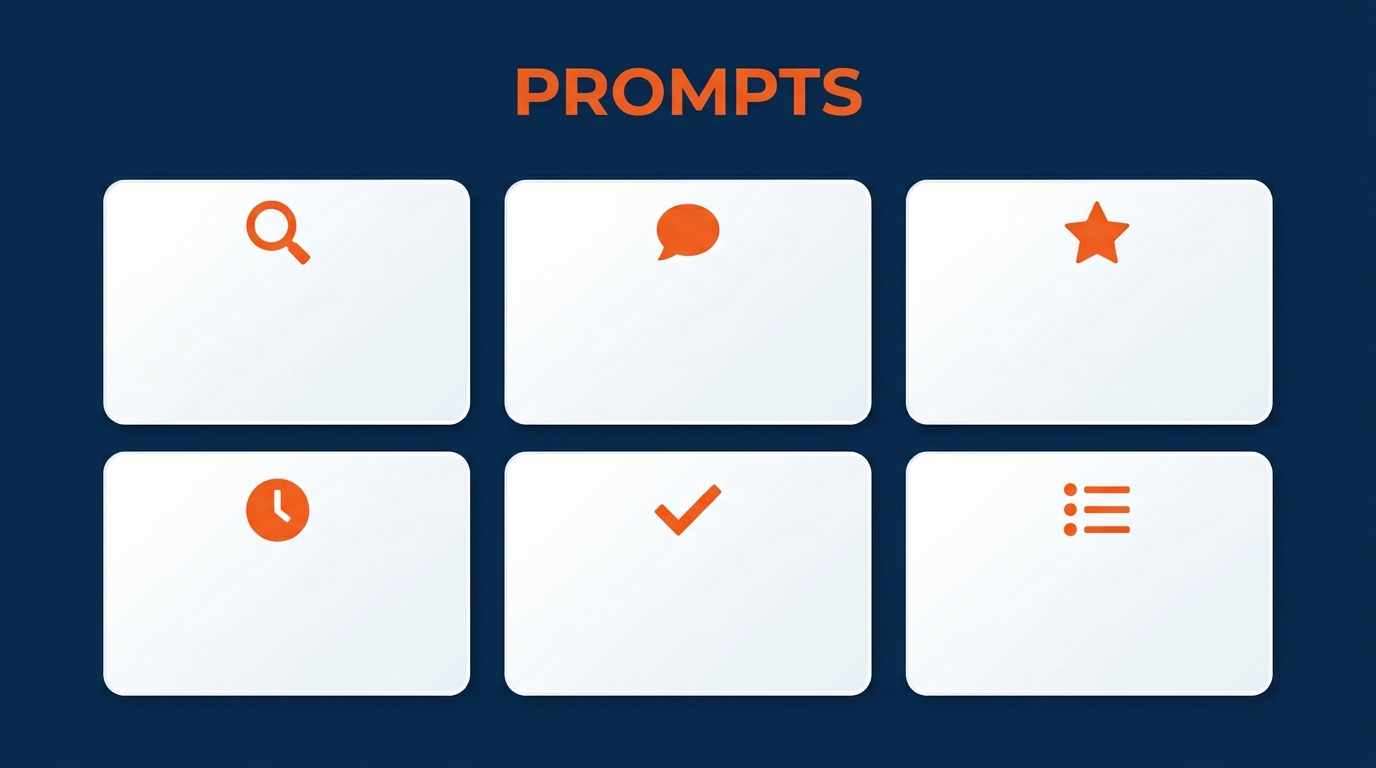
Figure 7:Six categories of Copilot meeting prompts that GES professionals use most frequently. The goal is always to extract structured, actionable intelligence from what was said — not to replace the judgment applied to it.
1.7.1During the Meeting
For understanding the current state:
“What are the key points that have been discussed so far, and what decisions have we reached?”
For surfacing tensions:
“Where do we disagree on the move-in sequence? List the specific points of disagreement.”
For understanding a specific participant’s position:
“What concerns has [name] raised about the labor plan? Summarize their specific objections.”
For generating a comparison:
“Create a table comparing the two move-in approaches we have been discussing — rows for truck volume per day, marshaling yard capacity, labor hours, exhibitor impact, and risk of overtime.”
For facilitating the meeting:
“What questions could I ask right now to help the group reach a decision on the freight target windows?”
For checking completeness:
“What agenda items have we covered, and which are still unaddressed?”
For comprehension support:
“Summarize the last ten minutes of this discussion in plain language, and define any industry terms that were used.”
1.7.2After the Meeting
The comprehensive output prompt:
“Summarize the meeting, list every decision made, list every action item with the name of the person responsible and any deadline mentioned, and flag anything that requires follow-up before the next call.”
For the show file:
“Write a concise summary of today’s pre-show planning call for the show operations file. Include: the show and dates, the operational topics reviewed, the decisions reached, any changes to the floor plan or move-in schedule, open items requiring organizer input, and next steps with owners.”
For the organizer follow-up:
“Draft a follow-up email to the show organizer summarizing what was decided on today’s call, what GES will action, what we need from the organizer’s team, and when we meet next. Use a warm, partnership-oriented, operationally precise tone.”
For the on-site team:
“Summarize this call in under 200 words for the on-site crew. Include only what changes for move-in: call times, target windows, dock assignments, and booth set sequence. Skip the background discussion.”
For the daily stand-up recap:
“Summarize the move-in stand-up. List each area lead’s update in one or two sentences, any blockers mentioned, any freight or labor issues flagged, and anything requiring action from a team not on this call.”
For the design review:
“Summarize this design review. List every change requested to the concept, who requested it, whether it was accepted or deferred, any budget or fabrication implications raised, and the agreed next revision date.”
For surfacing open items:
“What questions or issues were raised in this meeting but not resolved? List them so I can address them before move-in.”
For the multilingual team:
“Produce the action item list from this meeting in both English and French, keeping owners and dates identical in both versions.”
For the action tracker:
“List all action items from this call as a table with columns: item, owner, due date, show, facility, and status. Format it so I can export it to Excel.”
1.88. Consent and Transparency — The Professional Framework
The use of AI that records, transcribes, and summarizes conversations is not merely a technology decision. It carries professional obligations, contractual considerations, and legal dimensions that every GES professional needs to understand before activating Copilot in a Teams meeting — especially given how many GES calls include people who do not work for GES.
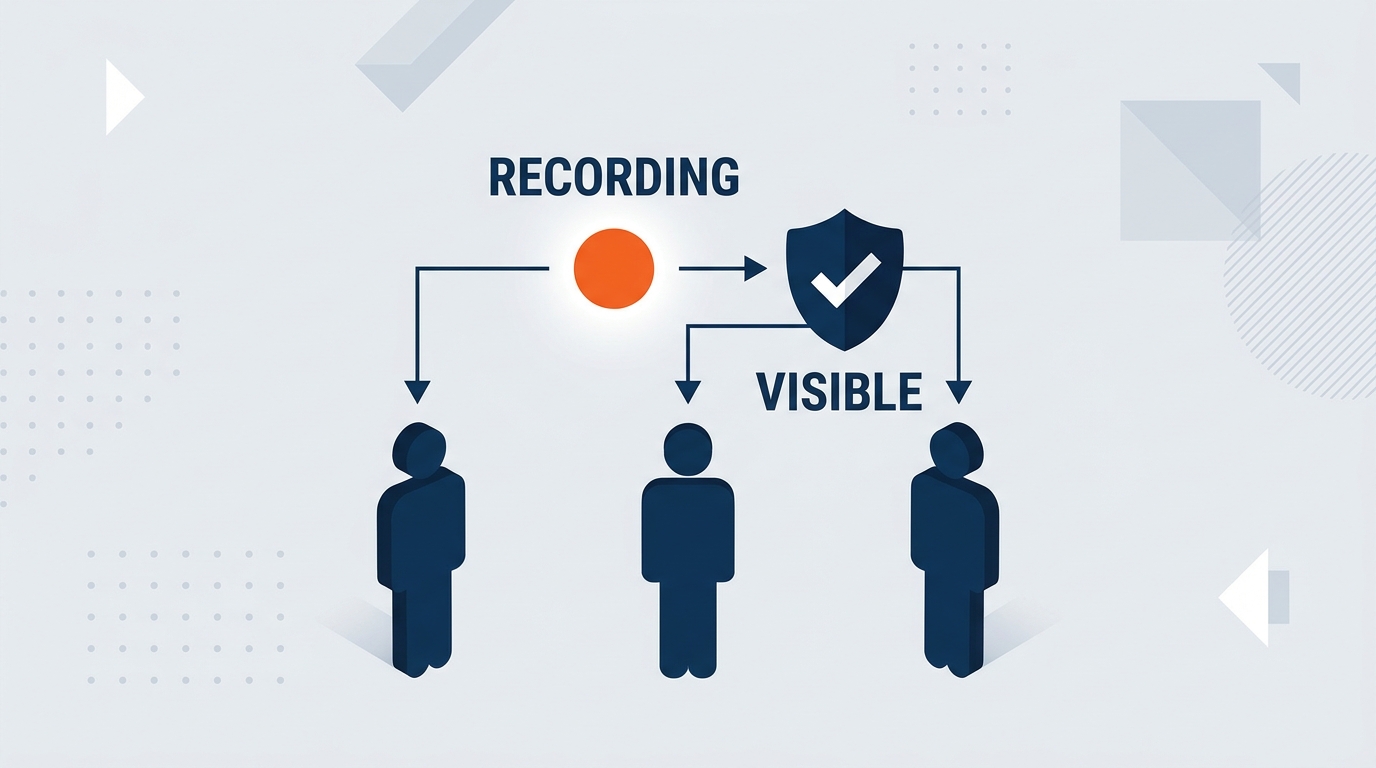
Figure 8:Consent and transparency are not optional features of professional AI use — they are foundational to its legitimacy. The framework covers disclosure before the meeting begins, visible indicators during, and responsible data handling after.
1.8.1The Core Principle
When Copilot is active and transcription is running in a Teams meeting, participants are talking while their words are being recorded, transcribed, and processed by AI. The professional obligation is straightforward: participants should know this is happening.
This is not just an ethical position. It has legal dimensions in the jurisdictions where GES operates. Nevada — home to GES’s Las Vegas headquarters — and a number of other US states have consent requirements for recording conversations. Across Europe and the UK, GDPR governs the processing of personal data, including meeting transcripts that identify individuals. Data protection regimes in the Middle East and India add further variation. When your teams span 75+ countries, the safe operating assumption is the strictest standard, not the loosest: tell people, every time.
Teams does display a visual indicator when transcription is active — participants can see that it is running. But the indicator is not a substitute for explicit disclosure. Best practice is proactive communication before the meeting begins.
1.8.2The Three Moments of Transparency
Before the meeting: When scheduling a call where you plan to use Copilot with transcription, include a note in the meeting invitation. A simple statement is sufficient: “Note: This call will use Microsoft Teams live transcription so that Copilot can produce a summary and action item list for team members who cannot attend live. The transcript is handled under GES’s standard data and retention policies.” This gives all participants awareness and the opportunity to raise concerns before the call begins. On a global team, it also explains why — which materially increases acceptance.
During the meeting: At the start of the call — before you start transcription — briefly announce that you will be using Copilot and that transcription will be active. This takes fifteen seconds. It is not a legal formality; it is professional courtesy. People work differently when they know their words are being transcribed. Giving them that information respects their agency.
After the meeting: Understand where the transcript and Copilot output go. In GES’s Microsoft 365 environment, meeting transcripts are stored in SharePoint and subject to retention policies governed by your IT, legal, and compliance functions. You are responsible for handling the output appropriately — not sharing it beyond the appropriate audience, not using it in ways that violate the purpose for which the meeting was held, and following GES’s policies on retention.
1.8.3The GES-Specific Risk: Whose Meeting Is In the Room?
This deserves its own treatment, because GES’s meeting mix is unusual. On any given day, a GES professional may be on calls with:
Show organizers, who are clients and whose show strategy, pricing, and exhibitor data are commercially sensitive
Exhibitors, who are also clients, and whose booth plans and product launches may be confidential until show open
Competing clients in the same vertical — two exhibitors at the same show, or two organizers running competing events
Venues, general contractors, unions, and vendor partners, who are neither GES nor the client
Agencies engaging GES as a production partner on behalf of a brand they represent
1.8.4Special Considerations for Client-Facing Calls
When a GES professional uses Teams for an exhibitor kickoff call, an account QBR, or an organizer planning session, additional care is warranted:
The client should be explicitly told that the call is being transcribed before transcription begins
The client should be given the opportunity to decline, with a plain explanation of what that means for documentation
Some commercial conversations — rate negotiations, scope disputes, claims discussions — create unintended risk when a verbatim record exists; assess this call by call
If a client asks for a copy of the recap, that is usually a good sign and usually fine — but review it first, and make sure it contains nothing about another account
The principle is not that Copilot should never be used in client calls. It is that the decision to use it should be deliberate and disclosed, not automatic and assumed.
1.8.5External Meetings
One important technical limitation has a practical implication: Copilot in Teams does not work in meetings hosted by other organizations. If a GES employee joins a meeting hosted by an external party — a show organizer, a venue, an agency, an exhibitor’s team — they cannot activate Copilot for that meeting regardless of their license status.
Given how many GES calls are organizer-hosted, this is not a rare edge case. Plan for it. If a recap matters and the meeting is not yours, either ask to host it, or take structured notes and use Copilot afterwards to turn those notes into a clean summary in a chat session — which is entirely legitimate and still saves substantial time.
1.99. GES-Specific Workflows
Copilot in Teams delivers different kinds of value in different meeting contexts. The following section examines the GES meeting types where it changes the experience — and the output — most significantly.
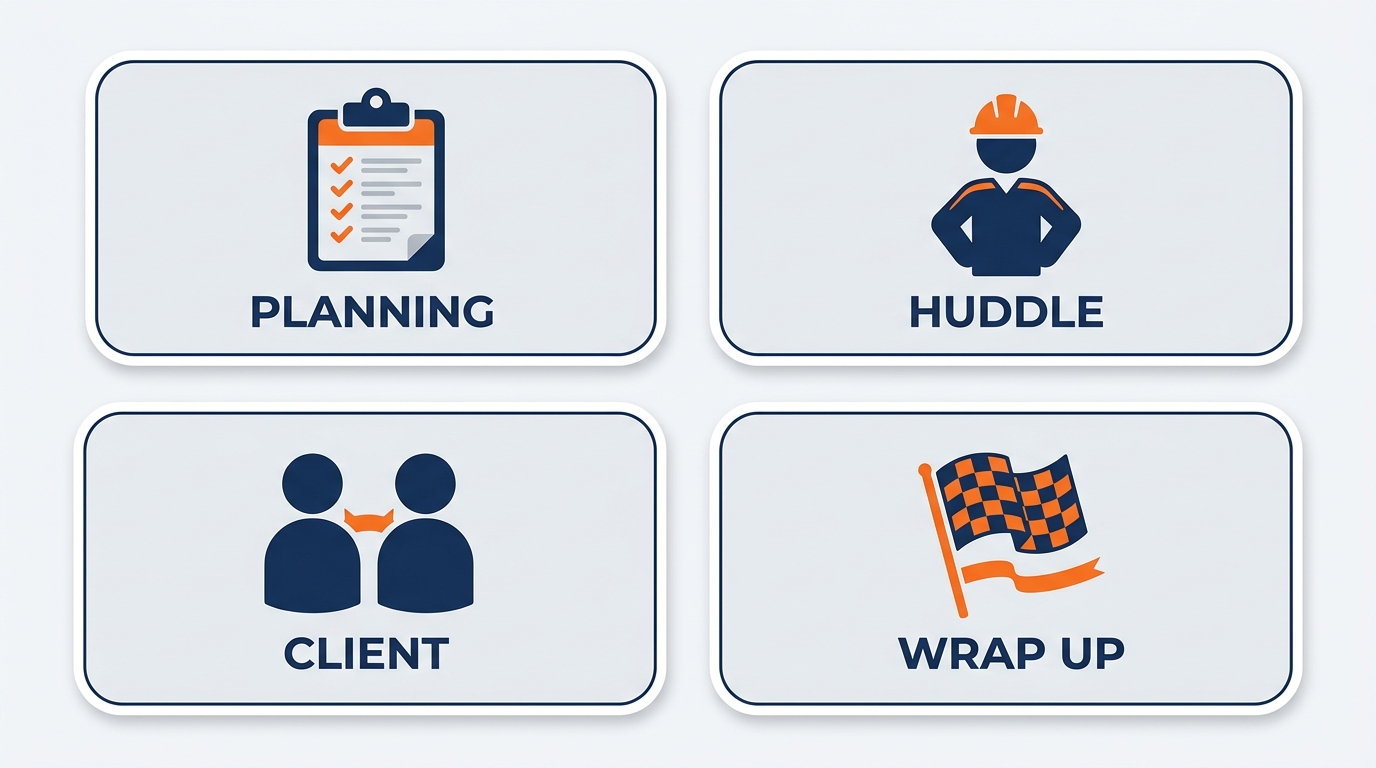
Figure 9:GES meeting types, each with a distinct Copilot use case. The goal in each case is the same: transform the conversation from a time-bounded event into a persistent, actionable intelligence asset that the whole global team can reach.
1.9.1Pre-Show Planning Calls with Organizers
Pre-show planning calls are among the most consequential recurring meetings at GES. Floor plans get finalized. Move-in schedules get built. Service deadlines get set. Freight target windows get assigned. The decisions made on these calls determine what happens on the show floor months later — and by then, the cost of a misremembered decision is measured in overtime, re-sets, and an unhappy organizer.
Current challenge: These calls are fast-moving and multilateral. The organizer’s operations lead, the GES account manager, the show operations manager, the logistics coordinator, and often the venue all contribute. The formal show operations plan captures the outcome, but not the reasoning — and it is usually written days later, from notes, by one person who was also talking for half the call.
Copilot’s role: With transcription active, the full discussion is captured. After the call, a single prompt produces a structured summary suitable for the show file: the show and dates, the operational topics reviewed, the decisions reached, changes to the floor plan or schedule, open items awaiting organizer input, and next steps with owners. This is not a substitute for the formal operations plan — it is the input to it, and it is available within minutes rather than days.
The global angle: Post the recap in the show’s Teams channel, not just to the call attendees. The European production team, the facility that will fabricate the signage, and the floor manager who will run move-in all need this — and none of them were on a call scheduled for Las Vegas morning.
Recommended setting: During and after the meeting, with transcription. Disclose in the invite and again at the top of the call, because the organizer is on it.
1.9.2Daily Move-In and Move-Out Stand-Ups
Once move-in begins, the daily stand-up is the heartbeat of the show. Fifteen to thirty minutes, early. Freight status. Labor call times. Booth set progress by hall. Exceptions and escalations. Then everyone goes back to the floor.
Current challenge: Nobody wants to take notes at a 6:30 a.m. stand-up in a service corridor. The people who most need the output — crew leads who were already working, the account manager arriving on a later flight, the exhibitor services desk opening at 8:00 — were not there. Information propagates by radio, text, and rumor.
Copilot’s role: Two prompts, run immediately after the stand-up:
“Summarize the move-in stand-up. List each area lead’s update in one or two sentences, all blockers, all freight or labor exceptions, and anything requiring action from a team not on this call.”
“Now produce a version under 200 words for the on-site crew, covering only what changes today: call times, target windows, dock assignments, and priority booths.”
The long version goes in the show channel and the show file. The short version goes to the crew — readable on a phone, in a hallway, in under a minute.
Move-out is the same discipline in reverse. Move-out generates disputes: what was damaged, what was missing, what freight went where, which exhibitor’s crate did not make the truck. A daily move-out stand-up recap with named owners and timestamps is the cheapest insurance available against a reconciliation argument three weeks later.
Recommended setting: During and after, with transcription. These are internal operational calls — the case for a persistent record is overwhelming.
1.9.3Site Survey Debriefs
After a site survey — walking a venue, measuring, checking dock access, confirming ceiling heights and rigging points, verifying power locations and freight paths — the survey team debriefs. This conversation contains an enormous density of specific, load-bearing facts.
Current challenge: Site survey knowledge lives in the heads of the people who walked the venue, plus whatever made it into a photo and a scribbled measurement. When those people move to another show, the knowledge leaves with them. The next team walks the same venue and rediscovers the same loading dock constraint.
Copilot’s role: Run the debrief as a Teams call with transcription, even if some participants are in the same room. Then:
“Summarize this site survey debrief. Organize by: venue access and dock constraints, floor and ceiling specifications, rigging and power notes, freight path and marshaling considerations, union and venue rules discussed, and risks flagged for this show. List every specific measurement or figure mentioned.”
Verify the figures carefully — transcription of numbers is exactly where errors occur — then file it in the venue’s knowledge folder in SharePoint. Over time, this builds a venue library that outlives the individuals who created it. For a company operating at every major venue across North America, Europe, the Middle East, and India, that library is a competitive asset.
1.9.4Exhibitor Kickoff Calls
An exhibitor kickoff sets expectations for a client who may be exhibiting for the first time, or who may be a global brand with an intricate program. Deadlines, service ordering, freight, labor rules, and booth logistics all get covered.
Current challenge: Exhibitors forget. Not through carelessness — the kickoff happens months before the show, and the exhibitor’s marketing team has a hundred other things happening. Then the material handling deadline passes, the shipment misses the advance warehouse window, and the conversation becomes difficult.
Copilot’s role: With the exhibitor’s explicit consent, transcribe the kickoff and produce a client-ready recap:
“Draft a follow-up summary for the exhibitor covering: their booth details and location, every deadline discussed with its date, what GES will provide, what the exhibitor must action and by when, freight and material handling instructions, and who to contact for what. Warm, clear, no jargon that a first-time exhibitor would not understand.”
That last constraint matters. GES vocabulary — drayage, target windows, marshaling yard, I&D — is second nature internally and opaque to a first-time exhibitor. Explicitly instruct Copilot to write for the audience.
T.R.U.E. connection: This is Understanding operationalized. A clear recap sent within an hour of the kickoff is a small act of service that prevents a large problem later.
1.9.5Spiro Design Review Sessions
Spiro design reviews are creative and iterative. Concepts are presented, clients react, changes are requested, and fabrication and budget implications are debated — often across a designer in one country, an account lead in another, and a client somewhere else entirely.
Current challenge: Design feedback is notoriously slippery. “Make the entry feel more open” means different things to different people. Change requests get remembered differently by the designer and the client, and the delta shows up at the next presentation as a disagreement about what was agreed.
Copilot’s role: With transcription, a post-review prompt produces a change log rather than a memory:
“Summarize this design review. For each change requested: what was asked, who asked for it, whether it was accepted, deferred, or declined, and any budget, materials, fabrication, or timeline implications raised. Then list open questions requiring client input and the agreed date for the next revision.”
Note the discipline this creates. A change log with attribution converts “I thought we agreed” into a document. For a project where fabrication cost scales with revision count, that is real money.
A caution: design reviews frequently include unannounced products, brand launches, and confidential creative direction. Consent and distribution control matter more here than almost anywhere else. Consider “only during” mode when the client’s material is pre-announcement.
1.9.6Cross-Facility Operations Coordination
GES operates 24 global production and warehouse facilities. Graphics production, fabrication, rental inventory, and freight staging move between them constantly. Coordination calls across facilities are, by definition, cross-time-zone.
Current challenge: These calls are the hardest to schedule and the most likely to have someone absent. They also carry high consequence — a misunderstanding about which facility is producing which graphics package, or where inventory is staged, becomes a shipping failure.
Copilot’s role: Structure the recap around facilities, not around speakers:
“Summarize this operations coordination call organized by facility. For each facility mentioned, list: what they are producing or staging, committed dates, dependencies on other facilities, and any capacity or resource constraints raised. Then list all cross-facility handoffs with owner and date.”
Export to Excel. Post in the channel. Now the facility that could not join at 3:00 a.m. local time has an accurate, structured view of its own commitments — and everyone can see the dependency chain.
1.9.7Post-Show Reconciliation Reviews
After the show closes, the reconciliation review examines what was ordered versus what was delivered, labor hours estimated versus actual, material handling weights, exceptions, credits, and disputes. It is detail-dense and financially consequential.
Current challenge: Reconciliation discussions generate a large volume of specific determinations — this charge stands, that one gets credited, this labor variance is explained by a schedule change. Reconstructing those determinations later, when a client questions an invoice, is painful.
Copilot’s role: A transcribed reconciliation review with a structured prompt:
“Summarize this post-show reconciliation review. List every disputed or adjusted item with: the item, the original amount, the resolution, the reason given, and who approved it. Separately list every variance between estimated and actual labor hours discussed and the explanation offered. Flag anything left unresolved.”
This becomes the audit trail behind the final numbers — and the basis for the lessons-learned conversation that improves the next estimate.
1.9.8Account QBRs with Clients
Quarterly business reviews with organizers and major exhibitors cover performance, satisfaction, upcoming programs, and commercial direction. They are relationship meetings with commercial substance.
Current challenge: The relationship intelligence in a QBR — the client’s stated priorities, their frustrations, their signals about future scope — is the most valuable and least reliably captured content GES generates. It typically lives in one account manager’s memory and leaves when they change roles.
Copilot’s role (with explicit client consent):
“Summarize today’s QBR. Include: the client’s stated priorities for the next two quarters, satisfaction feedback both positive and critical, any service issues raised and how they were addressed, upcoming shows or programs mentioned, commercial opportunities or risks signalled, and agreed next steps with owners and dates.”
File it against the account. When the account transitions, the successor inherits the relationship history rather than starting from zero.
Consent is mandatory here. A QBR contains the client’s candid assessment of GES. Recording it without saying so would be a breach of the trust the meeting is meant to build.
1.9.9Safety Briefings
Safety is a stated core operational value at GES, and a low global reportable incident rate is a tracked KPI. Safety briefings — pre-move-in, daily on the floor, or specific to a hazardous operation like rigging or high-reach work — are where that value becomes practice.
Current challenge: Documenting that a briefing happened, who attended, and what was covered is administratively tedious and often done badly. Yet it is exactly the documentation that matters if an incident occurs.
Copilot’s role: For briefings conducted or mirrored in Teams:
“Summarize this safety briefing. List: every hazard identified, every control or procedure specified, any venue- or union-specific requirement mentioned, PPE requirements stated, emergency procedures covered, and any questions raised with the answers given.”
Combined with the Teams attendance record, this produces a defensible, consistent briefing record across shows and regions — which is precisely what a global safety program needs and rarely has.
1.9.10Vendor and Union Coordination Calls
Coordination with venues, unions, and vendor partners establishes call times, jurisdiction, crew sizes, and scheduling. These are commitments made between organizations.
Current challenge: Jurisdiction and labor arrangements vary by venue, city, and agreement. What was agreed on a coordination call for one show at one venue may not apply at the next. Getting it wrong produces both cost and friction.
Copilot’s role: With consent from all parties:
“Summarize this coordination call. List every agreed call time, crew size, and shift structure; every jurisdiction or work-rule point clarified; every commitment made by each party with the party named; and every item requiring written confirmation.”
The last element is the important one. Coordination calls produce verbal agreements that should be confirmed in writing. A Copilot-generated list of exactly which items need written confirmation is a practical safeguard.
Consent note: vendors and union representatives are external parties. Disclose before transcribing, without exception. If the meeting is hosted by the venue or the union, Copilot will not be available to you at all — plan to take structured notes.
1.1010. Beyond the Meeting — How Copilot Cowork Extends Teams Work
Everything covered so far happens inside a meeting. But most of the work a meeting generates happens after it — and that is where Microsoft Copilot Cowork changes the equation.
Cowork, which became generally available worldwide on June 16, 2026, is a different mode of working with Copilot. Where Copilot Chat is a conversation — one prompt, one response, you steer each step — Cowork is an assignment. You describe an outcome, it plans and executes multi-step work across Microsoft 365, and it returns finished artifacts: documents, decks, spreadsheets, emails, and Teams posts.
Three properties make it directly relevant to Teams work at GES:
1. It can post in Teams. Cowork can post updates in Teams channels and send messages in one-to-one or group chats — with your approval before each action. That means the recap workflow described throughout this chapter can be handed off rather than performed.
2. It keeps working when you close your laptop. Cowork runs in a protected cloud environment. Tasks keep progressing even when your device is off. For someone who assigns a task at the end of a move-in day and looks at the result the next morning between hall walks, this is not a footnote — it is the entire point.
3. It can prepare the meeting before the meeting. Cowork can pull inputs from email, past meetings, and files, produce a briefing document and supporting analysis, schedule prep time, and have it all waiting before you join.
1.10.1A GES Example
A show operations manager is running a large show at a convention center, with a global team spread across three continents. On the Friday before move-in, she opens Cowork and assigns this:
Outcome: A move-in readiness packet for the show team, posted in the show’s Teams channel by Monday 07:00 Las Vegas time.
Inputs: The last four pre-show planning call recaps, the current floor plan and move-in schedule in the show SharePoint folder, the freight status workbook, and the site survey debrief from the venue folder.
Definition of done: (1) A one-page Word summary of the current move-in plan with call times, target windows, and dock assignments. (2) An Excel tracker of open action items with owner, due date, and facility. (3) A short Teams channel post — under 200 words — summarizing what changed since last week, with the two documents attached.
Constraints: Do not contact the show organizer or any exhibitor. Do not include commercial or pricing information. Write the channel post so it reads clearly on a phone.
Approval scope: Show me the Teams post before it goes up.
Cowork works through it — searching the show folder, reading the recaps, assembling the documents — and pauses for approval before posting. She reviews the post on Sunday evening from her phone, corrects one call time, and approves it. On Monday morning, the floor manager in Frankfurt, the logistics coordinator in Toronto, and the crew leads arriving on site all open the same packet.
Note the structure of that request. It follows Cowork’s five-part prompting pattern: Outcome, Inputs, Definition of done, Constraints, Approval scope. Vague requests produce vague results. This is the core skill.
1.10.2Two Automation Patterns Worth Knowing
Scheduled prompts — run a prompt on a schedule. A weekly “compile all show channel activity and open action items into a Monday status post” task is a strong fit for account teams running multiple concurrent programs.
Event-driven tasks — run when something happens, such as when a Teams message posts or an email arrives. Useful for routing exhibitor escalations during show week.
1.10.3The Governance Point
Cowork asks permission before sensitive actions — sending email, posting in Teams, updating records. You can approve a single action, approve similar actions for the session, scope approval to a specific recipient or domain, or cancel. Every task runs with your permissions and sees only what you can see. Data stays in the tenant. Actions are auditable.
The behavioral shift is real and worth naming. The skill of Copilot Chat is describing a task. The skill of Cowork is describing an outcome and then reviewing like a manager. For a company running 4,000+ events a year with lean teams and immovable show dates, learning to delegate and quality-control rather than personally produce is the higher-leverage habit. Chapter 14 covers Cowork in full.
1.1111. What Copilot in Teams Cannot Do — Important Limitations
A complete professional picture of Copilot in Teams requires a clear-eyed assessment of its limitations. These are not bugs — they are design boundaries. Understanding them prevents the kind of over-reliance that creates its own risks.
Copilot cannot work across meeting boundaries in real time. During a live call, Copilot’s context is the current meeting. It cannot retrieve information from previous meetings while a current one is in progress. If you ask “What did we decide about the dock schedule on last week’s call?” mid-meeting, Copilot does not have access to that prior session. Post-meeting, you can open the prior meeting’s recap separately.
Copilot is not available in meetings hosted outside your organization. As noted earlier, if a GES employee is a guest in an externally hosted Teams meeting, Copilot is not available to them. Given how many GES calls are hosted by organizers, venues, and agencies, this affects a meaningful share of your calendar.
Transcription accuracy is not perfect — and event vocabulary makes it worse. Meeting transcripts, and the Copilot summaries based on them, reflect audio quality and speech clarity. Meetings with multiple speakers, background noise, varied accents across a 75-country workforce, and dense industry jargon will have lower accuracy. Terms like drayage, carnet, marshaling, and I&D are not in everyday vocabulary, and booth numbers, freight weights, hall designations, and call times are exactly the kind of short numeric strings that transcription gets wrong. Always verify figures, times, booth numbers, and proper names against your own knowledge.
Audio from a show floor is hard. A stand-up conducted from a service corridor with forklifts operating nearby will transcribe worse than a call from an office. Where accuracy matters, get the speaker somewhere quieter, or verify the output more carefully.
Copilot cannot make operational decisions. It summarizes the discussion. It does not replace it. Whether a move-in sequence is safe, whether a labor plan is realistic, whether a design change is buildable within budget — that judgment belongs entirely to the people on the call.
Copilot does not know what it was not told. A great deal of GES knowledge lives on the floor, not on the call. If the crew resolved a problem in person and never mentioned it in a meeting, no recap will contain it.
The post-meeting capability requires transcription to have been on. There is no retroactive option. If transcription was not activated — even with Copilot available in speech-to-text mode — the recap is not available. The only solution is remembering to start transcription before the call begins.
Copilot’s output requires human verification before official use. A Copilot-generated summary is a starting point, not a finished record. Before it becomes part of a show file, a client communication, or a safety record, it should be reviewed by someone who was in the meeting and can verify its accuracy.
1.1212. The Discipline: What to Do with Copilot’s Meeting Output
Getting Copilot’s output is the easy part. What distinguishes professionals who extract lasting value from those who find Copilot occasionally useful is the discipline that comes afterward — the process of turning output into action.
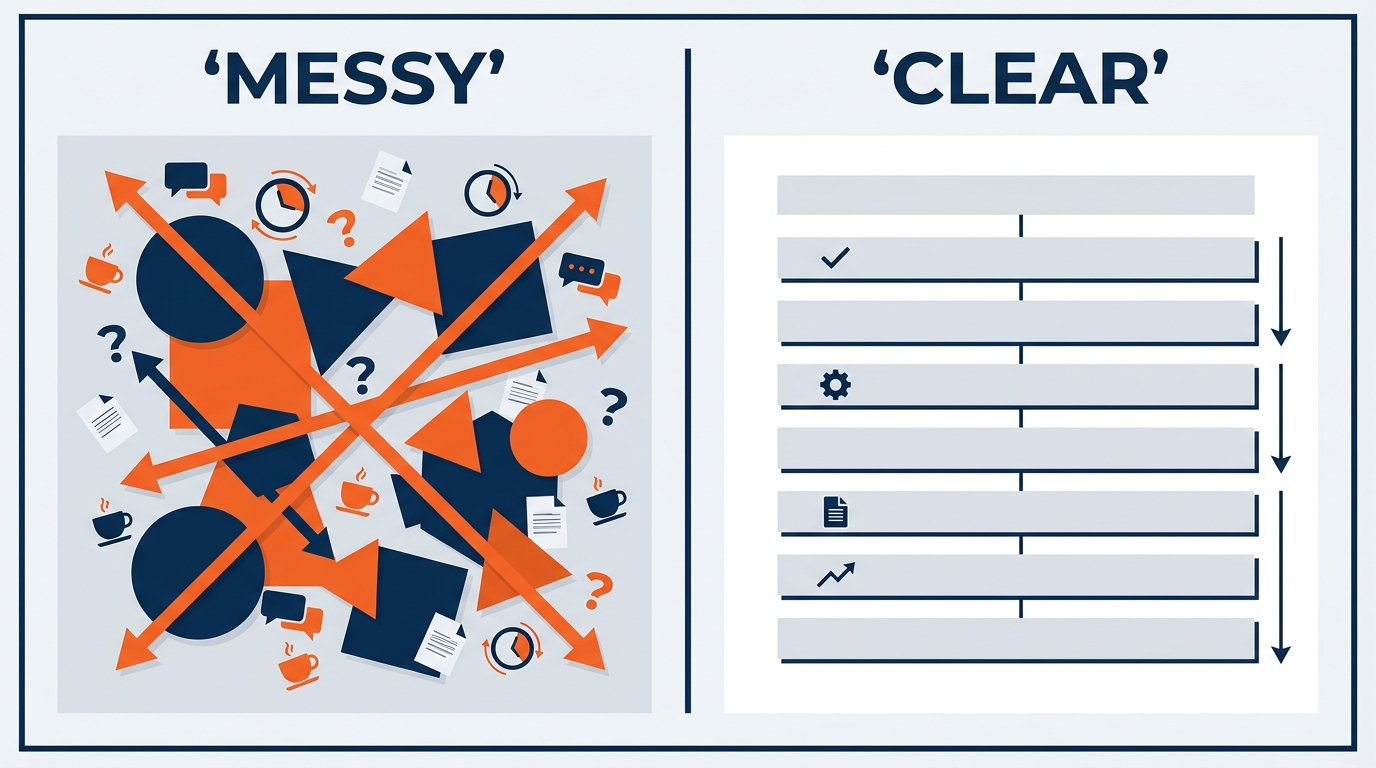
Figure 10:Copilot’s output is raw intelligence. The discipline loop — Get, Review, Distribute, File — is what transforms it into institutional value. AI output without distribution and filing is wasted intelligence.
The framework has four steps.
1.12.1Step 1: Get the Output (Within 15 Minutes of Meeting End)
The window of highest value for generating post-meeting output is the fifteen minutes immediately after the call ends. Your memory is still fresh, which means you can verify efficiently and catch errors quickly. Waiting until end of day — or the next morning, which during show season means after another twelve-hour floor day — reduces the quality of your verification because your recollection has faded.
Set a habit: end of call, open the recap, run your standard prompt. Three minutes. Get the output while it is warm.
1.12.2Step 2: Review and Verify (5 Minutes)
Read through what Copilot produced. Check for:
Misattributed statements — did Copilot correctly identify who said what? On a global call with many voices, this is the most common error.
Missing decisions — did it capture the key decisions, or did some get lost in the noise?
Incorrect figures — booth numbers, weights, call times, target windows, hall designations, dates. Verify every one.
Mangled terminology — did drayage come through as something else? Did a venue or facility name get garbled?
Tone — is it appropriate for the audience, particularly if any of it is going to an organizer or exhibitor?
Do not assume Copilot is wrong. The goal is verification, not skepticism. Most of the time the output is accurate. The review exists for the exceptions — and in an industry where a wrong call time is a real cost, the exceptions matter.
1.12.3Step 3: Distribute to the Right People (2 Minutes)
Once satisfied, distribute — to the right people, through the right channel. Not every summary needs to go to everyone. Consider:
The show operations summary: into the show’s Teams channel and the SharePoint show folder, where the whole global show team can reach it
The on-site short version: posted in the on-site crew’s channel, phone-readable, delta-only
The action item table: exported to Excel, filed with the show, and sent to named owners individually rather than as a group broadcast
The site survey debrief: into the venue knowledge folder, so the next team at that venue benefits
The client-facing recap: reviewed carefully, then sent to the organizer or exhibitor — never containing another account’s information
The safety briefing record: filed per your regional safety documentation protocol
The QBR summary: filed against the account so it survives a role change
The discipline is specificity. A recap broadcast to “everyone who was on the call” is less useful than a targeted distribution that puts the right information in the right hands with clear expectations about what happens next.
And one GES-specific rule: default to the channel, not the inbox. In a company where a third of the relevant audience is in another time zone and another third is on a show floor, an email to attendees serves the smallest possible group. A channel post serves everyone who will ever need it, including the person who joins the show team next month.
1.12.4Step 4: File in the Right Place (1 Minute)
Meeting output that is not findable is not useful. Within GES’s SharePoint and Teams environment, you should have consistent filing locations for meeting documentation by show, by account, by venue, and by facility. The Copilot-generated summary goes into that location — not into email, not into a personal folder, not into a chat thread that will scroll out of view by the time move-in starts.
Consistent filing multiplies the value of every meeting Copilot summarizes, because it creates a searchable institutional memory of decisions, commitments, and deliberations. When the same show comes around next year — and it will, because this is a business built on annual events — the team inherits a documented history instead of starting from a blank page and one person’s memory.
1.13Productive Struggle Problem
1.14Discussion
Think about the last three meetings you attended at GES that produced decisions or commitments you were responsible for.
How were those decisions documented? How confident are you that the documentation accurately reflects what was decided and who committed to what?
Who on your extended team was not on those calls because of time zone, travel, or being on a show floor? What did they receive afterward, and was it enough?
If Copilot had been active in all three meetings, what would the output have looked like? What value would it have added — and what risks, if any, would it have introduced, particularly if an organizer or exhibitor was on the call?
What is the hardest meeting type in your current role to document effectively — and how could Copilot in Teams change that?
If you work across languages, where does the current process break down, and what would a genuinely multilingual recap practice look like on your team?
1.15Glossary
Copilot in Teams Microsoft’s AI assistant integrated into Teams meetings, which summarizes discussions, extracts action items, and answers questions about meeting content in real time or after the meeting.
Live Transcription A Teams feature that converts spoken words to text in real time during a meeting. Required for Copilot to operate in “during and after” mode. Visible to all participants.
During and After Mode The Copilot meeting configuration that enables full post-meeting intelligence — summaries, action items, and Copilot chat — but requires transcription to be active during the meeting.
Only During Mode The Copilot meeting configuration that uses speech-to-text in real time without creating a persistent transcript. Post-meeting capabilities are not available in this mode.
Meeting Recap The post-meeting section in Teams where transcripts, Copilot summaries, and recordings are available after a meeting ends.
Late Joiner Catch-Up The automatic Copilot notification that appears when a participant joins a meeting more than five minutes after it began. One click generates a summary of what was discussed before they arrived. Particularly valuable for on-site GES staff whose show floor obligations frequently delay them.
Action Item Extraction Copilot’s capability to identify, from the meeting transcript, specific commitments made by named participants — including who is responsible and any deadline mentioned.
Post-Meeting Export The ability to send Copilot responses longer than 1,300 characters to Word or Excel for further editing, sharing, or filing.
All-Party Consent The legal and professional requirement that all participants in a recorded or transcribed meeting have been informed and have agreed to the recording or transcription.
Meeting Discipline Loop The four-stage process — Get, Review, Distribute, File — that transforms Copilot’s meeting output into institutional value.
Copilot Prompt Gallery Microsoft’s curated library of ready-to-use prompts for Copilot across Microsoft 365 applications, accessible at copilot.cloud.microsoft/prompts.
Copilot Cowork Microsoft’s agentic working mode, generally available June 16, 2026, that executes long-running, multi-step tasks across Microsoft 365 and returns finished artifacts. Can post in Teams channels and chats, prepare meeting packets in advance, and run on a schedule or in response to events.
Pre-Show Planning Call A recurring meeting between GES and a show organizer to finalize floor plans, move-in and move-out schedules, service deadlines, freight target windows, and operational responsibilities before a show.
Move-In / Move-Out The periods before and after a show when exhibits are installed and dismantled. Move-in stand-ups and move-out stand-ups are daily operational meetings during these windows.
Site Survey Debrief The meeting following a physical venue walkthrough, where the survey team records dock access, ceiling and rigging specifications, power locations, freight paths, and venue-specific constraints.
Drayage / Material Handling The receiving, storage, and delivery of exhibitor freight between the dock or advance warehouse and the booth on the show floor, and its return after the show.
Freight Target Windows Assigned arrival time slots for exhibitor freight during move-in, used to sequence truck arrivals and manage marshaling yard and dock capacity.
Marshaling Yard The staging area where trucks queue and are sequenced before being released to the venue docks during move-in and move-out.
Advance Warehouse A GES facility that receives exhibitor freight ahead of a show, stores it, and delivers it to the show floor on schedule.
I&D (Install and Dismantle) The labor operation of building and taking down exhibits on the show floor.
GSC (General Service Contractor) The official on-site service provider for a trade show, appointed by the show organizer. A core GES role.
EAC (Exhibitor Appointed Contractor) A contractor engaged directly by an exhibitor rather than by the show organizer. Spiro operates in this capacity for custom exhibit work.
Carnet An international customs document allowing temporary duty-free import of exhibit materials across borders — routine for GES’s international shipments.
Union Jurisdiction The rules determining which union classification performs which categories of work at a given venue or in a given city. Varies by location and materially affects labor planning.
The GES Collective GES’s portfolio of brands: GES Exhibitions, Spiro, onPeak, SHOWTECH, and Visit by GES.
T.R.U.E. Values GES’s core values — Trust, Responsibility, Understanding, Excellence.
Speech-to-Text The underlying technology that converts spoken words to text in real time. Used by Copilot in “only during the meeting” mode, without creating a persistent stored transcript.
Transcript Accuracy The degree to which a Teams transcription correctly captures spoken words. Affected by audio quality, speaking clarity, simultaneous speech, accents, and industry jargon. Always verify booth numbers, weights, call times, and proper names.
1.16Leader’s Takeaway
The problem Copilot in Teams solves is not a new one. Organizations have been losing institutional memory to imperfect meeting notes for as long as people have held meetings. What is new is that the solution is now built into the tool you are already using to hold those meetings.
But the case at GES is stronger than the general case, and leaders should understand why.
At a company where everyone works in one building on one schedule, a lost meeting record is an inconvenience. At a company delivering 4,000+ live experiences a year for 150,000+ exhibitors across 75+ countries, from 24 production and warehouse facilities, with roughly 2,600 people — most of whom spend their working hours in venues rather than at desks — a lost meeting record is an operational failure waiting to surface on a show floor. The person who most needed to know what changed was, as usual, somewhere else.
That is the reframe. Meeting intelligence at GES is not a productivity feature. It is the connective tissue of a globally distributed operation.
The practical implication for GES leadership is straightforward. Calls where decisions are made should produce documented records of those decisions, posted where the whole team can reach them, written so they can be read on a phone in a service corridor, and translated when the team needs it. Not because a policy requires it, but because teams that can reliably recall what was decided, who committed to what, and why a particular choice was made execute better shows — and are more resilient to travel, turnover, and the fog of a twelve-hour move-in day.
Copilot in Teams does not make this automatic. It makes it achievable with dramatically less friction. The discipline loop — Get the output, Review it, Distribute it, File it — is the human system that converts capability into value. Copilot Cowork extends that further, taking the assembly and posting off your plate entirely while leaving the judgment exactly where it belongs.
GES has been doing this work since 1939. Since December 31, 2024, it has been doing it independently for the first time in 55 years, with the freedom to build its own operating model. Every GES professional who routinely chairs calls should configure them for Copilot access, start transcription as standard practice with appropriate disclosure, and maintain a consistent habit for generating, verifying, distributing, and filing the recap. Done consistently, across regions and facilities, this produces a measurable improvement in institutional memory, commitment completion, and the quality of documentation available to show teams, clients, and the colleague who was on a floor in Frankfurt when the decision was made.
The question “Did anyone take notes?” should become a question you never have to ask again.