Chapter 18: Copilot Notebooks — Your Persistent AI Workspace
The Document Collection That Never Forgets

Figure 1:Copilot Notebooks sits at the center of five capabilities that standard chat lacks: pinned file collections, persistent context, multi-turn analysis chains, a returnable workspace, and answers grounded in your actual documents.
“The most expensive thing in knowledge work is re-establishing context you already had.” — Overheard at a GES show services debrief
There is a moment familiar to anyone who has managed a complex post-show analysis. You open a new Copilot chat. You upload the freight variance report. You ask your first question, get a useful answer, and feel productive. Then you need the final labor hours. You upload that too. Then the exhibitor billing disputes log. Then a comparison to last year’s show. By the fourth document and the seventh question, you realize you are not having a conversation. You are repeatedly re-explaining the same situation to an assistant who forgets everything the moment you close the tab.
That is not a workflow. That is a tax on your time.
Sarah, a GES show services manager in Las Vegas, ran into this wall three times in a single week. She was building a reconciliation analysis for three back-to-back shows — CONEXPO, InfoComm, and a mid-tier corporate event. Each show had its own freight variance report, labor summary, and billing dispute log. Every time she opened a new Copilot chat, she re-uploaded files, re-explained context, and re-issued prompts she had already written. When she finally got the cross-show comparison she needed, she had no record of how she got there.
Copilot Notebooks exists precisely to solve that problem.
11. What Notebooks Is (and What It Isn’t)
Copilot Notebooks is a feature inside Microsoft 365 Copilot — accessible at microsoft365
That single distinction — persistence — changes what you can do.
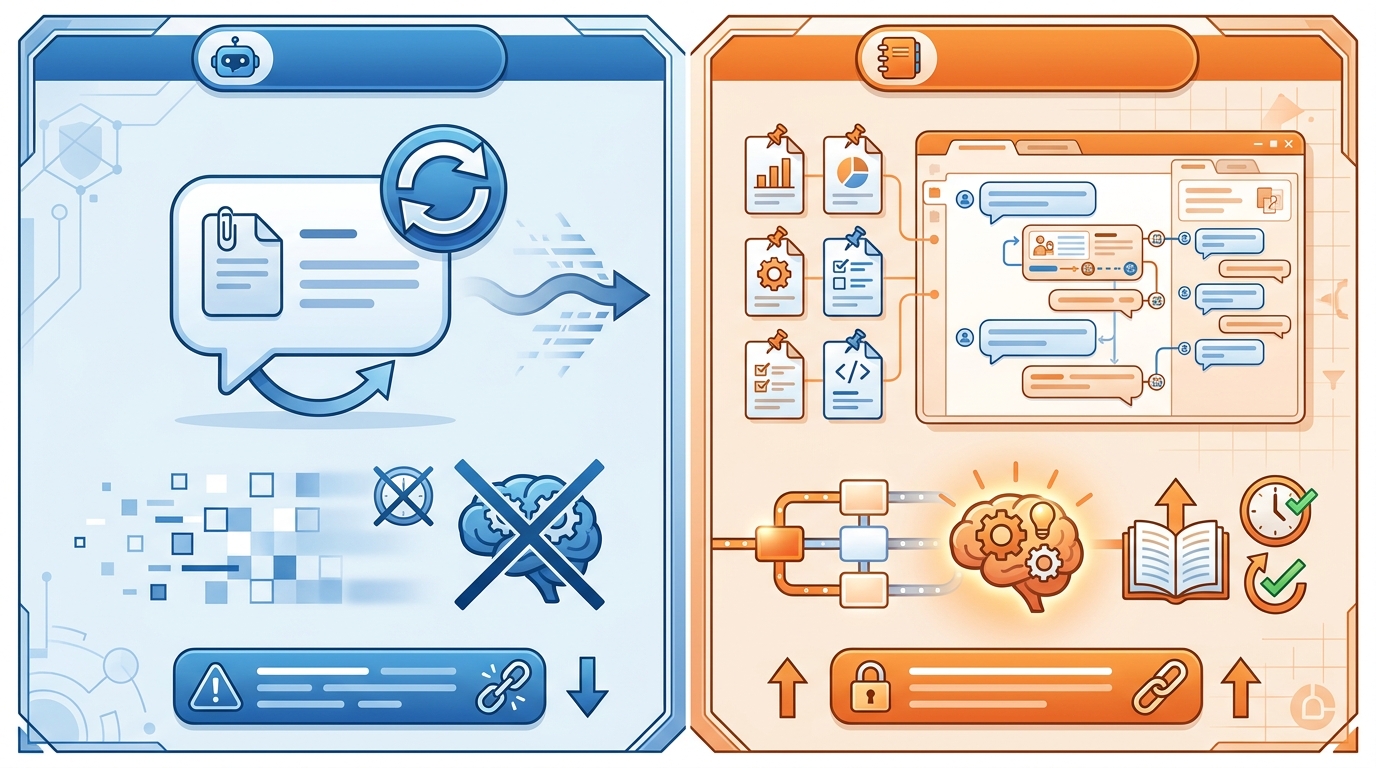
Figure 2:Standard Copilot Chat is stateless — each session starts fresh. Copilot Notebooks maintains document context and conversation history across every return visit.
What Notebooks is:
A named, saveable AI workspace you create once and return to repeatedly
A place to pin up to approximately 20 files (Word documents, PDFs, Excel spreadsheets, PowerPoint presentations) as permanent grounding sources
A multi-turn conversation environment where every question you ask has access to all pinned files simultaneously
A context-preserving record — Copilot can reference earlier turns in the same notebook when answering new questions
What Notebooks is not:
It is not Copilot Chat (the standard interface). Chat is stateless. Each session is isolated. You re-attach files, re-establish context, and lose the conversational thread when you close the window.
It is not Microsoft OneNote (covered in Chapter 10). OneNote is a note-taking and organization application. Copilot Notebooks is an AI analysis workspace. OneNote stores your notes; Notebooks analyzes your documents. They share a name, not a purpose.
It is not Cowork (covered in Chapters 14–17). Cowork agents execute tasks autonomously — they draft, research, send, and deliver. Notebooks is a workspace for your own analysis sessions. You are still doing the intellectual work; Notebooks just ensures your documents and conversation stay organized and available.
It is not a document storage system. The files you add to a Notebook are grounding sources for Copilot, not a replacement for SharePoint, Teams, or OneDrive.
The simplest mental model: a Notebook is a project folder with an AI analyst permanently inside it.
22. The Persistent Workspace Advantage
Consider what you actually lose when context resets.
Every time Sarah re-uploaded her freight variance report to a new Copilot chat, she was not just uploading a file. She was also spending tokens re-establishing the frame: what show this was, what the dispute categories were, which line items were contested and why, what comparison she had been building toward. She had built that frame over six conversation turns in the previous session. It was gone.
Context is expensive to rebuild. It takes time. It takes accurate recall of what you had already established. And it introduces error — when you summarize a prior session from memory rather than building on it directly, you sometimes omit the nuance that made the prior analysis useful.
Notebooks eliminates that tax. When you return to a Notebook you created last Tuesday, Copilot has access to exactly what it had last Tuesday: the same files, the same conversation history, the same analytical frame. You pick up where you left off. You ask the next question — not the same questions again.
For GES professionals, this matters at a specific scale. A post-show reconciliation for a major convention involves freight manifests, labor time-and-attendance records, exhibitor service orders, billing dispute logs, comparison reports from prior years, and sometimes venue invoices. That is not two files. That is a document ecosystem. Standard Copilot chat handles one or two files adequately. Notebooks handles the ecosystem.
The compounding effect is also significant. Because the conversation persists, your analysis gets more precise over time. Your third session in a Notebook builds on your second, which built on your first. You develop a shared shorthand with the workspace — “the variance we identified in Session 1” becomes a reference point, not a re-explanation.
33. How to Create a Notebook
Creating a Notebook takes under two minutes. The friction is low by design — Microsoft wants you to reach for Notebooks the way you reach for a new folder.
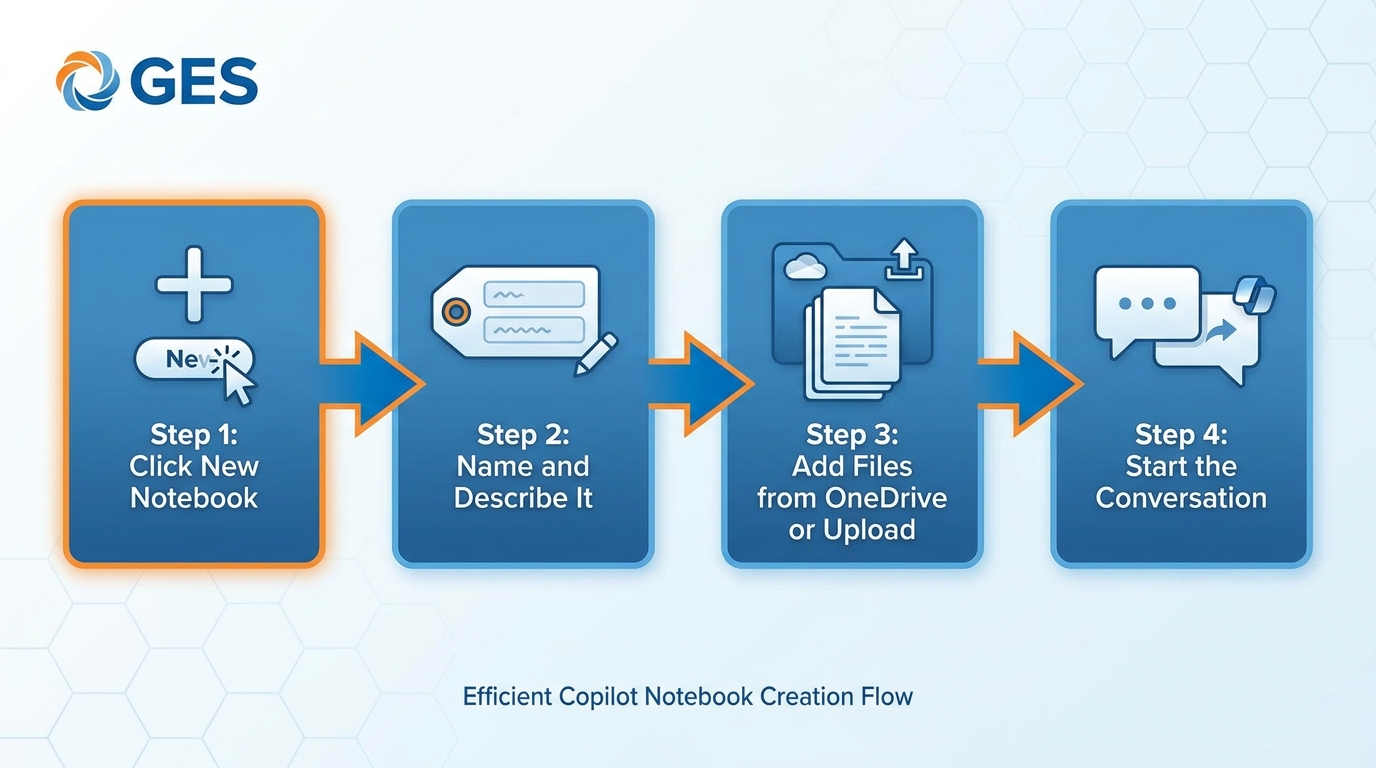
Figure 3:Creating a Notebook follows four steps: navigate, name, describe, and attach files. The entire setup takes under two minutes.
Step 1: Navigate to Notebooks
Go to copilot
Step 2: Create a new notebook
Click New Notebook (or the + button, depending on your tenant configuration). A creation panel opens.
Step 3: Name and describe your notebook
Give it a specific name. Not “Analysis” — that ages badly when you have twelve notebooks. Use names like:
CONEXPO 2026 — Post-Show Reconciliation
InfoComm RFP Comparison — Q2 2026
Safety Incident Review — H1 2026
Add a description that captures the purpose and time scope. The description helps future-you understand the notebook’s context before re-reading every file.
Step 4: Add your files
Click Add files and upload the documents you want as grounding sources. Files upload from your device, OneDrive, or SharePoint. Supported formats include Word (.docx), PDF, Excel (.xlsx), and PowerPoint (.pptx).
Step 5: Start your first conversation
Type your opening prompt in the chat input. Copilot will analyze across all pinned files simultaneously. The conversation begins.
Your Notebook is saved automatically. It appears in your Notebooks list when you return. The files stay attached. The conversation stays intact.
44. Choosing Your Files Wisely
The files you add to a Notebook determine the quality of every answer Copilot gives. This is not a metaphor. Copilot cannot analyze what is not in the Notebook. Garbage in, garbage out — but the more nuanced version is: incomplete context in, incomplete analysis out.
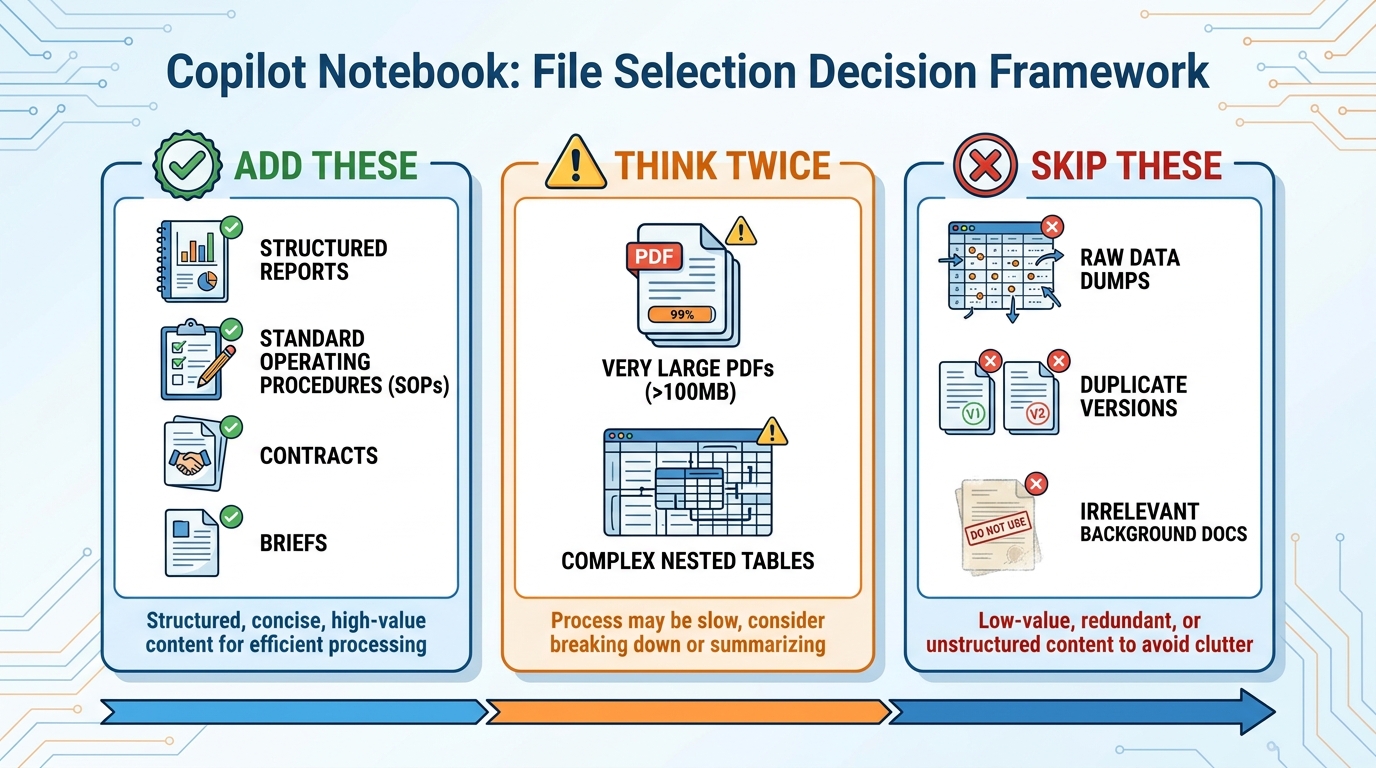
Figure 4:File selection strategy: include the documents that directly ground your analysis; exclude duplicates, poor-quality scans, and files unrelated to the notebook’s specific purpose.
The ~20-file limit
Copilot Notebooks supports approximately 20 files per notebook. The exact limit can vary based on file size and your tenant configuration, but treat 20 as the practical ceiling. This is not a bug — it is a design constraint that encourages focus. A Notebook with 20 tightly relevant files outperforms a Notebook with 18 relevant files and two tangential ones.
File type considerations
Word documents (.docx): Copilot reads these well. Text is extracted cleanly, structure is preserved.
PDFs: Generally reliable, but PDFs generated from scanned documents (image-based, not text-based) may not extract accurately. If your freight manifests were scanned rather than generated digitally, verify answers against the source.
Excel spreadsheets (.xlsx): Copilot reads tabular data but performs better with well-labeled columns and consistent formatting. A spreadsheet with merged cells, hidden rows, or multiple calculation tabs may produce unreliable extractions.
PowerPoint (.pptx): Text in standard slide layouts extracts well. Text embedded in images, SmartArt, or complex graphics may not be read.
Quality over quantity
The instinct when building a Notebook is to add everything that might be relevant. Resist it. Every file you add is part of the context Copilot has to navigate. A Notebook with 6 precisely relevant files yields sharper, more grounded answers than one with 20 files where 14 are marginally related.
Before adding a file, ask: Does this directly ground the question I am trying to answer? If the answer is maybe, leave it out until you need it.
Name your files before uploading
A file named FinalFinal_v3_USE THIS ONE.xlsx tells Copilot nothing useful. A file named CONEXPO-2026-FreightVariance-FinalReport.xlsx tells Copilot the show, the year, the document type, and its finality. Copilot uses file names as metadata when citing sources. Descriptive names produce cleaner citations and help you audit answers.
55. The Art of Notebook Prompting
Prompting inside a Notebook is different from prompting in standard Copilot Chat. The difference is not in syntax — it is in strategy. You have more information available, more conversation history to reference, and a context that accumulates across sessions. Use all of it.
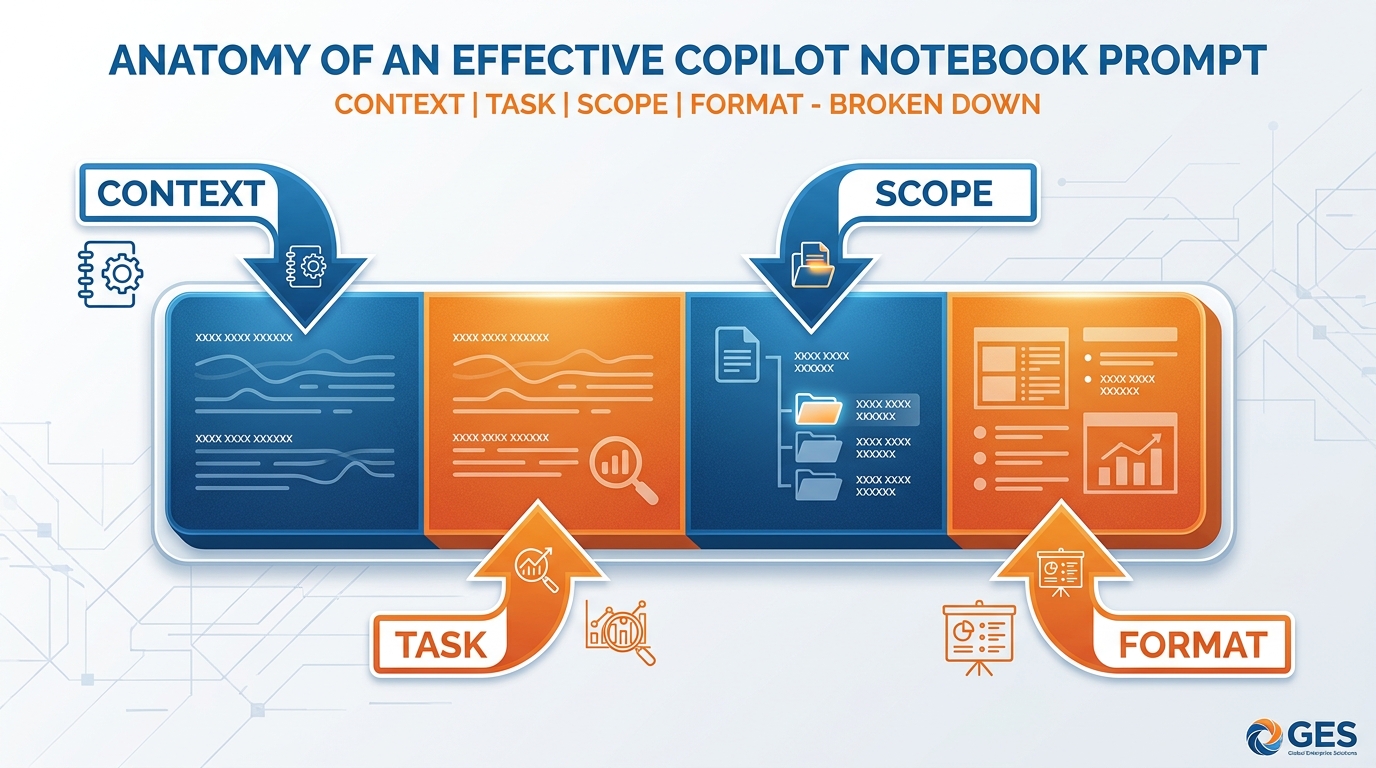
Figure 5:A well-constructed Notebook prompt identifies scope, task, desired format, and builds on prior conversation turns rather than starting from scratch.
Open with scope
In standard chat, you establish scope by uploading a file. In a Notebook, files are already pinned — but Copilot still benefits from knowing which subset you want to focus on. Open with a scope statement:
“Using only the freight variance reports from CONEXPO and InfoComm (not the corporate event), identify the top three cost overrun categories.”
That constraint helps Copilot deliver a precise answer rather than averaging across all three shows when you only want two.
Build on prior turns explicitly
Because your conversation persists, you can — and should — reference earlier turns. Copilot can use them as context. Examples:
“In our last session, you identified labor overruns as the primary variance driver. Looking at the exhibitor billing disputes log now, are any of those disputes related to the same labor categories?”
“Earlier you gave me the top three RFP venues by power availability. Now rank those same three by union labor requirements.”
These prompts work because the earlier context is still in the conversation. You are not re-explaining — you are building.
Specify output format for every analytical ask
Copilot can produce answers in paragraph form, bullet lists, tables, or structured reports. In a Notebook context — where you are likely doing serious analysis — be explicit:
“Summarize in a table: columns for show name, freight variance amount, variance percentage, primary cause.”
“Give me a two-paragraph executive summary I can paste into the client debrief document.”
“List the five most significant discrepancies as numbered bullet points, citing which document each comes from.”
Ask Copilot to cite its sources
In multi-document Notebooks, source attribution matters. You need to know whether that freight figure came from the CONEXPO report or the InfoComm report. Add a citation instruction to your prompts:
“For each finding, cite the document and section it comes from.”
Copilot will reference the file name in its answer. You can then spot-check against the source.
Use progressive refinement
Do not try to get the complete answer in a single prompt. Start broad, then narrow. Session one: establish the landscape. Session two: dig into anomalies. Session three: build the output document. This mirrors how a skilled analyst actually works — and it matches how Notebooks accumulates value over time.
66. Ten GES Notebook Use Cases
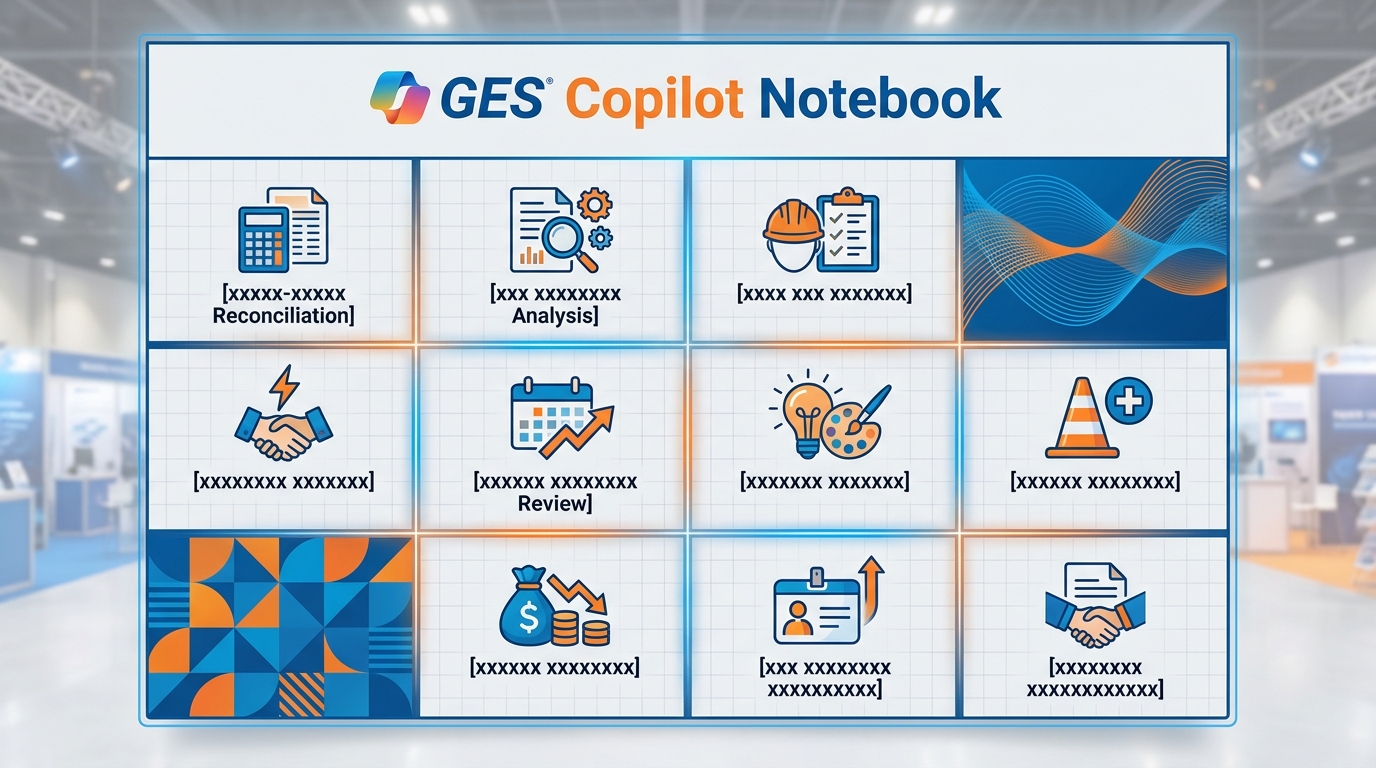
Figure 6:Ten proven GES Notebook configurations — each represents a real workflow where persistence and multi-document grounding deliver analysis that standard chat cannot.
6.1Use Case 1: Post-Show Reconciliation
The situation: You just closed three back-to-back shows. Each has a freight variance report, a labor summary, and an exhibitor billing dispute log.
What to pin: Freight variance report (Show A), Freight variance report (Show B), Freight variance report (Show C), labor summaries for all three, billing dispute logs for all three. That is nine files — well within the limit.
Opening prompt: “Across all three shows, identify the top five freight variance categories by total dollar impact. Cite which show(s) each category appears in.”
Follow-up turns:
“Which show had the highest labor overrun as a percentage of contracted hours?”
“Cross-reference the labor overruns with the billing dispute logs. Are any disputes related to labor charges?”
“Draft a one-page executive summary of reconciliation findings across all three shows.”
The payoff: A complete cross-show analysis that would take a skilled analyst half a day to assemble manually — built in a single Notebook session, with citations you can audit.
6.2Use Case 2: RFP Venue Comparison
The situation: You are evaluating four venues for a 2027 anchor show. Each venue sent a detailed RFP document covering loading dock specs, power distribution, union labor rules, and floor load ratings.
What to pin: The four venue RFPs. That is it. Keep the Notebook focused.
Opening prompt: “Compare all four venues on loading dock specifications: number of docks, dock height, drive-in door dimensions, and dock leveler availability. Present as a table.”
Follow-up turns:
“Now compare power availability: total amps per 100 square feet, primary distribution panel locations, and transformer rental requirements.”
“Which venues require mandatory union labor for electrical? Which allow hybrid staffing?”
“Based on everything we have analyzed, which two venues best match a 500,000 square foot show with heavy machinery exhibits?”
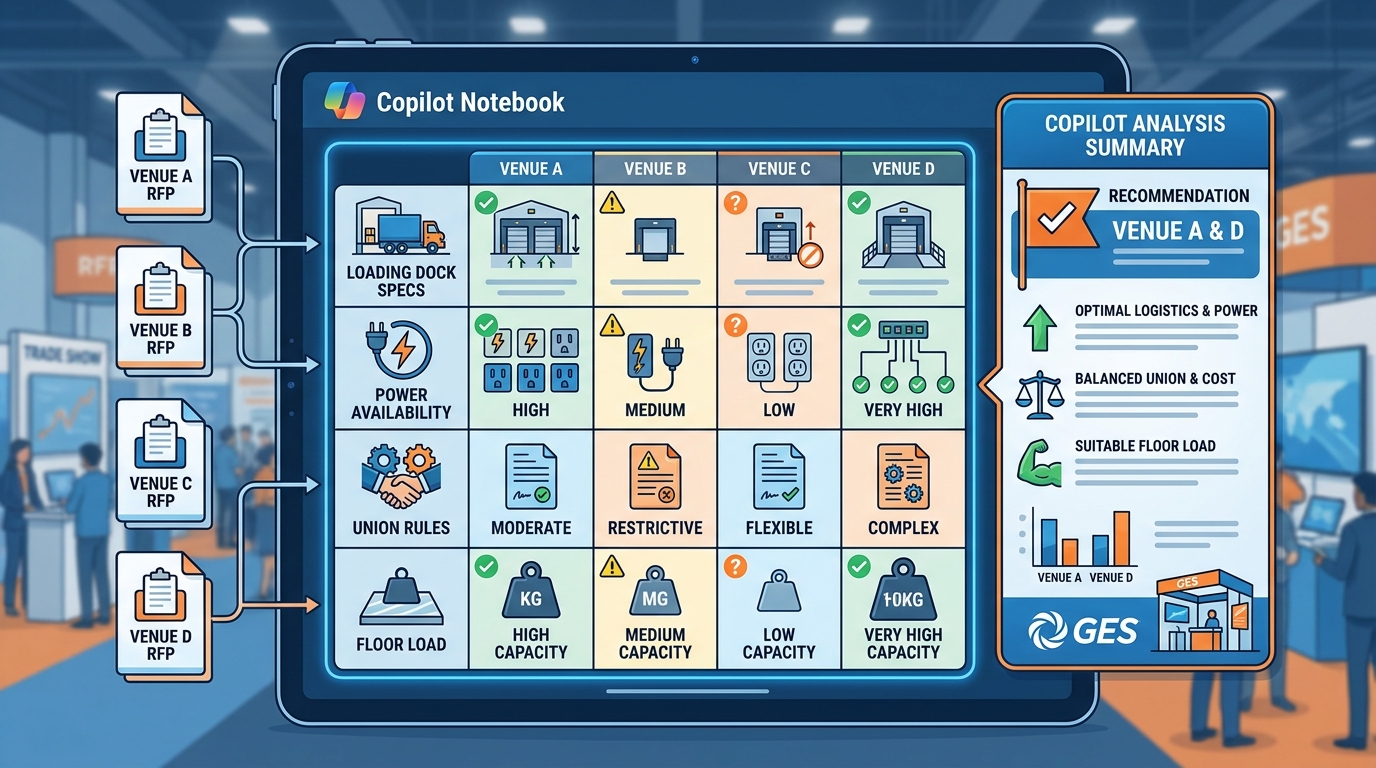
Figure 7:The RFP comparison Notebook pins all four venue documents and uses progressive prompting to build a structured comparison — loading docks first, then power, then labor rules, then a synthesis recommendation.
The payoff: A structured venue comparison that consolidates 200+ pages of RFP documents into actionable decision criteria.
6.3Use Case 3: Show Operations Playbook
The situation: Your show team needs a constantly accessible reference for an upcoming large-format show. The playbook spans union contracts, facility SOPs, floor plans, and move-in timelines.
What to pin: Union contract (relevant jurisdiction), venue-specific SOPs, annotated floor plan document, move-in/move-out timeline, emergency response protocol.
How this Notebook is different: This is not an analysis Notebook — it is a reference Notebook. The team asks it operational questions throughout the show cycle.
Sample prompts:
“What is the union jurisdiction rule for electricians at this venue?”
“What is the procedure for requesting an after-hours move-in extension?”
“Which loading dock is designated for oversized freight?”
The payoff: An always-on operations reference that answers specific procedural questions without requiring anyone to search through 60-page documents.
6.4Use Case 4: Exhibitor Dispute Resolution
The situation: An exhibitor is disputing $14,000 in freight handling charges. They claim they were charged for services not ordered. You need to reconstruct the full picture quickly.
What to pin: Exhibitor’s original service order, all email communications with the exhibitor (exported to Word or PDF), the contracted rate card, your internal handling notes, and the final invoice.
Opening prompt: “The exhibitor is disputing the freight handling charges on the final invoice. Based on the service order and rate card, calculate what their charges should have been. Then identify any line items on the final invoice that are not supported by the service order.”
Follow-up turns:
“Review the email communications. Did the exhibitor authorize any additional services verbally or in writing?”
“Draft a dispute response letter that acknowledges their concern, presents the documented justification for each charge, and references the specific communications that support our position.”
The payoff: A dispute response built on the actual documentary record — not from memory or summary.
6.5Use Case 5: Annual Account Review
The situation: One of your top five clients — a major technology company that runs four shows per year — is coming up for their annual account review. You need to present a comprehensive performance summary.
What to pin: The 12 monthly or per-show performance reports for that client. You may need to split this into two Notebooks if the reports are large, but a year of four shows is typically manageable.
Opening prompt: “Across all shows this year, what was the average exhibitor satisfaction score, average freight delivery accuracy rate, and average labor utilization rate?”
Follow-up turns:
“Which show had the most service complaints? What were the primary complaint categories?”
“Identify three areas where our performance improved year-over-year and two areas where we fell short of targets.”
“Draft the performance summary section of the annual account review presentation — use the data we have discussed, in a professional tone appropriate for a client-facing document.”
The payoff: An account review grounded in a year of actual performance data, not the two shows you remember most clearly.
6.6Use Case 6: Creative Brief Development
The situation: A client needs a 40-by-40 island booth with experiential elements. You have their brand guidelines, the creative brief they submitted, and the final reports from two previous shows where GES creative was involved.
What to pin: Brand guidelines document, client creative brief, post-show creative report (Show 1), post-show creative report (Show 2).
Opening prompt: “Based on the brand guidelines and the client’s creative brief, what are the three non-negotiable visual standards we must meet? List them with citations from the brand guidelines.”
Follow-up turns:
“Looking at the previous show creative reports, which design elements received the highest exhibitor traffic engagement?”
“Generate five conceptual booth theme directions that honor the brand standards and incorporate the engagement patterns from prior shows.”
The payoff: Creative concepts grounded in brand truth and demonstrated performance — not generic ideas.
6.7Use Case 7: Safety Incident Pattern Analysis
The situation: You are preparing the quarterly safety review and need to identify patterns across incident reports from six shows this period.
What to pin: All six incident reports (or as many as fit within the file limit).
Opening prompt: “Catalog all incidents by type: near-miss, first aid, recordable injury, and property damage. Present as a table with show name, incident type, date, and brief description.”
Follow-up turns:
“Are any incident types recurring across multiple shows? Identify patterns.”
“Which phase of show operations — move-in, show days, or move-out — accounts for the most incidents?”
“Draft three specific corrective action recommendations based on the patterns you have identified.”
The payoff: A pattern analysis that would require manually reading and cross-referencing six reports now takes one Notebook session.
6.8Use Case 8: Budget Variance Tracking
The situation: You are tracking P&L variance across eight shows in the portfolio. You need to understand which cost categories are running hot and whether the pattern is systemic or show-specific.
What to pin: The P&L report for each show (up to eight, possibly more if file sizes allow).
Opening prompt: “For each show, calculate labor cost variance as a percentage of budget. Rank shows from highest to lowest overage.”
Follow-up turns:
“Are the top three overage shows in the same venue jurisdiction? Do they share a union contract?”
“Which cost category — labor, freight, electrical, or other — accounts for the largest total variance dollar amount across all shows?”
“Draft a one-page variance summary memo I can include in the CFO’s monthly portfolio review.”
The payoff: A portfolio-level financial picture assembled from individual show P&Ls — without a single manual spreadsheet calculation.
6.9Use Case 9: New Employee Onboarding Reference
The situation: A new show services coordinator joins your team. She needs to understand GES operating standards, union jurisdiction rules for her region, the EXPO+ workflow for exhibitor orders, and the escalation protocols.
What to pin: Standard onboarding guide, regional union jurisdiction summary, EXPO+ quick reference document, escalation protocol document, org chart.
How this Notebook is different: This Notebook belongs to the new employee. She uses it as a personal reference — asking questions as they arise rather than scheduling time with her manager for every procedural question.
Sample prompts:
“What is the process for submitting an exhibitor order change after the advance order deadline?”
“Who do I escalate to if a freight shipment is missing at move-in and I cannot reach the exhibitor?”
“What union jurisdiction applies for electrical work in Las Vegas?”
The payoff: A new employee who can self-serve answers to procedural questions in their first 90 days — and a manager who spends less time answering the same questions repeatedly.
6.10Use Case 10: Contract Negotiation Preparation
The situation: You are entering renewal negotiations with a venue partner. You have the current venue contract, two years of correspondence, your internal rate card, and the last two show performance reports at that venue.
What to pin: Current venue contract, rate card (current), performance report (Year 1), performance report (Year 2), key correspondence history (exported to Word).
Opening prompt: “Review the current venue contract. What are the three terms most favorable to the venue that we should look to renegotiate in our favor?”
Follow-up turns:
“Based on the performance reports, what evidence do we have of service deficiencies that support a request for rate concessions or service credits?”
“What is our current contracted rate for dock staging versus standard market rates based on the rate card?”
“Draft a negotiation preparation brief: our top five asks, the evidence supporting each, and our walk-away position on each.”
The payoff: You walk into the negotiation with a brief built from the actual documentary record — not from what you remember from the last meeting.
77. Notebook Discipline
A Notebook is only as useful as its focus. This is the lesson that most users learn after creating their first five Notebooks.
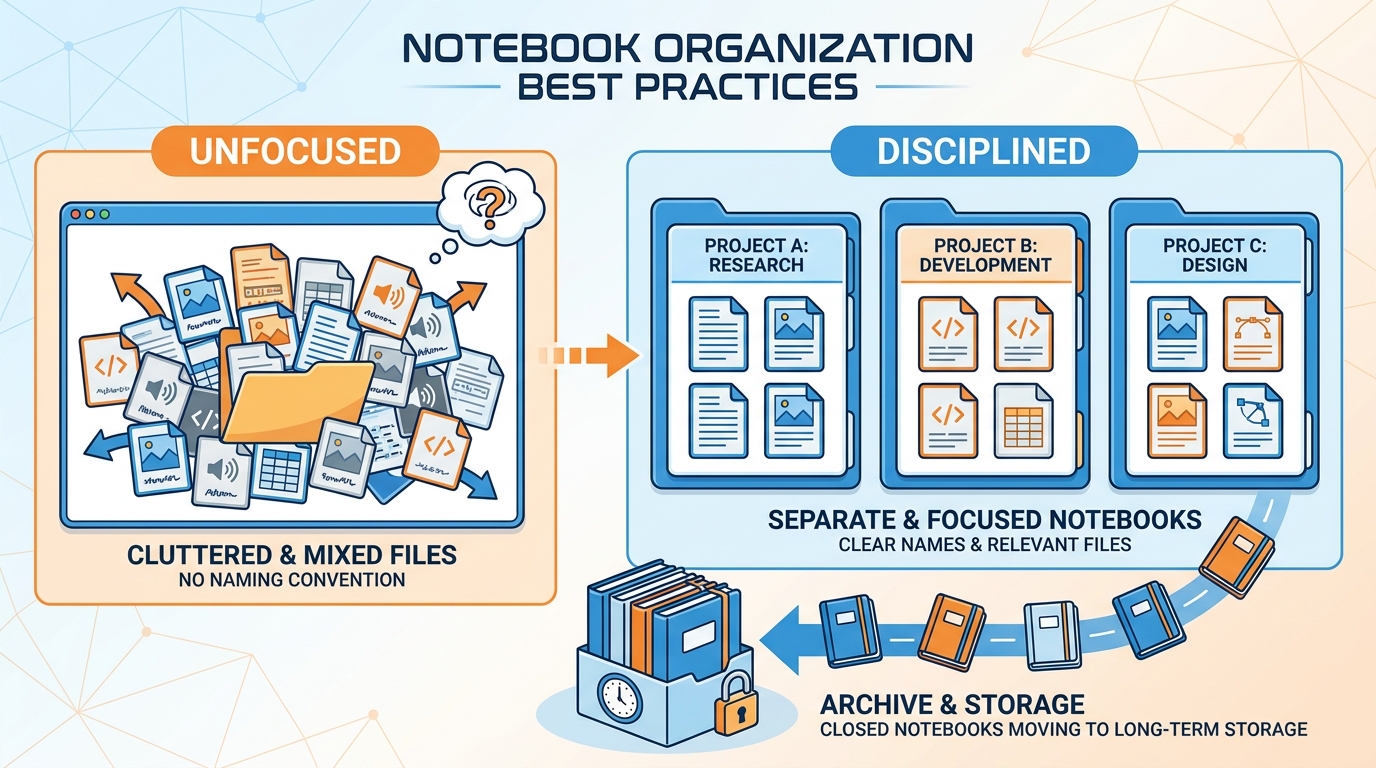
Figure 8:Focused Notebooks — one project, one purpose, clearly named — outperform sprawling ones. When a notebook starts covering multiple projects, create a new one.
Naming conventions that hold up over time
Use this structure: [Project/Show Name] — [Purpose] — [Date or Cycle]
Examples:
CONEXPO-2026 — Post-Show Reconciliation — Q2 2026
Vegas Convention Center RFP — Venue Comparison — March 2026
Safety Incidents — Pattern Review — H1 2026
TechCorp Account — Annual Review — FY2026
Avoid generic names. The name you give a Notebook in the moment of creation is the name you will be searching for in six months when you need to find it.
One purpose per Notebook
The temptation is to repurpose an existing Notebook for a related project — to add this year’s CONEXPO files to last year’s CONEXPO Notebook because it feels like the same project. Do not. Each annual cycle is a new project with new files and new questions. Create a new Notebook. The old one becomes an archive.
Know when to start fresh
If you find yourself adding files that are only partially relevant, removing old files to make room for new ones, or losing track of what questions you have already asked, those are signals to start a new Notebook. Fresh start, focused purpose, clean files.
Archive, do not delete
Your completed Notebooks are a record of analysis. An investigation you completed in January may be relevant to a dispute that surfaces in August. Keep completed Notebooks. They do not cost you storage — they cost nothing to maintain.
88. Limits and Honest Gotchas
Notebooks is genuinely useful. It is also genuinely limited. Both of these things are true, and understanding the limits prevents the frustration of expecting something the tool cannot deliver.
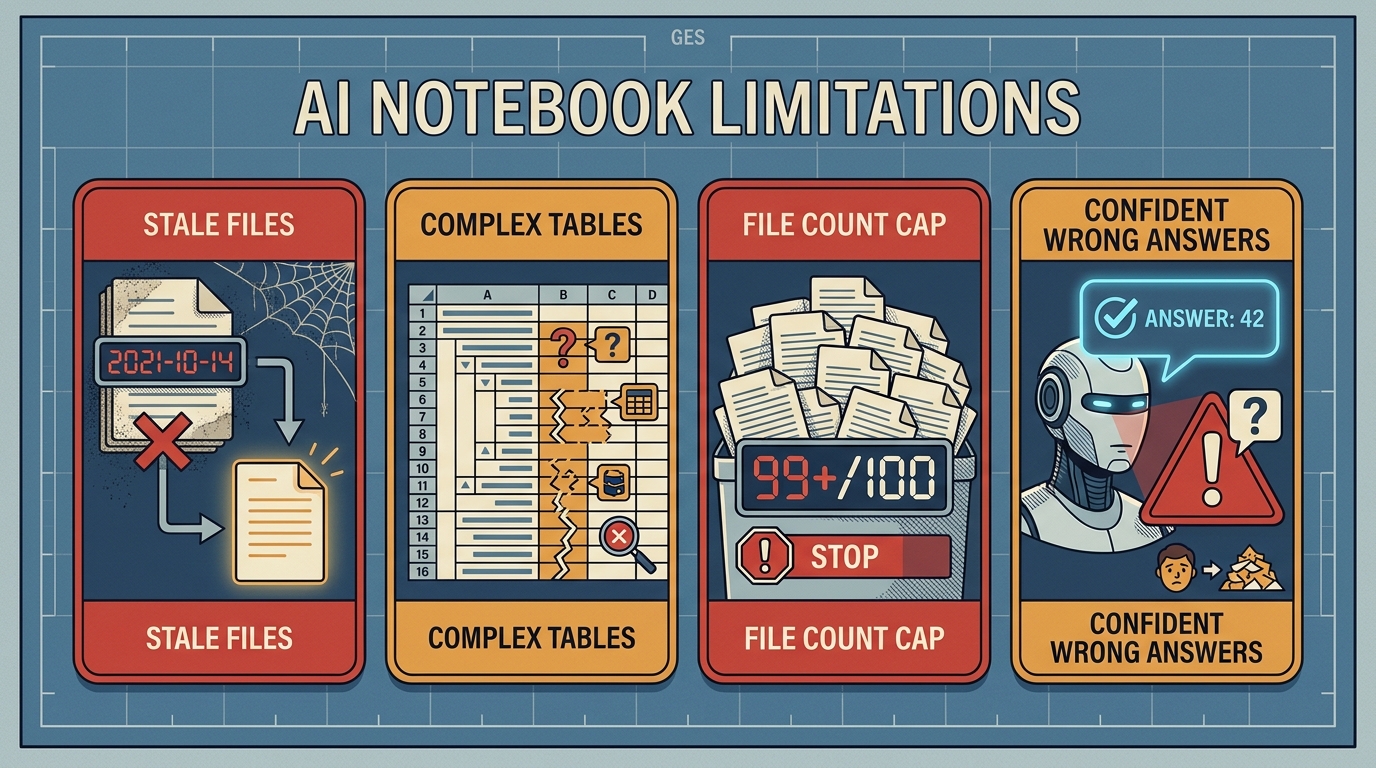
Figure 9:Four honest limitations of Copilot Notebooks: files can become stale, file size affects extraction quality, complex tables may not parse correctly, and shared notebooks expose all content to all collaborators.
File size and extraction quality
There is no published single-file size limit, but very large files — particularly large PDFs with complex layouts — may not extract completely. If a 200-page venue contract only surfaces results from the first 80 pages, that is likely an extraction limit, not a Copilot error. Mitigation: split large documents into logical sections before uploading, or extract the most relevant pages into a focused document.
Complex tables and structured data
Copilot handles narrative text better than it handles complex structured data. A freight manifest with 400 line items in a tightly formatted Excel sheet may yield less reliable extraction than a Word document describing the same information in prose. If your analysis depends on exact figures from complex tables, verify Copilot’s extractions against the source.
Real-time data is not available
A Notebook is grounded in the files you have added. It has no access to live systems — not EXPO+, not expoCad, not your ERP. If you need current show-floor status, live freight tracking, or real-time exhibitor service orders, Notebooks is not the tool. It analyzes documents you have exported or downloaded. Think of it as an analyst who has read your printed reports — not one who is logged into your systems.
Copilot can be confidently wrong
This is the consistent limitation across all Copilot surfaces, and Notebooks is not exempt. Copilot will sometimes synthesize an answer that is plausible but incorrect — combining figures from different documents, misciting a source, or generating a number that was nowhere in the files. The frequency is lower in a well-structured Notebook with clean files than in open-ended chat, but it is not zero. Treat Copilot’s output as a first draft that requires verification for any figures that matter.
99. Try This — Build Your First GES Notebook
This exercise builds a working Notebook from real (or realistic) GES documents. It takes approximately 30 minutes.
Setup (10 minutes):
Identify one show or project where you have at least three documents: a final report, a financial summary or P&L, and either a dispute log or a client communication export.
If you do not have real documents available, use the sample documents provided in the course resource portal: Sample-ShowReport-CONEXPO.pdf, Sample-PL-Summary.xlsx, and Sample-DisputeLog.docx.
Rename the files descriptively before uploading (e.g., CONEXPO-ShowReport-Final.pdf).
Build the Notebook (5 minutes):
Go to copilot
.microsoft .com → Notebooks → New Notebook. Name it: [Your Show Name] — Practice Analysis — [Today’s Date]
Add a description: Practice Notebook for Chapter 18 exercise — post-show analysis with three documents.
Upload your three files.
First conversation (15 minutes):
Start with a scope-setting prompt: “I have attached three documents from [show name]. The show report covers operations and service performance. The P&L covers budget versus actuals. The dispute log covers billing claims from exhibitors. Before I ask specific questions, give me a brief summary of each document’s key contents.”
After Copilot summarizes, ask a cross-document question: “Based on the P&L and the dispute log, is there a connection between our largest cost overruns and the nature of the billing disputes?”
Ask for a specific output: “Draft three bullet points summarizing the financial risk profile of this show, in language I could include in a post-show debrief email to my manager.”
Close and return (the real test):
Close the Notebook entirely. Log out if you want.
Return tomorrow (or in an hour). Open the Notebook. Confirm that your files are still attached and your conversation is still visible.
Add one follow-up question: “In our last session, we identified [topic]. What additional information from the attached documents would strengthen that analysis?”
You have now experienced the core Notebooks value proposition firsthand.
1010. Productive Struggle Problem
This challenge is designed for teams rather than individuals. It requires judgment as well as Notebooks skill.
The scenario:
GES is conducting a post-event analysis of a major three-day trade show. Five stakeholders have contributed documents:
The operations team submitted a move-in/move-out timeline variance report
The exhibitor services team submitted a service quality scorecard and complaint log
The logistics team submitted a freight delay analysis with carrier performance data
The finance team submitted a show P&L with a $220,000 unfavorable labor variance
The client submitted their own post-show survey results, which partially contradict GES’s internal quality scorecard
The challenge:
Design the Notebook: which files do you include, in what order, and how do you name them?
Write a five-prompt sequence that moves from document orientation → cross-document pattern identification → contradiction analysis → root cause hypothesis → executive brief draft.
The client survey and GES’s internal scorecard disagree on service quality ratings in two categories. How do you prompt Copilot to surface and analyze that contradiction — rather than averaging it away?
The $220,000 labor variance appears in the finance P&L but is not discussed in any other document. What are three possible explanations, and how would you construct Notebook prompts to test each hypothesis against the available documents?
After completing the analysis, write the notebook naming convention and file list you would archive — and explain what you would include in the Notebook description for the next team member who needs to reference this analysis in a future dispute.
There is no single correct answer. The value is in the reasoning about document selection, prompt sequencing, and how to handle contradictions in source material.
11Glossary
BizChat
Microsoft’s name for the web-based Microsoft 365 Copilot interface, accessible at microsoft365
Context window The amount of information (text, conversation history, document content) that an AI model can hold in active memory for a given interaction. Copilot Notebooks manages context across a conversation; very long conversations may cause early content to be deprioritized.
Document grounding The practice of providing specific source documents to an AI model so that its answers are based on those documents rather than its general training data. Notebooks is a document-grounded AI workspace.
Extraction The process by which Copilot reads and parses the content of an uploaded file. Extraction quality varies by file type and document complexity; clean, text-based documents extract more reliably than scanned PDFs or complex spreadsheets.
File limit The maximum number of files that can be pinned to a single Copilot Notebook at one time — approximately 20, depending on file size and tenant configuration.
Grounding source A document added to a Notebook that Copilot uses as the basis for its answers. Copilot answers are only as accurate as the grounding sources are complete and current.
M365 Copilot Microsoft 365 Copilot — the enterprise AI license that provides access to Copilot across Microsoft 365 applications (Teams, Outlook, Word, Excel, PowerPoint) and BizChat/Notebooks.
Multi-turn conversation An AI conversation in which each exchange builds on the prior ones, allowing for progressive refinement, follow-up questions, and reference to earlier analysis. Notebooks preserves multi-turn conversations across sessions.
Persistent workspace A workspace that retains its contents — files, conversation history, settings — between sessions. Copilot Notebooks is a persistent workspace; standard Copilot Chat is not.
Prompt sequencing A prompting strategy in which a series of prompts moves progressively from orientation → analysis → synthesis → output, rather than asking for everything in a single prompt.
Returnable workspace A workspace you can leave and come back to in the same state. Notebooks saves automatically and resumes exactly where you left off.
Stale grounding The condition of a Notebook whose source files are outdated — for example, a Q1 budget report still pinned after Q2 has closed. Stale grounding produces stale analysis.
Tenant An organization’s isolated Microsoft 365 environment. Files and conversations in Copilot Notebooks remain within the tenant and are not shared with Microsoft or third parties.
12Discussion Questions
Use these questions to deepen team understanding. Guidelines for productive discussion follow each question.
1. Where does your team currently lose the most context in multi-document analysis work?
Discussion guideline: Focus on specific workflows — post-show reconciliation, client account reviews, RFP evaluations. Identify the exact moment where context resets or is lost. This is where a Notebook would pay back immediately.
2. What is the difference between a Notebook and a well-organized SharePoint folder?
Discussion guideline: Both organize documents. The difference is that a Notebook enables ongoing AI-assisted analysis of those documents, with persistent conversation history. A SharePoint folder stores files. A Notebook creates an analytical relationship with them.
3. If you were building a Notebook for a dispute that might end up in legal proceedings, what files would you include — and what files would you deliberately exclude?
Discussion guideline: This question surfaces the judgment required for responsible use. Privileged communications, attorney notes, and documents designated as confidential should generally not be in a Notebook that could be shared or accessed beyond the immediate user.
4. How would you decide whether to continue an existing Notebook or start a new one for this year’s version of an annual show?
Discussion guideline: Prior year analysis is useful context; stale files are a liability. One practical answer: start a fresh Notebook with this year’s files, but note the prior year Notebook in the description for reference.
5. A team member proposes using a single Notebook for all of GES’s 2026 shows — one workspace, all the files. What are the risks of this approach?
Discussion guideline: File limit constraints, loss of focus, context confusion between shows, stale file accumulation, and the risk of a wrong cross-show citation in an analysis. The right answer is purpose-specific Notebooks, not one mega-Notebook.
13Leader’s Takeaway
The value of Copilot Notebooks is not in any single answer Copilot gives you. It is in the accumulation of analytical work over time — the show reconciliation that gets sharper because you can build on the prior session, the RFP comparison that goes three rounds deep because you do not have to re-establish context, the account review that actually covers the full year because all twelve months are pinned and ready.
For GES, the operational implication is specific: the workflows that most benefit from Notebooks are those that currently suffer from context loss — where your team re-uploads files, re-explains situations, or loses analytical threads between sessions. Post-show reconciliation. Multi-venue RFP evaluation. Safety incident pattern analysis. Annual account reviews. These are not hypothetical Notebooks use cases. They are the ones your team should build this week.
The discipline required is simple: one purpose per Notebook, descriptive file names, regular file updates when source documents change, and careful judgment before sharing. The reward is an analytical workspace that compounds in value with every session you invest in it.
The Notebook you build today for CONEXPO 2026 will still be useful when someone opens a billing dispute in November. That is not a trivial capability. That is the difference between institutional memory and institutional amnesia.
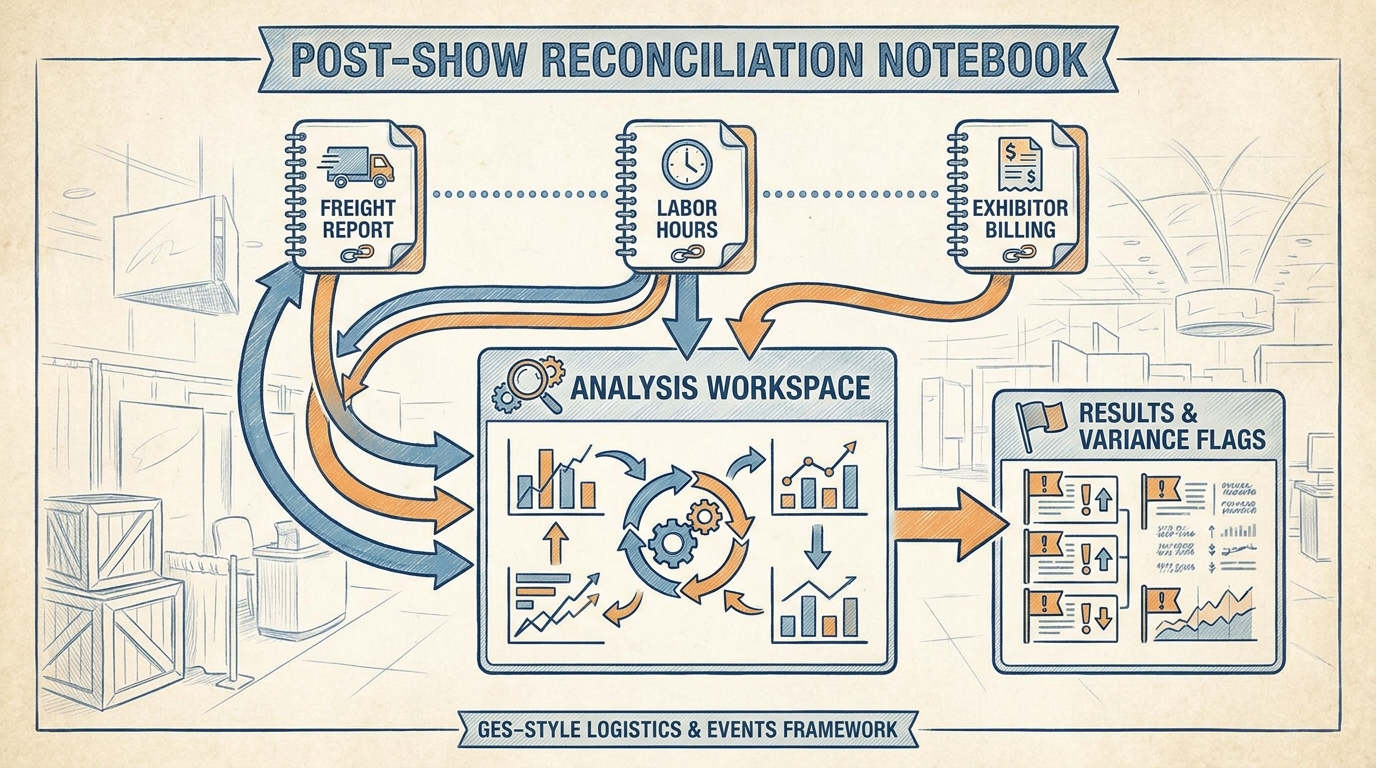
Figure 10:The post-show reconciliation Notebook consolidates reports from three shows into a single persistent workspace — enabling cross-show variance analysis, pattern identification, and output drafting in one connected session.
Figure 11:Five Notebook discipline rules that determine whether your workspace compounds in value or accumulates confusion over time.
Chapter 18 complete. Chapter 19 covers Microsoft Copilot in Excel — turning GES show P&Ls and exhibitor data exports into analyzed, presentation-ready intelligence without manual formula construction.