Chapter 8: Week 3, Session A — Copilot in PowerPoint
From Working Doc to Client-Ready Deck in Minutes
1Chapter 8: Week 3, Session A — Copilot in PowerPoint
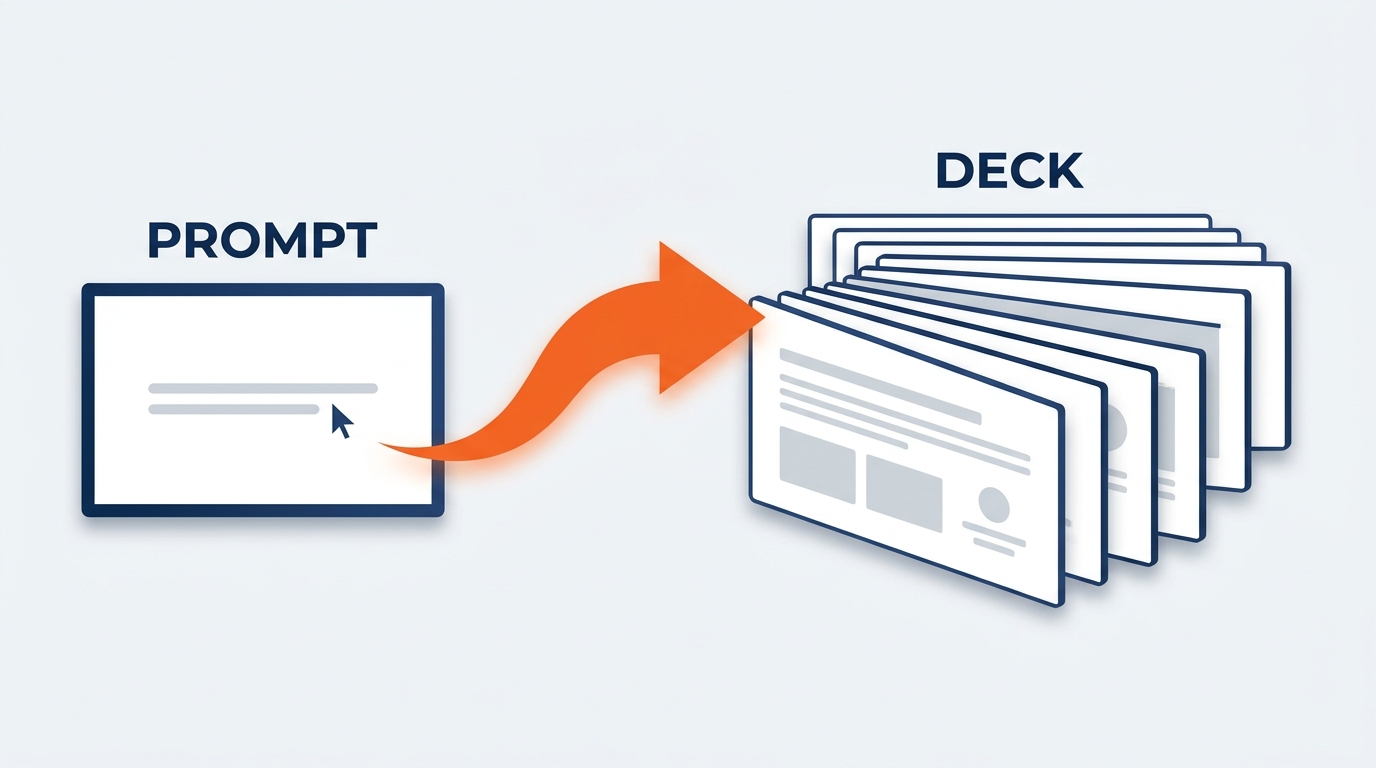
Figure 1:Copilot in PowerPoint gives GES professionals two entry points, a structured generation workflow, and four mission-critical deck types. Every output passes through the same endpoint: a professional who verifies and owns every slide before it reaches an organizer, an exhibitor, or a show floor.
“The deck crunch is real. The pitch is tomorrow. The slides are still blank. Copilot changes that math.”
Here is a scene that every senior professional at GES has lived.
It is 4:30 p.m. on a Thursday. The organizer presentation is at 8:00 a.m. Friday in a hotel conference room three time zones away. The account director needs a 12-slide pre-show planning deck covering floor plan status, freight targets, move-in sequencing, and the exhibitor service kit rollout — and the source material lives in three different Excel files, a Word operations summary, and a set of handwritten notes from last week’s site survey. The slides are not started. Building this deck from scratch — pulling the data, designing the layout, writing the talking points, checking the numbers, formatting everything to GES brand standards — is a four-to-five-hour job. That math does not work.
Or consider the Spiro exhibit designer who has just been told the client wants a concept presentation in 48 hours. She has the design engineering sketches, the budget parameters, the venue’s ceiling height and rigging constraints, the brand guidelines the client sent over, and her own read on what the activation needs to accomplish on the show floor. All of it needs to become a structured, visually credible presentation that the client can react to, question, and approve. Without AI, that is a half-day of assembly work before she gets to spend a single minute on the actual design thinking.
Or the show operations manager who has to brief a regional leadership group on Monday morning about labor performance and safety across three of the 24 GES production facilities. He has the incident logs. He has the labor hour variances. He needs a clean, professional deck that presents the picture honestly and holds up when someone asks a hard question about a specific move-out. Building it from scratch, after already working a full week on a show floor, is not where he wants to spend his weekend.
Microsoft Copilot in PowerPoint does not eliminate the work of preparing great presentations. It compresses the structural, mechanical portion of that work — generating slides, organizing content, creating speaker notes, retaining your brand template — so that the time you spend is invested in the things that actually require your expertise: reviewing the content, validating the numbers, refining the argument, sharpening the creative idea, and ensuring every slide earns its place in the room.
This chapter teaches you exactly how that works — based exclusively on what Microsoft has confirmed and documented — and how GES professionals apply it to the deck types that define our business: client-ready concept decks, organizer RFP responses and new business pitches, post-show recap and ROI presentations, and quarterly business reviews for our largest accounts.
There is one principle that runs through everything in this chapter, the same one introduced in Chapter 6 on Copilot in Word. Microsoft states it clearly in their own documentation: AI-generated content requires your verification before it goes anywhere. Not because Copilot makes things up at random — it is a genuinely powerful tool. Because every number in a post-show ROI deck, every commitment in an RFP response, and every rendering caption in a Spiro concept presentation has your name on it, and behind your name sits 85+ years of GES reputation. That does not change because a machine helped you build the slide.
And there is a second principle, specific to us, that you will not find in any generic Copilot training: at GES, the deck is part of the product.
Let’s start there.
1.11. Why the Deck Is Different at a Design Company
At most companies, a presentation is a container. It carries information from one group of people to another. If it is a little ugly, if the type is inconsistent, if one slide uses last year’s logo — nobody’s core business proposition is damaged.
That is not our situation.
GES sells experience design. We sell the ability to take a brand and translate it into a physical environment that stops a buyer in an aisle. We are the company behind 4,000+ live experiences a year, serving 150,000+ exhibitors across 75+ countries, out of 24 global production and warehouse facilities. Our creative arm, Spiro, competes for work against the best experiential agencies in the world. When a prospective client opens a GES or Spiro deck, they are not just reading our proposal. They are auditing our taste.
A misaligned headline on slide 4 is not a typo. It is evidence. It tells the client that the company asking to design their $2M brand environment cannot keep a text box straight. A cluttered slide with nine bullet points tells a show organizer that the company promising to simplify their move-in has trouble simplifying anything. A stretched, low-resolution rendering tells an exhibitor everything they need to know about how we will treat their graphics on the show floor.
This is why the PowerPoint chapter matters more at GES than it would at a logistics firm, a utility, or a software company. Visual quality is part of our brand promise. The deck is the first physical artifact of our craft that a client ever touches.
1.1.1What the Deck Crunch Actually Costs
Building a professional presentation is not a simple task. It is a composite of five distinct types of work, most of which have nothing to do with the substance of what you are trying to communicate.
Content assembly — gathering the information, data, summaries, drawings, and analysis that will go into the deck — is intellectual work. It requires judgment. It requires knowing what matters to this organizer, this exhibitor, this agency partner, and what does not.
Structural design — deciding how many slides to have, what order they should appear in, what kind of layout fits each type of content — is narrative work. It benefits from experience and pattern recognition. It is the difference between a recap deck that tells a story and one that dumps data.
Prose writing — turning raw show data and design notes into professional, readable slide text and speaker notes — is writing work. It requires skill and attention to tone and precision.
Formatting — applying brand colors, fonts, layout guidelines, logo placement, visual hierarchy — is mechanical work. It is time-consuming, repetitive, and requires no judgment whatsoever.
Verification and design review — checking every number, every claim, every commitment against the underlying data, and checking every visual decision against our creative standard — is critical work. It is irreplaceable and cannot be delegated.
Copilot in PowerPoint targets the structural design, prose writing, and formatting categories. It does not replace content assembly (you still need to know what you’re presenting) and it absolutely does not replace verification or design review (you still need to check everything, and someone with a designer’s eye still needs to look at it). But it compresses three categories of work that can together consume three to four hours of a senior professional’s time into a task that takes ten to twenty minutes of prompting and review.
For a company whose people spend a large share of their working life in transit — between Las Vegas and Chicago, between ExCeL London and Dubai World Trade Centre, between a marshaling yard and a client office — that compression is not trivial. It is the difference between building a deck on a red-eye and building it at your desk with a designer looking over your shoulder. Over thousands of presentations per year, across hundreds of professionals, it represents a measurable shift in capacity.
The blank slide is not a creative opportunity. It is an obstacle standing between you and the creative opportunity. Copilot eliminates the obstacle so you can focus on the substance.
1.22. How Copilot in PowerPoint Works — The Two Entry Points
There are two confirmed, fully operational ways to use Copilot to create and work with PowerPoint presentations. Understanding both — and when to use each — is the foundation of this chapter.
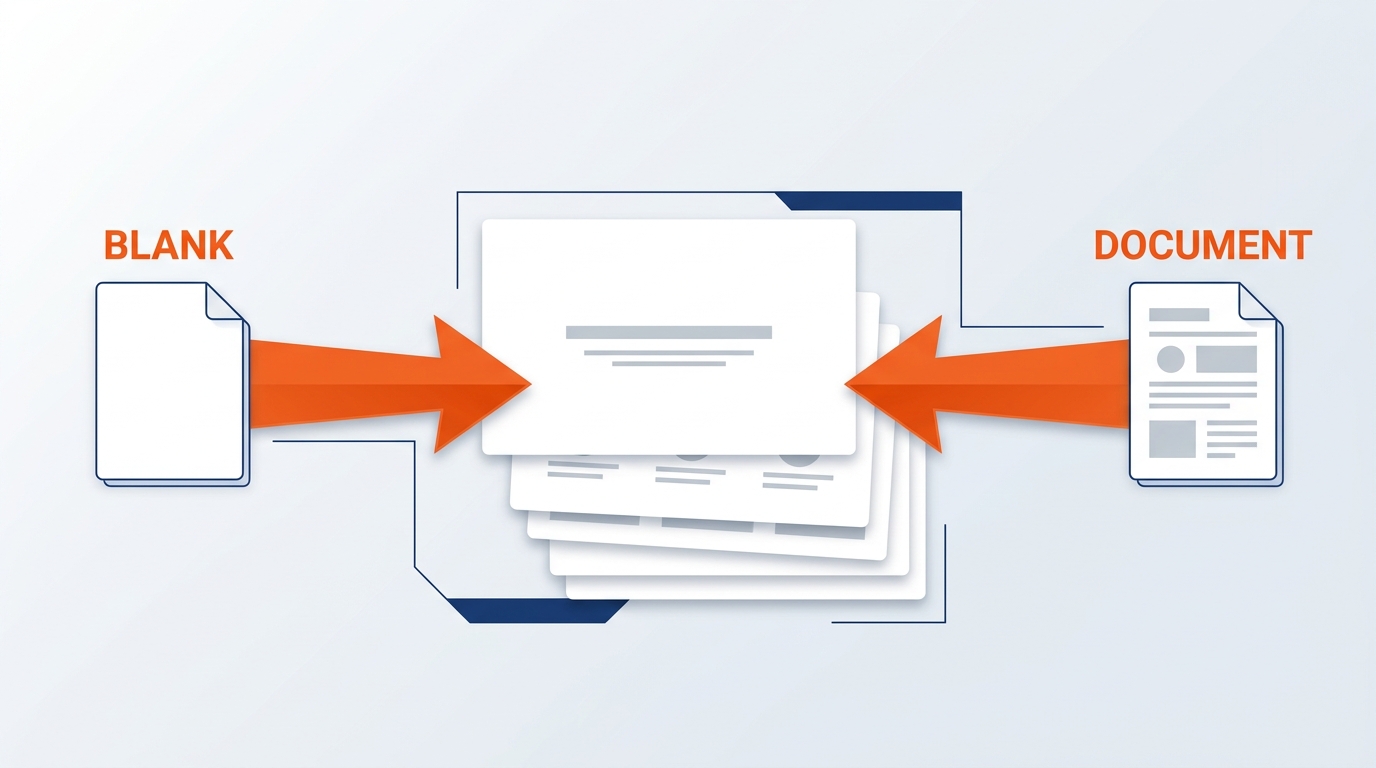
Figure 2:Two entry points, one outcome: a professionally structured PowerPoint presentation grounded in your content and retained in your GES Microsoft 365 environment.
1.2.1Entry Point 1 — In PowerPoint: Agent Mode
When you open PowerPoint and start a new presentation, you will find the Copilot icon in the bottom right corner of the application. Selecting it opens the Copilot panel. Within that panel, you will see an Add Content button, and within that button’s drop-down, you will find Agent Mode.
Agent Mode is where Copilot’s presentation generation capability lives inside the PowerPoint application itself. You type a prompt describing the presentation you want — the topic, the audience, the key points to cover — and Copilot gets to work. It may ask you clarifying questions (more on this in the next section), generate an outline for you to review and refine, and then build the full slide deck.
After generation, the Copilot panel remains open. You can continue chatting with Copilot to refine the deck — asking it to add slides, adjust content, change wording, or add speaker notes — all without leaving PowerPoint.
One important qualification: As of this writing, the ability to reference specific files within Agent Mode is listed by Microsoft as “coming soon” and has not yet reached general availability for all users. If you want to ground your presentation in a specific Word document or SharePoint file using Agent Mode, check your current version of Microsoft 365 to see if this feature has rolled out to your organization. The capability to adjust presentation length, tone, style, and image preferences is also “rolling out to Frontier and Microsoft 365 Insiders,” which means it is not yet available to all users. Microsoft’s roadmap for these features is active — they are coming — but be aware of what is fully available versus what is still in rollout.
1.2.2Entry Point 2 — Microsoft 365 Copilot at m365.cloud.microsoft
The second entry point is the Microsoft 365 Copilot chat interface available at m365.cloud.microsoft. Sign in with your GES Microsoft 365 account, open the Copilot chat, and ask it directly to create a presentation.
For example: “Create a presentation summarizing post-show results for our top ten exhibitors at the spring technology exposition. Eight slides. Audience is the show organizer’s leadership team.”
Copilot may respond with information it has gathered, offer an outline, or ask clarifying questions before proceeding. When you confirm your intent to create a presentation, Copilot generates a .pptx file and saves it automatically to your OneDrive, providing you with a direct link to open it in PowerPoint.
This entry point is particularly useful when you want to initiate the presentation workflow from a broader Microsoft 365 chat context — for instance, when you are already in Copilot researching a venue, a vertical, or a competitor’s show presence and want to convert that research directly into a deck.
The critical architectural point for both entry points: All of this operates within the Microsoft 365 service boundary. Your data does not leave Microsoft’s environment. The presentations are saved to OneDrive or SharePoint. Copilot only accesses content that you have permission to access. The security and compliance architecture that governs all of GES’s Microsoft 365 work — including the confidentiality obligations we carry for client floor plans, exhibitor lists, and unreleased brand campaigns — applies equally here.
1.33. Creating a Presentation from a Prompt — Step by Step
The most direct way to use Copilot in PowerPoint is to describe what you need and let the AI build from there. Here is exactly what happens, step by step.
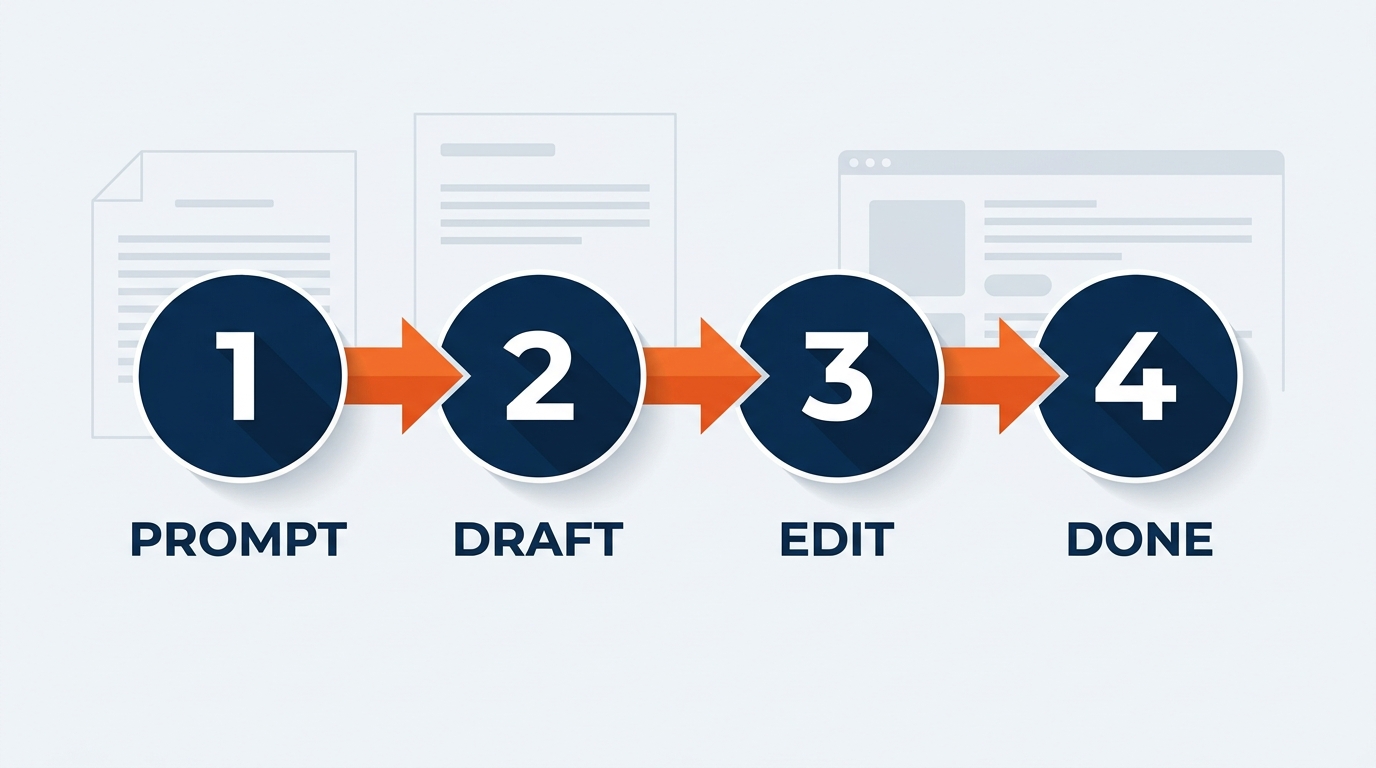
Figure 3:The prompt-to-deck workflow has six stages. Your active participation at Stages 1, 4, and 6 determines the quality of the final output. The richer your initial prompt, the fewer refinement cycles you will need.
1.3.1Stage 1: Your Prompt
Everything starts with the prompt. You describe, in natural language, the presentation you need. The more context you provide, the better the result.
A thin prompt sounds like: “Create a presentation about our exhibitor services.”
A professional-grade prompt sounds like this: “Create a 10-slide pre-show planning presentation for the organizer of a 400,000-square-foot medical device exposition at a convention center in Chicago. Audience is the organizer’s show director and operations lead. Include: an executive summary of the operating plan, a floor plan status slide covering aisle carpet layout and booth counts by size band, a move-in sequencing slide with target dates for the advance warehouse and direct-to-show freight, a material handling and drayage overview with anticipated freight volumes, a labor plan slide addressing union jurisdiction and crew sizing for I&D, an exhibitor service kit rollout timeline with ordering portal launch dates, a sustainability slide covering our reuse and waste-diversion approach, a risk and contingency slide, and a closing slide with decisions we need from the organizer this week. Operationally confident, partnership-focused tone. GES brand standards.”
The difference between these two prompts is the difference between receiving a generic template and receiving a structured first draft that a show director can actually engage with. The additional context in the rich prompt takes three to five minutes to write — and consistently saves thirty to sixty minutes of post-generation revision.
What to include in a strong prompt:
The specific purpose and context of the presentation
The intended audience (show organizer, exhibitor, agency partner, internal leadership, facility team)
The show, venue, and scale, if relevant — a 40,000-square-foot regional show and a 1,000,000-square-foot international exposition require different decks
The number of slides (or an approximate range)
The key content areas to cover, listed explicitly
The desired tone (executive summary, formal, educational, persuasive, creative pitch)
Any specific data points or themes to emphasize
Reference to existing documents where relevant
1.3.2Stage 2: Copilot Asks Clarifying Questions
After you submit your prompt, Copilot will often ask clarifying questions before generating the deck. Based on Microsoft’s documented behavior, these questions may address:
Audience context: Who will be viewing this presentation? What level of familiarity do they have with the topic?
Style preferences: Should the slides be text-heavy with detailed analysis, or visual and high-level?
Image preferences: Would you like Copilot to include images or keep the deck text and chart focused?
These questions are Copilot’s way of narrowing its output to match your actual need. Answer them directly and specifically. Do not skip or rush past them — they are the mechanism by which Copilot tunes the generation to your context.
That third question deserves a note for GES users. For internal ops reviews and data-heavy recap decks, generic AI imagery is usually noise — ask for text and charts. For anything client-facing, and especially for Spiro concept work, you almost never want Copilot’s generic imagery either. You want the real renderings, the real photography from the last activation, the real material samples. Tell Copilot to leave image placeholders and structure, and let the creative team fill them properly.
If your initial prompt was already comprehensive, Copilot may skip the questions and move directly to the outline.
1.3.3Stage 3: Outline Generation
Before building the slides, Copilot generates a proposed outline of the presentation structure. You will see the proposed slides listed — titles and brief descriptions of content for each one.
This is the most important moment in the workflow. Review the outline carefully. If the structure is not right — if slides are missing, in the wrong order, or addressing the wrong content — adjust it here, before the slides are built. It is vastly more efficient to correct the structure at the outline stage than to rebuild slides after they have been generated.
You can tell Copilot: “Add a slide on venue rigging constraints before the design concept slides.” Or: “Combine slides 3 and 4 — they are both covering freight logistics.” Or: “The third slide should focus specifically on move-out sequencing, not the overall operating plan.”
Once you confirm the outline — or after you have refined it to your satisfaction — Copilot builds the full slide deck.
1.3.4Stage 4: Slides Are Generated
Copilot produces the full presentation. Each slide is built according to the confirmed outline, with content drawn from its understanding of the topic and (where available) any source materials you have referenced. The slides will include titles, body content, and — if you have started with your organization’s PowerPoint template — they will adopt the visual design of that template.
The output is a starting point, not a finished product. Expect to find placeholder-level content, slide text that is directionally correct but may need tightening, and numbers that need to be replaced with your actual show data. This is not a flaw — it is the design. Copilot gives you structure and language; you provide the verified facts and the creative judgment.
1.3.5Stage 5: Refine via Chat
After the slides are generated, the Copilot panel remains active. You can continue the conversation to refine the deck. Verified refinement capabilities include:
Adding slides: “Add a slide before the closing that summarizes the top three operational risks for move-in weekend.”
Adjusting slide content: “Rewrite slide 4 to focus specifically on drayage cost drivers and how the advance warehouse option reduces them.”
Changing tone or wording: “Make slide 2 more concise — reduce to three bullet points maximum.”
Requesting speaker notes: “Add speaker notes to every slide. Each note should give the key talking point and a suggested transition to the next slide.”
Changing layout: “Change slide 6 to a two-column layout with the floor plan graphic on the left and the freight target table on the right.”
This iterative refinement cycle is where the workflow becomes genuinely collaborative. You are not accepting a single output — you are having a conversation that progressively improves the deck until it meets your standard.
1.44. Creating from a Word Document — The Most Powerful Workflow
If creating from a prompt is the front door to Copilot in PowerPoint, creating from a Word document is the express elevator.
This is the workflow that produces the most professionally useful results, the fastest, for GES professionals who are already generating Word-based working documents — RFP responses, show operations manuals, site survey reports, design briefs, scopes of work, post-show reports, and safety documentation.
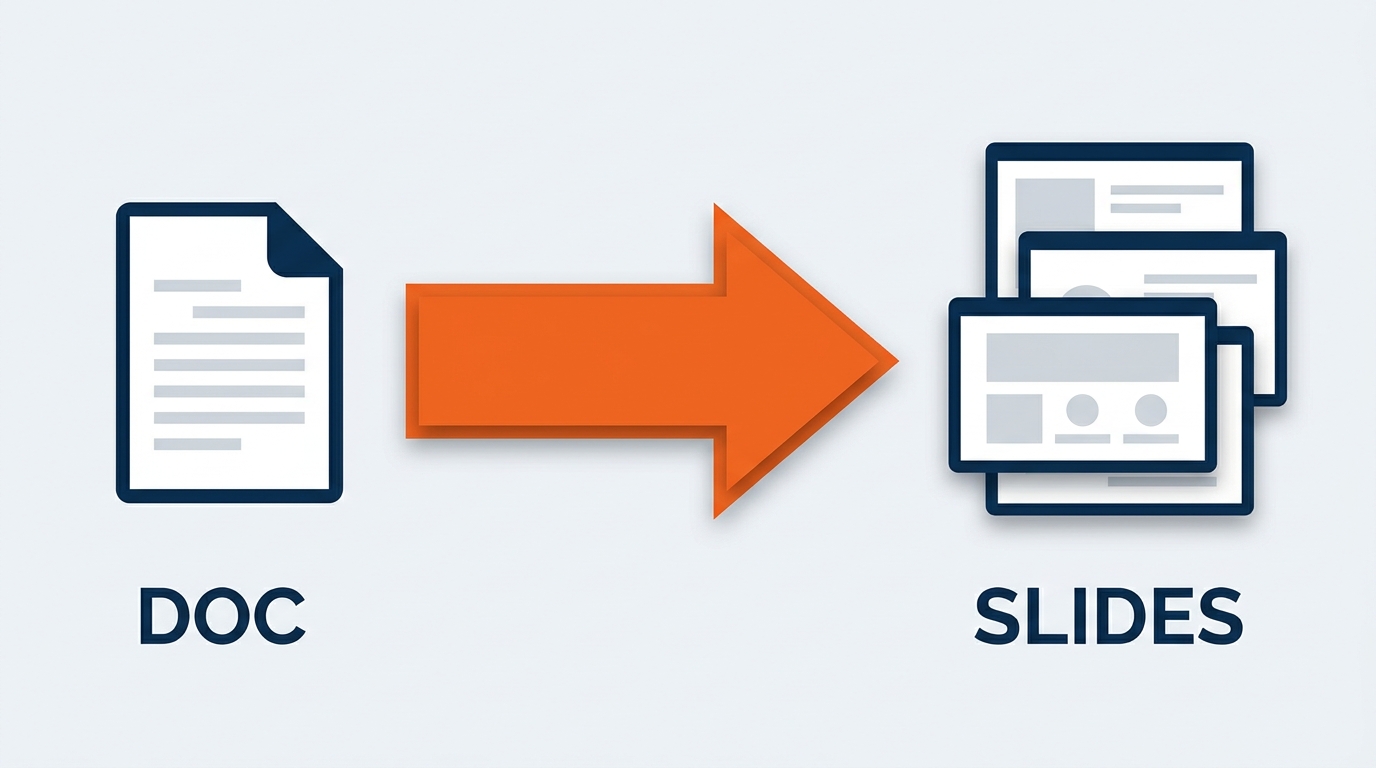
Figure 4:The Word-to-PowerPoint workflow is the highest-leverage use of Copilot for GES professionals. Three best practices — Word Styles, included images, and file size — determine how well Copilot interprets and converts your working document.
The workflow is straightforward: in PowerPoint’s Copilot Agent Mode, use a prompt that references your Word document. For example: “Create a 12-slide client presentation based on / [Site Survey Report — Hall C Rigging and Load-In].” Using the / reference (when the file referencing feature is available in Agent Mode — check your version) tells Copilot to ground its slide generation in the actual content of that document, not just its general knowledge about trade show logistics.
Alternatively, via m365.cloud.microsoft, you can ask Copilot directly to create a presentation from a document you reference in the chat. Copilot reads the document, proposes an outline or generates slides, and saves the resulting .pptx to your OneDrive.
Why this workflow is more powerful: When Copilot generates from a prompt alone, it draws on its training knowledge of what a given type of document should look like. When it generates from your actual Word document, it draws on the specific content, language, data, and analysis you have already written. The resulting slides are grounded in your work, not in a generic template. The freight target table in the slide is the freight target table from your operations manual — not a placeholder version of one. The design rationale on the concept slide is the rationale from your creative brief — not a generic paragraph about “brand storytelling.”
This matters enormously in our business, because so much of what we do already begins as a Word document. The RFP response exists before the pitch deck. The site survey report exists before the findings presentation. The design brief exists before the concept deck. The post-show reconciliation summary exists before the recap. We are already doing the hard part in Word. Copilot’s job is to stop us from doing it twice.
1.4.1The Best Practices (from Microsoft Documentation)
Microsoft’s own documentation identifies specific best practices for optimizing the Word-to-PowerPoint workflow. These are not suggestions — they are the technical practices that determine how effectively Copilot can interpret and convert your document.
Best Practice 1: Use Word Styles
Word’s built-in Styles feature (Heading 1, Heading 2, Heading 3, Body Text) is not just a formatting tool. When you use Styles consistently in your Word documents, you create a structural hierarchy that Copilot can read and use as the organizational blueprint for your presentation.
Think of it this way: if your Word document uses Heading 1 for major sections, Heading 2 for subsections, and Body Text for content, Copilot can interpret each Heading 1 as a potential slide title, each Heading 2 as a slide section, and each Body paragraph as slide content. Without Styles, Copilot is reading a flat text file and guessing at structure. With Styles, Copilot is reading a document with an explicit organizational hierarchy.
The practical implication: when you write RFP responses, site survey reports, design briefs, or any working document you intend to convert to a presentation, apply Styles from the beginning. GES professionals who adopt this discipline as a standard practice will find every Word-to-PowerPoint conversion significantly smoother.
Best Practice 2: Include Images in Your Word Document
Microsoft’s documentation states that Copilot will attempt to incorporate images from your Word document into the generated presentation. If your Word report includes floor plan excerpts, elevation drawings, site survey photographs, material samples, or charts, they have a path into the slide deck automatically.
This matters practically: rather than separately finding and inserting your hall photographs and freight volume charts into both a Word report and a PowerPoint presentation, you can include them once in the Word document and let Copilot carry them through to the slides. You will still need to verify that the images landed correctly, in the right slides, at the right crop and resolution — but the manual image insertion step is reduced.
One caution specific to a design company: automatic image placement is a transport mechanism, not a composition mechanism. Copilot will get the rendering onto the slide. It will not decide whether the rendering should bleed full-frame with the headline reversed out over the darkest quadrant. That is still a human call, and at GES it is usually a call worth making.
Best Practice 3: Start with Your Organization’s Template
Microsoft confirms that when you begin a presentation in PowerPoint using your organization’s established template — with its brand colors, fonts, slide master, and layout options — Copilot will retain that design when it generates content. The slides Copilot builds will use your template’s visual system, not a generic Microsoft default.
The implication for GES: always start your PowerPoint file using the correct GES Collective template before invoking Copilot — and “correct” is doing real work in that sentence, because we do not have one brand. We have five. More on that in Section 8. Do not let Copilot generate slides into a blank default presentation and then try to apply the template afterward. Begin with the template, then generate.
Best Practice 4: File Size
Microsoft’s documentation specifies that Word documents should be smaller than 24 MB for best results. Large documents with many embedded images or complex formatting can exceed this threshold — and in our world, that happens constantly, because a full show operations manual with embedded floor plans and photography can be enormous. If you are working with a large document, create a focused summary or extract the relevant section into its own file rather than feeding the entire manual. You will get better performance and more relevant slides.
1.55. Editing and Refining Slides via Chat
One of the most practical capabilities of Copilot in PowerPoint is the ability to continue refining slides through natural language chat after the initial generation. This is not a secondary feature — it is where most of the real quality improvement happens.
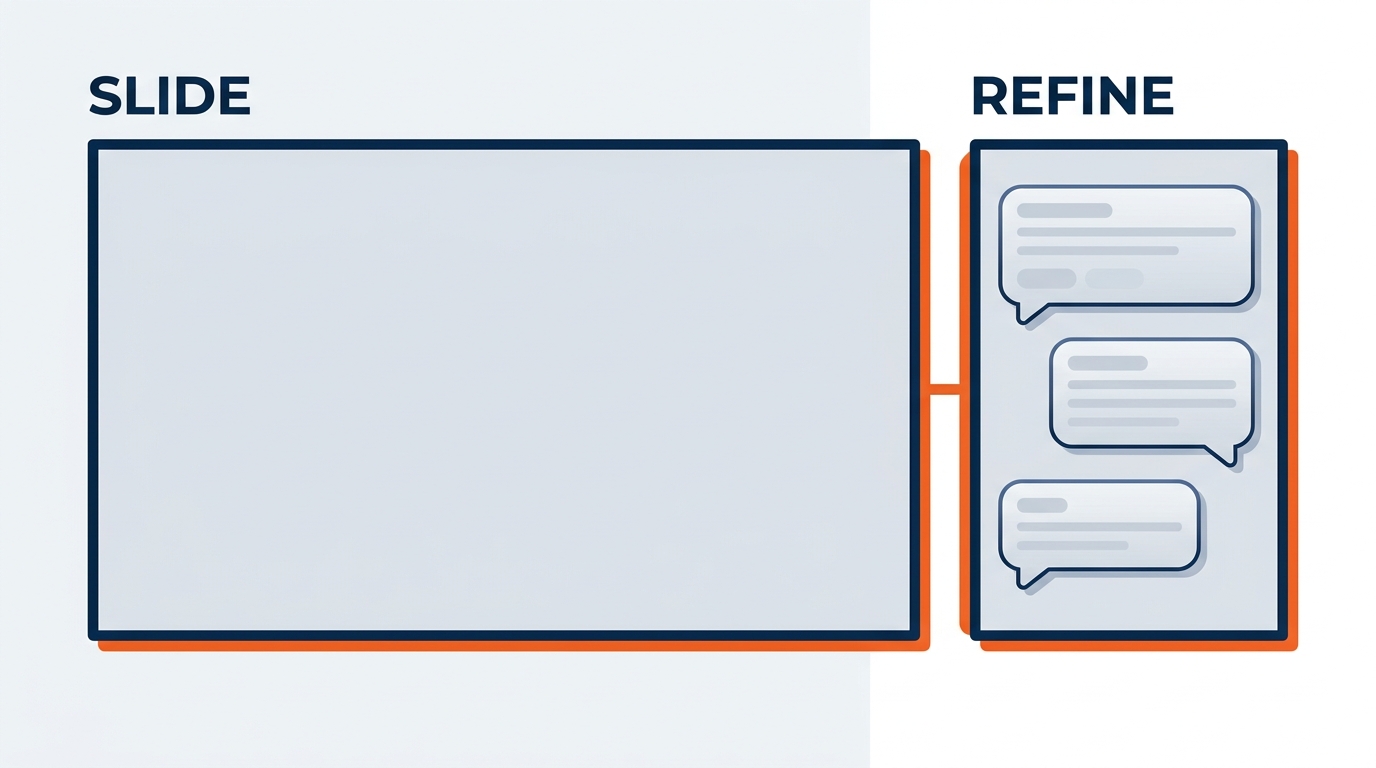
Figure 5:The refinement chat turns Copilot in PowerPoint from a one-shot generator into an iterative collaborator. The first draft is where you start — not where you finish.
The refinement chat operates through the Copilot panel in PowerPoint. After your slides are generated, you type instructions in plain English and Copilot executes them. Microsoft has confirmed the following refinement capabilities as operational:
1.5.1Adding and Removing Slides
“Add a slide after slide 3 that shows our top five venues by exhibitor volume for this account over the last three years.”
“Remove slide 7 — it is redundant with the executive summary.”
“Add a title slide with the following text: ‘Pre-Show Operating Plan — Spring Medical Device Exposition — GES Exhibitions — March 2026.’”
Copilot adds or removes slides in context — it understands the surrounding deck structure and positions new content appropriately.
1.5.2Adjusting Slide Content
“Rewrite slide 4. The current version is too operational for a marketing audience. Simplify the language and lead with the attendee experience outcome rather than the install sequence.”
“Slide 6 has too many bullet points. Consolidate to three key points and move the detailed material handling breakdown to the speaker notes.”
“Change the figures on slide 5 — replace the placeholder numbers with the actual values I’m providing: 218 exhibiting companies, 412,000 net square feet, 1.9 million pounds of inbound freight, 96% on-time freight target performance.”
These content adjustments are where your actual show data enters the deck. Copilot generates the structure and the language; you provide the verified numbers.
1.5.3Changing Layouts and Formatting
“Change slide 3 to a two-column layout — floor plan graphic on the left, key metrics list on the right.”
“Make the slide titles across the entire deck more concise — they should be eight words or fewer.”
“The font on slide 8 looks inconsistent with the rest of the deck. Apply the standard heading style.”
“Convert the bulleted list on slide 9 into a three-column comparison so the organizer can see the turnkey, custom, and modular options side by side.”
1.5.4Requesting a Reorganization
“Move the safety and risk section to appear before the schedule slides — we lead with safety in every operations review.”
“Reorganize the deck so the executive summary is on slide 2, immediately after the title slide.”
“Move the sustainability and waste-diversion slide up to slide 4. This organizer has made it a stated priority, and burying it at the back sends the wrong signal.”
The ability to reorganize through chat — rather than manually dragging and reordering slides — is particularly valuable for complex decks where the narrative logic needs adjustment after you see the first draft assembled. Narrative order is a design decision. Being able to test three different orders in ninety seconds is a genuine creative advantage.
1.66. Generating Speaker Notes — Copilot Writes What You Will Say
Presenting to a room of client stakeholders, or to a show organizer’s leadership team, or to a facility crew at a 6 a.m. safety briefing, is a performance. The pressure is real, and it is often happening at the end of a very long week on a show floor. One of the most underused capabilities of Copilot in PowerPoint is speaker note generation — and it is one of the most immediately valuable for GES professionals.
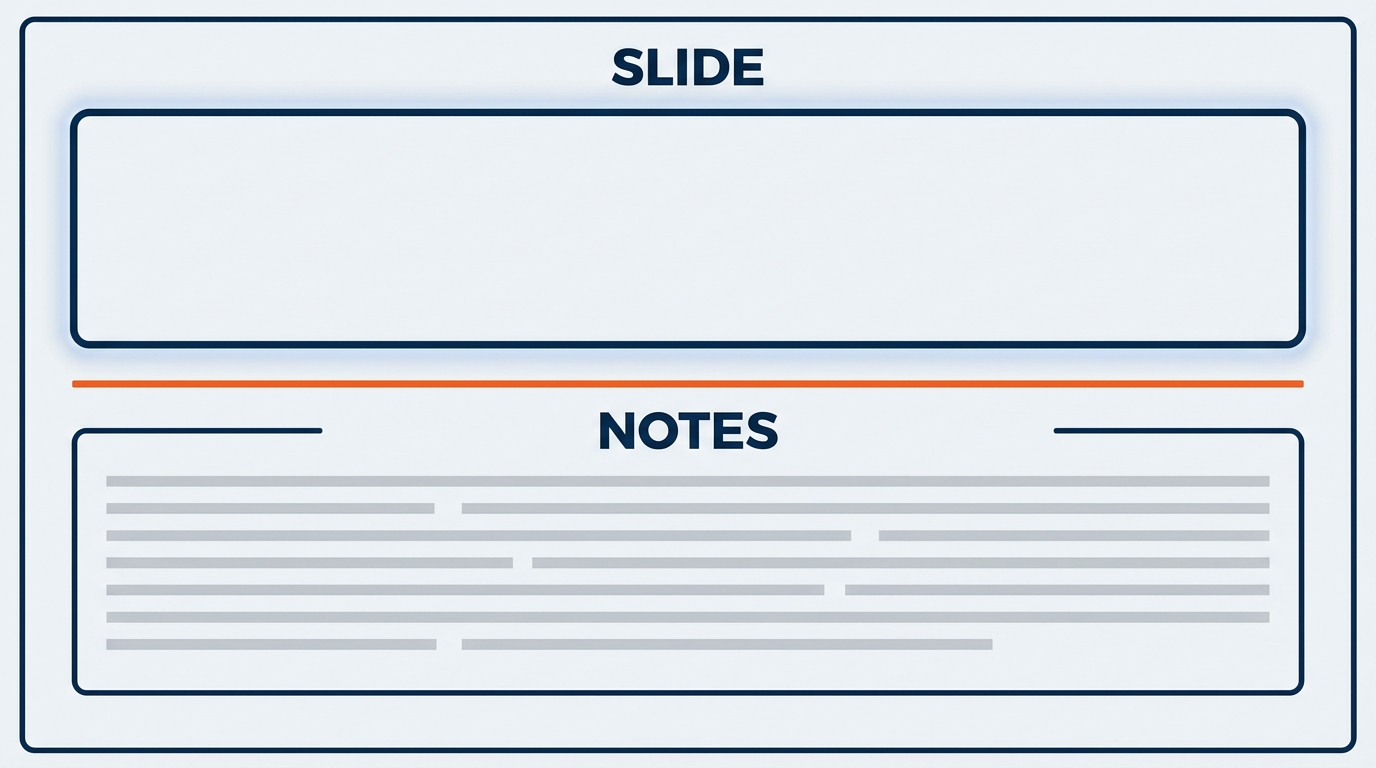
Figure 6:Speaker notes generated by Copilot give you a script to work from — not to read verbatim, but to anchor your delivery and ensure you cover the right points in the right order. For high-stakes presentations, they are a game-changer.
Microsoft has confirmed that Copilot can generate speaker notes for your slides. Here is how to invoke this capability and get useful results.
1.6.1Generating Notes for All Slides at Once
“Add speaker notes to every slide in this presentation. Each note should include: the key point the audience needs to understand from this slide, two to three supporting details I should mention verbally, and a suggested transition to the next slide.”
This single prompt produces a full set of speaker notes across the entire deck — something that, without AI, would require fifteen to thirty minutes of careful writing for a twelve-slide presentation.
1.6.2Generating Notes for a Specific Slide
“Write speaker notes for slide 4. The audience is the show organizer’s operations team. The slide shows our proposed move-in sequence by freight target. The note should explain in plain language why the advance warehouse option reduces show-site congestion, highlight the change from last year’s sequence, and flag the two target windows that are tight without making it sound like a problem we can’t manage.”
This level of specificity produces notes that are genuinely useful — not generic bullet points, but actual talking-point language calibrated to your specific audience and context.
1.6.3The Value for High-Stakes Presentations
Consider the new business pitch scenario. The room is not a monolithic audience. It includes a procurement lead who wants the commercial terms to be airtight, a marketing director who cares about the creative idea and almost nothing else, an operations person who has been burned before and is listening for whether we understand their move-in constraints, and a senior executive who will decide based on whether we sound like a partner or a vendor. A good presenter reads the room and adjusts. Good speaker notes anticipate that range and give you material to draw from for each type of question.
Copilot can draft that range of notes faster than you can write them. You then refine them — adding your specific account knowledge, the history of this relationship, the thing the client said off-hand in the site survey that tells you what they actually care about. The result is a presentation you can deliver with confidence because the intellectual scaffolding is already built.
Speaker notes are also disproportionately valuable in two GES-specific situations:
Handoffs. Our people move. The account manager who built the deck may be on a plane to a different show when it gets presented. A deck with strong speaker notes can be delivered by a colleague without a two-hour briefing call.
Multilingual and cross-cultural delivery. We operate in 75+ countries. A presenter delivering in their second language benefits enormously from having the key phrasing already written out. Ask Copilot for notes that avoid idioms and keep sentences short — it will comply, and the delivery gets noticeably cleaner.
1.77. Summarizing an Existing Presentation — Condensing the 40-Slide Deck
Not every use of Copilot in PowerPoint involves creating something new. One of its most practically useful capabilities — confirmed by Microsoft — is the ability to summarize an existing presentation.
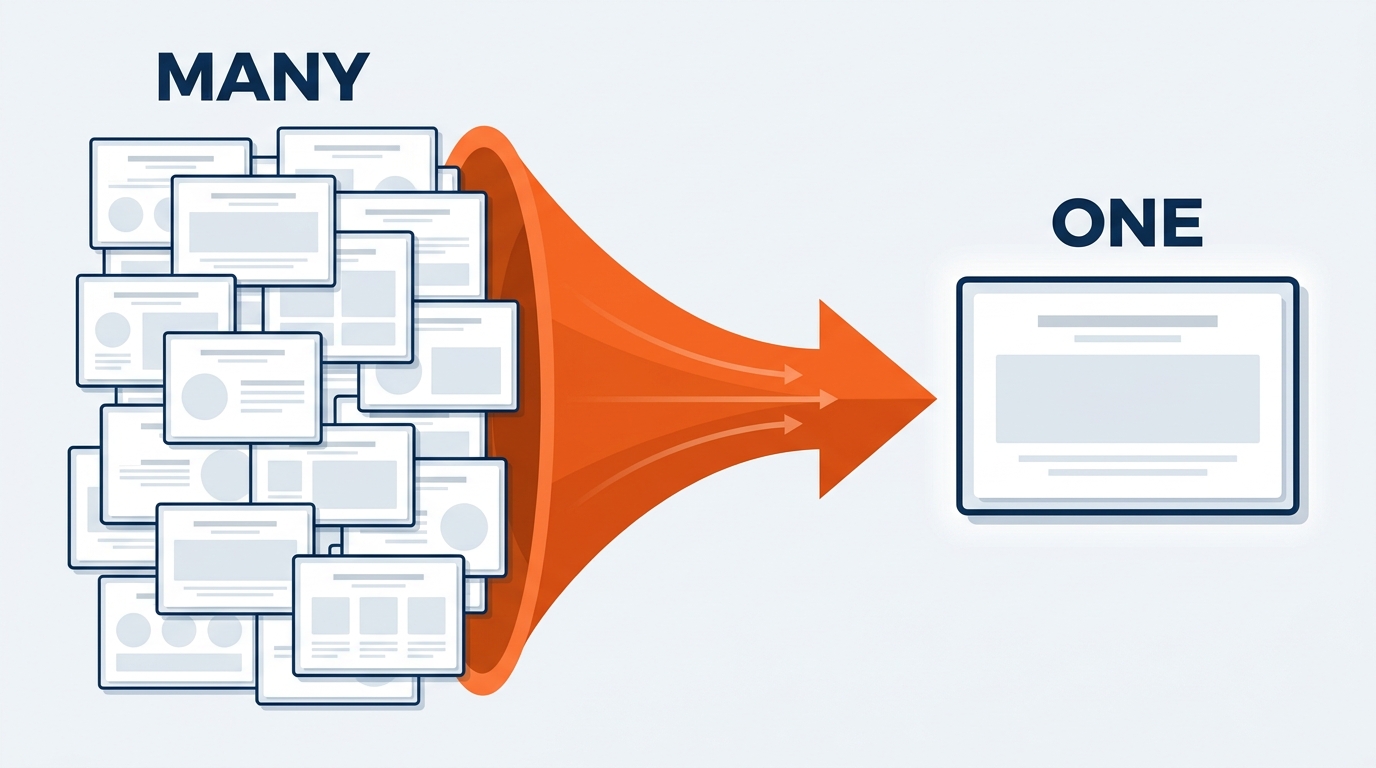
Figure 7:Summarization inverts the usual workflow. Instead of building up from nothing, you compress down from an existing deck. The use case is everywhere in live events: pre-meeting prep, executive briefings, and RFP package overviews.
The scenario: you have received a 40-slide show prospectus from an organizer, or a 60-slide brand guidelines deck from an exhibitor’s agency, or last year’s operating review for a show you are inheriting. You need to understand it quickly and brief your team on the key points. Reading 40 slides carefully takes time you do not have during show season. Having Copilot summarize it takes seconds.
“Summarize this presentation. Give me the five most important points, the key decision we are being asked to make, and any risks or concerns that are flagged.”
Or, for a more directed summary: “This is a 38-slide organizer RFP package. Summarize the scope requirements. Focus on anything relating to material handling and drayage, union jurisdiction at the venue, sustainability and waste-diversion requirements, and any service levels the organizer is asking us to guarantee.”
Copilot reads the presentation — which must be saved in OneDrive or SharePoint — and produces the summary in the chat panel. You get the signal without having to extract it manually from all the noise.
1.7.1Use Cases for Summarization at GES
Pre-meeting preparation: Before a QBR with a major account where other GES Collective teams will be presenting, ask Copilot to summarize the combined package so you walk into the room already knowing what onPeak is going to say about housing pickup and what Spiro is going to show.
Executive briefing: A regional leader needs to understand the key points of a 35-slide venue partnership proposal before a call. Copilot summarizes it in two minutes. The executive reads a focused one-page digest instead of the full deck.
Cross-team alignment: An operations team at another facility has prepared a detailed post-show review that affects an account you manage. Copilot extracts the sections relevant to your client so you can respond quickly and accurately.
Inherited shows and account transitions: You are picking up a show that ran for six years under a colleague who has moved on. There are five annual review decks in SharePoint. Ask Copilot to summarize the recurring issues across all of them and you will find the pattern — the same hall, the same tight move-out, the same complaint — in minutes instead of an afternoon.
Vendor, venue, and partner evaluation: A 50-slide proposal from a technology or logistics partner lands in your inbox. Before committing time to a full review, ask Copilot to summarize the key claims, pricing structure, and implementation requirements.
In each case, the summary is a starting point for your review — not a replacement for it. When the stakes are high — when you are about to commit GES to a service level, a date, or a price — read the original. Use the summary to orient yourself, not to substitute for the primary source.
1.88. Working with the GES Collective Brand System
Every presentation that leaves GES carries a visual identity. And here is the wrinkle that makes our situation more demanding than most companies’: we are not one brand. We are a collective.
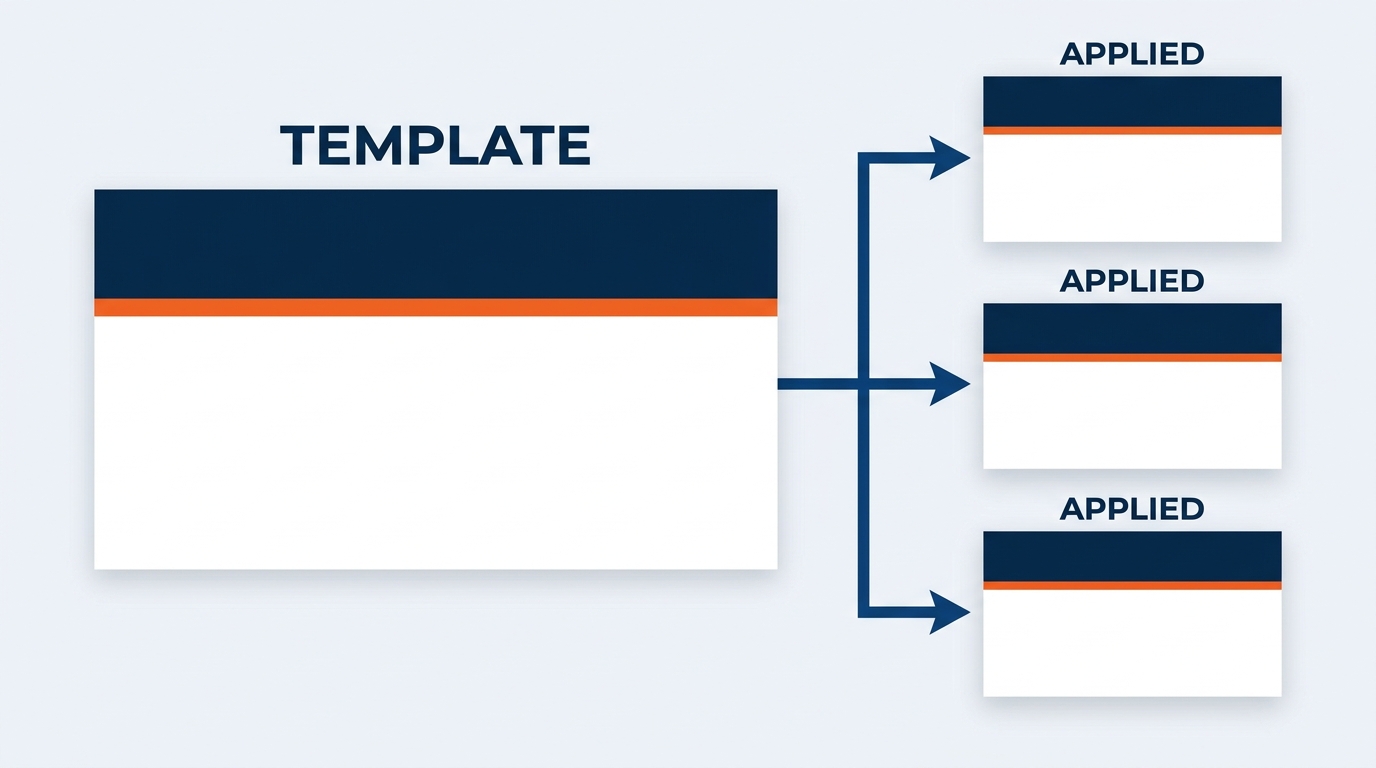
Figure 8:The GES brand template is the visual foundation that Copilot builds on. Start every Copilot presentation session inside the correct template — never in a blank default file. The brand is preserved when the template comes first.
Under the GES umbrella sit five distinct businesses, each with its own audience, its own tone, and its own visual expression.
card-carousel - Unknown Directive
card-carousel - Unknown Directive:::{card} 🏗️ GES Exhibitions
Core general service contractor (GSC) work — exhibitions, logistics, labor, floor plan and show operations. Decks lean operational, precise, and confidence-building. The audience is organizers and exhibitors who need to know it will be handled.
:::
:::{card} ✨ Spiro
Our global experiential agency and Exhibitor Appointed Contractor (EAC) — custom exhibits, brand environments, corporate events. Decks lean creative, visual, and idea-forward. Imagery does the heavy lifting; text stays out of the way.
:::
:::{card} 🏨 onPeak
Event accommodation solutions — hotel block management and attendee housing. Decks lean data-forward: pickup rates, block performance, attendee patterns. Clean charts beat clever headlines.
:::
:::{card} 💡 SHOWTECH
Power and lighting services. Decks are technical and specification-driven. Accuracy in the numbers matters more than anything else on the page.
:::
:::{card} 📱 Visit by GES
Event technology — registration, lead capture, organizer tools, visitor apps, NFC Touchpoints. Decks are product-led: screens, flows, and outcomes.
:::The brand is not a cosmetic consideration. It is a signal of professionalism, consistency, and credibility. An organizer who receives a polished, consistently branded deck is looking at a partner that has its systems together. An exhibitor who receives a beautifully designed presentation is looking at an account team that takes the relationship seriously. And a client considering a Spiro engagement is, whether they articulate it or not, treating the deck as a sample of the work.
Microsoft has confirmed that Copilot retains your organization’s theme and design when you start with an established PowerPoint template. The mechanism is the Slide Master — PowerPoint’s underlying design system that defines colors, fonts, layouts, and logo placement. When Copilot generates slides within a file that is using your organization’s Slide Master, the generated content adopts the Slide Master’s design.
1.8.1The Rule: Correct Template First, Always
The single most important practice for brand-consistent Copilot presentations is this: always open the correct GES Collective PowerPoint template before invoking Copilot. Never start in a blank default presentation and then try to apply branding afterward.
The workflow:
Identify which brand this deck belongs to — GES Exhibitions, Spiro, onPeak, SHOWTECH, or Visit by GES. If the deck spans multiple brands, use the GES master template and follow the collective’s co-branding guidance.
Open the approved PowerPoint template from the brand template library in SharePoint
Save the file with your show or account name to your OneDrive folder
Open Copilot (Agent Mode) within that template file
Begin your prompt-based generation
Everything Copilot builds will be in the correct visual system. Titles will use the approved font. Colors will be the approved palette. Logo placement and footer elements will be consistent.
1.8.2What Copilot Does and Does Not Handle
Copilot will respect your Slide Master design — colors, fonts, layout options, background elements. What it will not automatically do is select the specific slide layout most appropriate for each content type. A Slide Master typically includes multiple layout options (title slide, content slide, two-column layout, full-bleed image, section divider, and so on). Copilot will select from these layouts, but may not always choose the one you would select for a given slide.
It also will not make the judgment calls that separate a competent deck from a compelling one. It will not know that this particular client responds to big single images and hates dense slides. It will not know that the concept only works if the reveal happens on slide 7 and not slide 3. It will not know that the photograph you have of last year’s activation is the single most persuasive asset in the entire pitch and belongs full-bleed on the opening.
After generation, review each slide’s layout choice and adjust where needed. This is a ten-minute task for a twelve-slide deck — far less time than formatting every slide from scratch, and far more consistent with brand standards than generating in a default template and reformatting manually.
1.99. Extending PowerPoint Work with Copilot Cowork
Everything up to this point in the chapter describes Copilot in PowerPoint — you are in the app, or in the chat, and you are steering each step. That is one mode of working, and it is the right one when you are actively building.
There is a second mode, and it changes the economics of deck production entirely.
Copilot Cowork — generally available worldwide since June 16, 2026 — executes complex, long-running, multi-tool tasks end-to-end across Microsoft 365 and returns finished artifacts, not drafts or recommendations. Chapter 14 covers Cowork in depth. What matters here is one specific property: a deck is rarely the only thing you need.
Think about what actually surrounds a presentation in our business.
A Spiro concept presentation does not exist alone. It sits alongside a design brief that captured what the client asked for, a specification document covering materials and build approach, a budget framework, and a follow-up email to the client with the deck attached. That is four deliverables, and they all have to say the same thing.
A post-show recap deck does not exist alone. It sits alongside the reconciliation summary, the labor variance analysis, and the email to the exhibitor’s marketing lead explaining what the numbers mean.
Building those one at a time, in four different apps, is where the hours go.
1.9.1What Cowork Does Differently
Copilot Chat is a conversation: you prompt, it responds, you decide what’s next. Cowork is an assignment: you describe the outcome, step away, and check in at milestones. It plans the work, moves across Word, Excel, PowerPoint, Outlook, and Teams, and delivers a connected set of finished files.
Three properties make this genuinely useful for GES specifically:
It keeps running when your laptop is closed. Cowork is cloud-hosted. Tasks continue while you are on a plane between Las Vegas and London, or standing in a hall with your laptop in a case. For a workforce that is regularly in motion between 24 facilities and hundreds of venues, this is not a footnote. It is the entire value proposition.
It is grounded in Work IQ. Cowork pulls from the documents, messages, and meetings your organization already runs on — with your permissions and only what you can already see.
It stays inside the trust boundary. Same Microsoft 365 security, compliance, and audit posture as everything else in this chapter. Cowork actions are auditable, and it pauses to ask permission before sensitive actions like sending an email or posting in Teams.
1.9.2A GES Example — The Spiro Design Package
Here is a real-shaped scenario. A Spiro designer and an account lead have a client concept presentation due Friday. The site survey happened Tuesday, the internal design review was Wednesday morning, and there is a Teams thread with fourteen messages of client feedback on the first-round direction.
Instead of building four deliverables sequentially, they give Cowork a scoped assignment using the five-part structure from Chapter 14:
Outcome: A complete client concept package for the [Client] activation at the June exposition, ready for internal design review Thursday morning.
Inputs: The site survey report in OneDrive, the design review meeting recording from Wednesday, the client feedback thread in the project Teams channel, the venue rigging and load-in constraints document, and the current budget worksheet.
Definition of done: Three files saved to the project SharePoint folder — (1) a design brief in Word capturing the client’s stated objectives and the constraints we are designing against, (2) a specification and budget summary in Excel with materials, build approach, and cost ranges by zone, and (3) a client-ready concept deck in PowerPoint using the Spiro template, structured as: opening insight, the big idea, the environment, the visitor journey, the build approach, sustainability approach, and next steps. Plus a draft email to the account lead summarizing what is ready for review.
Constraints: Use the Spiro brand template only. Leave image placeholders with descriptive captions for the renderings — do not generate imagery. Do not contact the client. Do not commit to any date not already confirmed in the site survey report.
Approval scope: Review before anything is sent externally.
Cowork works through this, step by step and visibly, and comes back with a connected package. The design brief, the spec document, and the deck all reflect the same constraints and the same idea, because they were produced from the same inputs in the same task.
The designer’s Thursday is then spent on what only the designer can do: the actual design.
Table 1:Chat vs. Cowork for Presentation Work at GES
Dimension | Copilot in PowerPoint (chat / Agent Mode) | Copilot Cowork |
|---|---|---|
What you get back | One deck, refined interactively | A connected set of deliverables — brief, analysis, deck, draft email |
How you interact | You steer each step in the flow of work | You describe an outcome and review like a manager |
Best for | Building or refining a single presentation while you are in it | Producing a full package that spans Word, Excel, PowerPoint, and Outlook |
Where it runs | Interactive, with you present | Cloud-hosted — keeps working when your laptop is closed |
GES scenario | Tightening a recap deck the night before an exhibitor debrief | Turning a site survey, a design review recording, and a Teams feedback thread into a full concept package |
What it does not replace | Verification and design review | Verification and design review |
Notice the last row. It is the same in both columns, and that is not an accident.
1.1010. The Verification and Design Review Discipline
This section is not optional. It is the professional obligation that makes everything else in this chapter responsible to use.
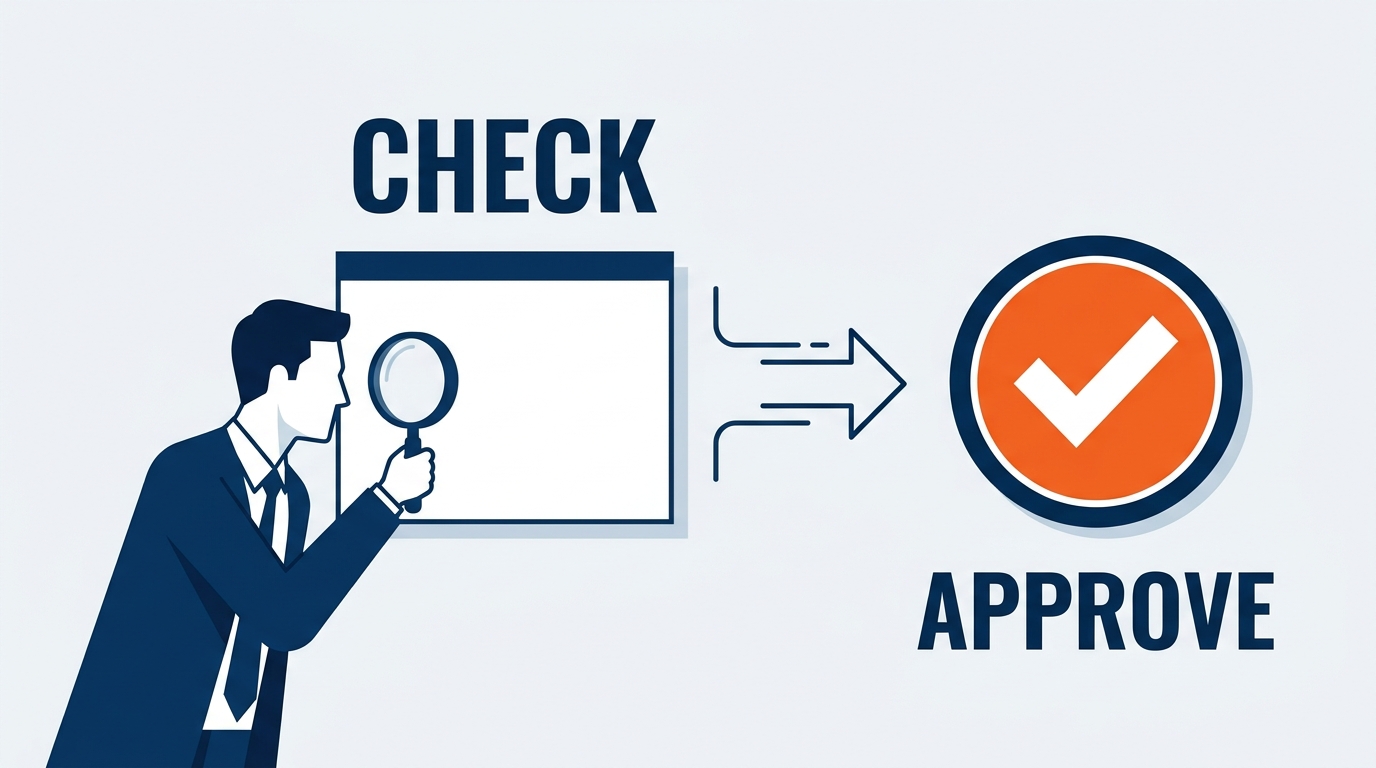
Figure 9:The verification discipline is the professional standard that makes AI-generated presentations safe to use. AI generates the structure. The human verifies the substance — and, at GES, a second human checks the craft. Every number, every commitment, every slide, before it reaches any audience.
Microsoft itself is explicit about this in their documentation. Copilot generates a draft. You need to verify and modify details to make sure it is accurate and fits your tone and style. This is not a disclaimer buried in a footnote. It is the fundamental design premise of the tool.
For GES professionals, the stakes of presenting inaccurate content are not hypothetical. Consider:
In a pre-show planning deck: A show organizer notices that the net square footage on slide 5 is inconsistent with the floor plan they approved two weeks ago. They question it in the meeting. Thirty minutes go to resolving a data error instead of to the three decisions you needed from them. Confidence in the operating plan — and in the team presenting it — takes a hit that lasts the whole show cycle.
In a post-show ROI presentation: An account manager presents lead-capture and booth-traffic figures that Copilot populated as plausible placeholders. The exhibitor’s marketing lead compares them to their own Visit Connect export. The numbers do not match. The single most valuable thing we produce for an exhibitor is a credible account of what their investment returned. That credibility is now gone, and it is very difficult to get back.
In an RFP response deck: A slide states a material handling rate and a move-in window that were never confirmed with the operations team. The organizer scores the bid on those terms. We win the work on a commitment we cannot deliver — which is worse than losing it.
In a Spiro concept presentation: A specification slide lists a material and a build approach that engineering has not validated against the venue’s rigging capacity. The client falls in love with the concept. We then have to walk it back. Nothing damages a creative relationship faster than showing someone something beautiful and then taking it away.
None of these scenarios requires malice or negligence to occur. They require only the assumption — deadly in professional life — that because the output looks right, it is right. AI generates plausible outputs. Plausible is not the same as accurate.
1.10.1The Verification Protocol
For every Copilot-generated PowerPoint before it is presented or distributed:
Step 1 — Every number, verified. Open each slide. Find every square footage, weight, freight target, rate, percentage, count, booth dimension, cost figure, and date. Locate the primary source for each one. Confirm that the number in the slide matches the primary source. If Copilot generated a placeholder number — which it will sometimes do — replace it with the actual figure.
Step 2 — Every commitment, confirmed with the person who has to deliver it. This is the GES-specific step, and it is the one most likely to save you. Any slide that says GES will do something on a date, at a rate, or to a standard needs a named human who has confirmed it. Move-in and move-out windows go to show operations. Material handling and drayage figures go to logistics. Labor and union jurisdiction assumptions go to the labor coordinator. International freight, customs, and carnet timelines go to the team that handles them. Build feasibility goes to design engineering. Never let AI-generated confidence become a client commitment.
Step 3 — Every factual claim, traced. Copilot may generate claims like “GES has served this vertical at more than 200 events over the past three years.” That claim may be accurate — or it may be something Copilot generated because it sounds plausible for a company of our size. Verify every substantive claim, especially company statistics, client references, and competitive comparisons, against actual data. If you cannot source it, cut it.
Step 4 — Design and brand review for anything client-facing. For internal ops reviews, Steps 1 through 3 may be enough. For anything that goes to an organizer, an exhibitor, an agency partner, or a prospect — and always for Spiro concept work — a second set of eyes with a designer’s judgment reviews the deck before it leaves the building. Correct brand template. Correct logo lockups if multiple GES Collective brands appear. Image resolution and crop. Type hierarchy consistent across every slide. Nothing stretched, nothing pixelated, nothing left in a Copilot-default layout that fights the template. This is non-negotiable, and Section 11 explains why.
Step 5 — Final professional sign-off. The person who presents the deck owns it. Not Copilot. Not the tool. The professional who stands in front of the organizer, the client, or the crew and delivers the slides is responsible for their accuracy. That responsibility does not transfer to the AI that helped build the structure.
1.1111. The Design Review Is Non-Negotiable
This deserves its own section, because it is the point most likely to be skipped and the one that costs us the most when it is.
A Copilot-generated deck is a starting structure. It is not a finished creative product.
That distinction is easy to state and hard to hold onto at 11 p.m. the night before a pitch, when the deck looks... fine. It has the right slides. The text reads well. The template colors are correct. The temptation to call it done is enormous.
Here is what Copilot cannot do, and will not do, no matter how good your prompt is:
It cannot have an idea. Structure is not concept. Copilot will give you a slide titled “The Big Idea.” It will not give you the big idea. That comes from a designer who walked the hall, looked at the sightlines, understood the brand, and saw something nobody else saw.
It cannot judge visual hierarchy against a room. A deck presented on a laptop across a table and a deck projected in a 60-person room are different objects. Copilot does not know which one you are building.
It cannot pace a reveal. The moment where a concept lands is a designed moment. It depends on what came before it and how much white space surrounds it. That is craft.
It cannot tell you the deck is boring. It will happily generate twelve competent, forgettable slides. Competent and forgettable loses pitches to competitors who are neither.
It cannot protect the brand at the level clients judge us on. Copilot will honor the Slide Master. It will not notice that the logo is sitting 4 pixels off the safe margin on slide 9, or that two different blues from the palette are fighting on slide 6, or that the rendering has been scaled non-proportionally.
1.11.1The Rule
For any client-facing deck, and unconditionally for Spiro concept work:
Copilot builds the structure. Fast. That is the point.
The subject-matter owner verifies the substance. Numbers, commitments, claims — Section 10.
A creative reviewer checks the craft. Layout, imagery, hierarchy, brand accuracy, narrative pacing.
Then it goes out.
Step 3 is not a formality and it is not a courtesy review. At a company that sells design, it is quality control on the product itself.
1.1212. GES-Specific Workflows
The four deck types that follow represent the most frequent, highest-stakes presentation scenarios for GES professionals. Each one has a specific recommended Copilot workflow that accounts for the audience, the content requirements, and the verification obligations.
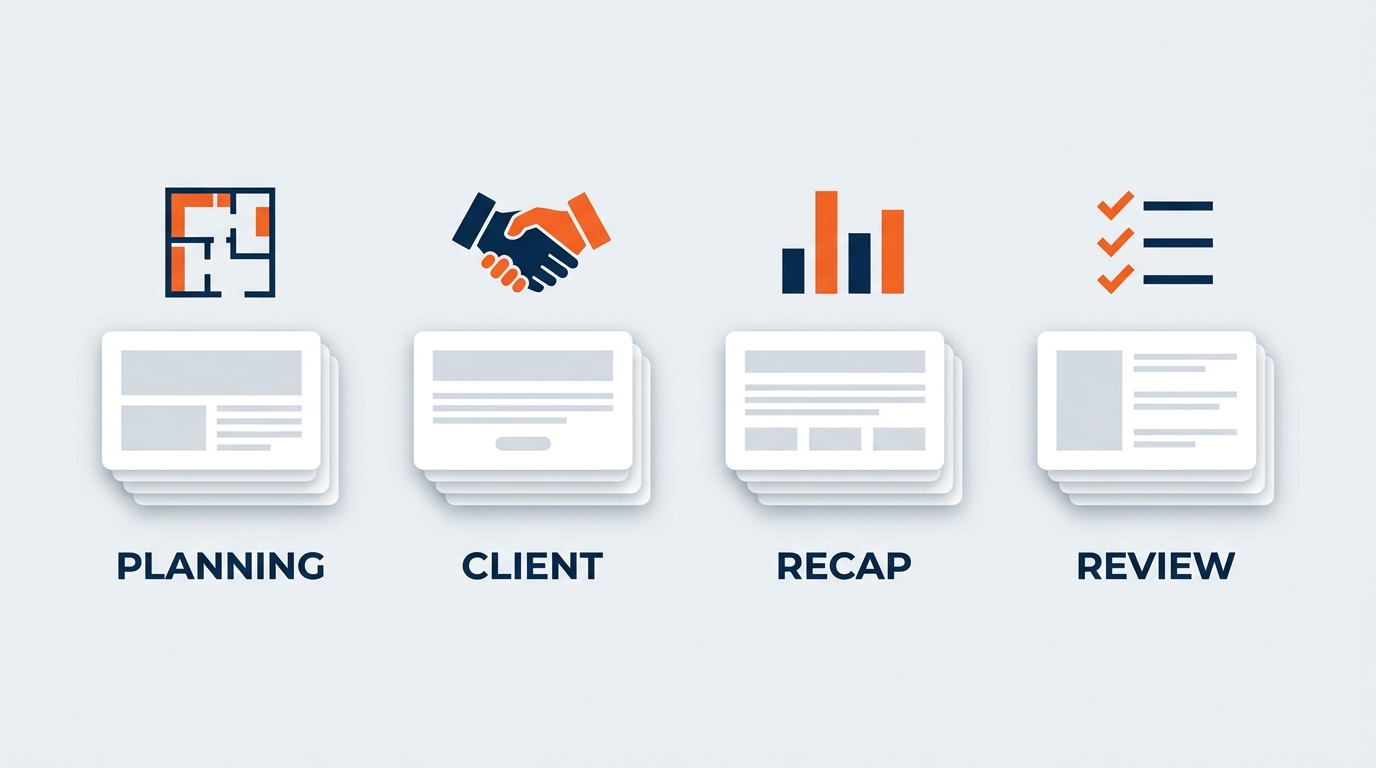
Figure 10:Four deck types, four distinct workflows. The GES professional who masters all four has the AI-assisted presentation skills to operate at the highest level of the organization.
1.12.1Workflow 1 — Spiro Client Concept Deck
The scenario: Presenting a custom exhibit or brand environment concept to an exhibitor or agency client. Often the deciding moment in a competitive pursuit.
Audience: Brand marketers, agency creative leads, and executive sponsors. They are visual thinkers. They will judge the idea, and they will judge the craft of how the idea is presented — often without separating the two.
Recommended Copilot workflow:
Start from the Word design brief and site survey report in OneDrive — both written with proper Word Styles
Open the Spiro PowerPoint template — not the GES Exhibitions template
Invoke Copilot Agent Mode with a prompt referencing the brief: “Create a 12-slide client concept presentation based on [Design Brief — Client Activation, June Exposition]. Structure: Opening Insight → The Big Idea → The Environment → Visitor Journey → Key Moments → Materials and Build Approach → Sustainability Approach → Scale and Footprint → Timeline and Milestones → Investment Framework → Why Spiro → Next Steps. Creative, confident, client-facing tone. Leave descriptive image placeholders for renderings — do not generate imagery.”
Review and refine the outline before slide generation — narrative order is the whole game in a concept deck
After generation, ask Copilot to: tighten every slide title to six words or fewer, move detail into speaker notes, and add speaker notes anticipating client questions on budget and timeline
The design team replaces every placeholder with real renderings, photography, and material samples, and rebuilds layout where the concept demands a full-bleed treatment
Verify every specification and cost range with design engineering before the deck leaves
Mandatory creative review before it goes to the client
The concept deck standard: This deck is a sample of our work. Copilot should have touched the structure and none of the soul. If a client could tell it was AI-assembled, we have failed — not because AI assistance is wrong, but because the finishing was skipped.
1.12.2Workflow 2 — Organizer RFP Response and New Business Pitch
The scenario: Responding to a show organizer’s RFP for general service contractor work, or pitching a new account against Freeman, Shepard, or a regional competitor.
Audience: Show directors, association executives, procurement leads, and operations managers. They are comparing us line by line against other bidders. They have been disappointed before and they are listening for whether we actually understand their show.
Recommended Copilot workflow:
Ensure the Word RFP response document is complete and in OneDrive, with Styles applied — the written response comes first, always
Open the GES Exhibitions template
Prompt: “Create a 14-slide RFP response presentation based on [RFP Response — Regional Manufacturing Exposition]. Structure: Understanding Your Show → Our Team → Operating Plan and Move-In Sequence → Material Handling and Drayage Approach → Labor Plan and Union Jurisdiction → Exhibitor Experience and Service Kit → Technology (Visit by GES) → Housing (onPeak) → Sustainability Commitment → Safety Record and Approach → Global Capability → Transition Plan → Commercial Summary → Why GES. Partnership-focused, operationally precise tone. No overstatement.”
Replace every service level, rate, and date with terms confirmed by operations, logistics, and the commercial lead
Anchor the credibility slides in real facts: founded 1939, 4,000+ live experiences a year, 150,000+ exhibitors served, 75+ countries, 24 global production and warehouse facilities, roughly 2,600 people
Ask Copilot to generate speaker notes that anticipate the three toughest questions on each slide
Brand and design review before submission
The RFP verification standard: Every commitment in this deck becomes contractual if we win. Nothing goes on a slide that operations has not confirmed. An unverified promise is not an aggressive bid — it is a service failure scheduled twelve months out.
1.12.3Workflow 3 — Post-Show Recap and ROI Presentation
The scenario: Presenting results back to an exhibitor or organizer after move-out — what happened, what it cost, what it returned, and what to change next year.
Audience: Exhibitor marketing leads, show organizers, and agency partners. They want an honest account, not a victory lap. The recap deck is where accounts are renewed or lost.
Recommended Copilot workflow:
Gather sources in OneDrive/SharePoint: the post-show reconciliation summary, labor hour actuals versus forecast, freight and material handling totals, Visit Connect lead-capture data if the exhibitor used it, onPeak housing pickup if relevant, and any incident or service escalation log
Consider building the underlying analysis in Excel first (Chapter 7) and the summary in Word (Chapter 6), then converting — grounded slides beat prompted slides every time
Open the correct brand template
Prompt: “Create a 10-slide post-show recap presentation based on [Post-Show Summary — Spring Exposition]. Structure: Show at a Glance → What We Delivered → Freight and Material Handling Performance → Move-In and Move-Out Against Target → Booth Traffic and Lead Capture Results → Service Levels and Issue Resolution → Sustainability and Waste Diversion Results → Cost Summary → What We’d Change Next Year → Recommendations for Next Cycle. Honest, data-forward, partnership tone. Acknowledge misses directly.”
Replace every metric with verified figures from the reconciliation — this is the deck where placeholder numbers do the most damage
Keep the “what we’d change” slide honest. Clients trust the recap that admits something went sideways far more than the one that claims everything was perfect
Ask Copilot for speaker notes that explain each metric in plain language for a non-operational audience
The recap verification standard: Every figure reconciles to the final invoice and the operational record. If a number in the recap deck does not match what the client was billed, you will spend the meeting defending arithmetic instead of selling next year.
1.12.4Workflow 4 — Account QBR and Internal Ops Review
The scenario: A quarterly business review with a major account, or an internal operations review covering performance across facilities and shows.
Audience: For a QBR — client executives and procurement, looking for evidence the partnership is delivering. For an internal review — GES regional and functional leadership, looking for the real picture.
Recommended Copilot workflow:
Sources: quarterly performance data in Excel, show-by-show summaries, service escalation logs, safety incident records, labor variance analysis, and the prior quarter’s QBR deck for continuity
Open the correct template — GES Exhibitions for most QBRs; use the collective master where multiple brands are represented
Prompt for a QBR: “Create a 12-slide quarterly business review presentation for a major account based on [Q2 Account Summary]. Structure: Quarter at a Glance → Shows Delivered → Service Level Performance Against Agreed Metrics → Exhibitor Satisfaction → Freight and Material Handling Summary → Cost Performance and Savings Delivered → Safety Performance → Sustainability Progress → Issues and Resolutions → Innovation and What’s New (Visit by GES, Show Ready) → Next Quarter Priorities → Open Decisions. Executive tone. Lead with conclusions, support with data.”
Prompt for an internal ops review: “Create a 10-slide operations review covering three production facilities. Structure: Summary Scorecard → Labor Hours Forecast vs. Actual → Freight Volume and Advance Warehouse Utilization → Move-In/Move-Out On-Time Performance → Safety Incidents and Corrective Actions → Equipment and Asset Status → Staffing and Overtime → Cost Drivers → Issues Requiring Regional Support → Next Quarter Focus. Direct, internal, no-spin tone.”
Verify every metric against the system of record
For safety content specifically: never let AI paraphrase an incident. Safety facts are stated exactly as recorded, in the language of the record
For a client QBR, run the design review. For an internal ops review, prioritize clarity over polish — but do not let “internal” become an excuse for a deck nobody can read
The QBR verification standard: A QBR is a trust exercise. If leadership finds one metric they cannot reconcile, the entire deck is discounted. Verify everything, and present the misses before the client finds them.
1.13Try This — Hands-On Exercise
This exercise connects directly to the work you did in Chapter 6.
Step 1 — Initiate from m365.cloud.microsoft
Sign in at m365.cloud.microsoft with your GES Microsoft 365 account. In the Copilot chat interface, type:
“I need to create an 8-slide post-show recap deck based on a Word summary I have. The audience is the exhibitor’s marketing lead and their agency partner. The tone should be honest and data-forward — we acknowledge what didn’t go well. Please help me create a professional presentation.”
Observe how Copilot responds — whether it asks clarifying questions, whether it requests to see the document, or whether it proceeds with an outline directly.
Step 2 — Reference the Word document
Once Copilot is ready, provide the reference to your Word document (using the file picker in the chat if available, or by describing its content if direct referencing is not yet available in your version). Confirm the instruction to create the presentation.
Step 3 — Review the output
When Copilot generates the .pptx and provides the OneDrive link, open the file. Review it critically:
Does the structure tell the story a client needs to hear, in the right order?
Are there slides that should not be there?
Are any important sections missing — sustainability, service escalations, next-year recommendations?
Does the visual design match GES brand standards if you started in the template?
Would you be comfortable if a client assumed this deck represented our design capability?
Step 4 — Four refinement prompts
Return to Copilot (in the chat or in PowerPoint’s Agent Mode) and apply these follow-up prompts in sequence:
Prompt 1: “Add an executive summary slide as slide 2. It should include the three most important takeaways from this recap in three concise bullet points.”
Prompt 2: “Add speaker notes to every slide. Each note should give me the key point to deliver verbally, plain-language context for any operational term, and a suggested transition to the next slide.”
Prompt 3: “Add a slide before the closing titled ‘What We’d Change Next Year.’ It should present two honest operational improvements as recommendations, not excuses.”
Prompt 4: “The closing slide should include a clear call to action — what we need the client to decide or confirm for next year’s show. Rewrite it with a specific recommendation and a decision point.”
Step 5 — Verify, review, and reflect
Review the refined deck slide by slide. Apply the verification protocol from Section 10. Then apply Section 11 — look at it as a designer would, not as an author would. Note how many placeholders, inaccurate details, and craft problems you find that would need correction before this deck could actually go to a client.
Reflect on this: how long would this eight-slide deck have taken you to build from scratch? How long did it take with Copilot? What percentage of your time was spent on structure and formatting versus verification, design, and sharpening the argument? That last ratio is the whole point of this chapter.
Bonus — if Cowork is enabled in your tenant: Instead of building only the deck, give Cowork the full assignment from Section 9. Ask for the recap deck plus a one-page Word summary for the account file plus a draft email to the client with the deck attached. Compare the connected package to what you would have produced app-by-app.
1.14The Deck Crunch, Solved — and What Comes Next
The blank slide is no longer the obstacle it was. With Copilot in PowerPoint — whether through Agent Mode inside the application, through the Microsoft 365 Copilot interface at m365.cloud.microsoft, or through Cowork as part of a larger package — GES professionals have access to a genuinely powerful tool for converting working documents, show data, and design thinking into professional presentations in a fraction of the time it previously required.
But the tool is only as valuable as the discipline surrounding it. The verification protocol is not bureaucratic overhead. It is the professional standard that makes AI-assisted presentations trustworthy in the environments where GES operates — in front of show organizers deciding who runs their event, exhibitors deciding whether their investment paid off, agency partners deciding whether to bring us the next brief, and colleagues on a facility floor who need the operations picture to be accurate.
And the design review is not overhead either. At a company founded in 1939 that has spent more than eight decades building a reputation for making things look extraordinary, the deck is not a container for the work. It is a piece of the work. Copilot gives you back the hours that formatting used to eat. Spend them on the craft.
The professionals who master Copilot in PowerPoint — who learn to write rich prompts in real GES vocabulary, who maintain their Word documents with Styles, who always start in the correct GES Collective template, who run every output through rigorous verification, and who never let a client-facing deck skip the designer’s eye — those professionals gain a real advantage in how they prepare, present, and win work inside and outside the organization.
Chapter 9 continues the application-specific training with Copilot in Teams — where AI transforms how show teams run meetings, capture decisions, and hand off between pre-show planning and on-site crews across time zones. The tools keep building. The discipline stays the same.
1.15Glossary
Agent Mode The presentation generation interface within Copilot in PowerPoint, accessible via the Copilot icon in the lower right corner of the application and the Add Content button dropdown. Agent Mode allows users to create presentations through conversational prompts and iterative refinement.
Slide Master PowerPoint’s underlying design template system that defines the visual rules for a presentation — colors, fonts, logo placement, layout options, and background elements. Copilot retains the Slide Master’s design when generating slides within a template file.
Deck Crunch The time pressure live-event professionals experience when presentation demands — organizer meetings, client pitches, post-show recaps, quarterly reviews — require high-quality slide decks on compressed timelines that the show calendar will not move.
Speaker Notes Text associated with each PowerPoint slide that is visible to the presenter but not displayed to the audience. Copilot can generate speaker notes containing talking points, data context, and suggested transitions.
Word Styles Microsoft Word’s structural formatting system (Heading 1, Heading 2, Body Text, etc.) that creates a document hierarchy Copilot can read and use as an organizational blueprint when converting Word documents to PowerPoint presentations.
Slide Refinement Chat The ongoing conversational interface within Copilot in PowerPoint that allows users to refine, adjust, add to, or reorganize slides through natural language prompts after the initial generation.
OneDrive Microsoft’s cloud file storage service, integrated with Microsoft 365. Files must be saved in OneDrive or SharePoint for Copilot to access them during presentation generation or summarization.
m365.cloud.microsoft The browser-based Microsoft 365 Copilot interface where users can initiate presentation creation through chat, with Copilot generating a .pptx file saved automatically to OneDrive.
Copilot Cowork The Microsoft 365 Copilot capability, generally available since June 16, 2026, that executes long-running, multi-step tasks across applications and returns a connected set of finished artifacts — for example, a design brief, a specification workbook, and a client-ready deck produced from a single assignment.
Verification Discipline The mandatory human review process applied to every AI-generated presentation before it reaches an audience — checking every number, commitment, claim, and attribution against primary source data to ensure accuracy and accountability.
Design Review The mandatory second review applied to every client-facing GES or Spiro presentation, conducted by someone with creative judgment, covering brand template accuracy, logo lockups, image resolution and crop, type hierarchy, layout quality, and narrative pacing. Non-negotiable for Spiro concept work.
Placeholder Content Text, numbers, or statistics generated by Copilot as stand-ins for actual data. Placeholders look professional but require replacement with verified, real information before a presentation is shared.
Prompt Engineering (Presentations) The practice of writing detailed, context-rich prompts for Copilot in PowerPoint that specify audience, purpose, content requirements, slide count, and tone — producing higher-quality first drafts that require less revision. At GES, this includes using real industry vocabulary so the generated language matches how the business actually speaks.
GES Collective Templates The approved corporate PowerPoint templates for each brand in the GES portfolio — GES Exhibitions, Spiro, onPeak, SHOWTECH, and Visit by GES — each containing its own Slide Master, color palette, fonts, logo placement, and layout options. Starting every Copilot presentation session within the correct template ensures consistent visual identity across all AI-generated decks.
Concept Deck A client-facing presentation, typically produced by Spiro, that presents a custom exhibit or brand environment design concept — including the core idea, environment design, visitor journey, materials and build approach, and investment framework. Treated as a sample of GES creative capability and subject to mandatory design review.
RFP Response Deck A presentation accompanying a formal response to a show organizer’s request for proposal for general service contractor work, covering operating plan, material handling and drayage approach, labor and union jurisdiction, exhibitor experience, technology, sustainability, and commercial terms. Every commitment on a slide is contractually consequential.
Post-Show Recap Deck A presentation delivered to an exhibitor or organizer after move-out summarizing what was delivered, freight and material handling performance, move-in/move-out results against target, service levels, sustainability outcomes, cost reconciliation, and recommendations for the next cycle.
Account QBR Deck A quarterly business review presentation for a major account covering shows delivered, service level performance, exhibitor satisfaction, safety, sustainability progress, issue resolution, and next-quarter priorities.
1.16Leader’s Takeaway
The question is not whether to use Copilot in PowerPoint. Every GES professional who prepares presentations — and that is most of us — will find measurable value in this tool. The real question is whether you will use it well.
Using it well means four things: writing prompts that give Copilot the context and the vocabulary it needs to produce relevant output; maintaining the document disciplines (Word Styles, OneDrive storage, correct-template-first workflow) that maximize the quality of generation; applying the verification discipline that ensures every number and every commitment reaching a client is accurate; and — the one that is specific to us — never letting a client-facing deck skip the designer’s eye.
The advantage in AI-assisted presentations does not go to the person who uses Copilot to produce the fastest draft. It goes to the person who uses Copilot to produce the best-prepared, most accurate, most compelling presentation — in the time that previously only allowed for a good one.
We are a company that has spent since 1939 making other people’s brands look extraordinary in physical space. Our own materials should meet the same standard. Copilot just made that standard easier to reach — and gave us back the hours to exceed it.
The blank slide is gone. The standard it leaves behind is higher than ever.