1Chapter 10: Week 3, Session C — Copilot in OneNote
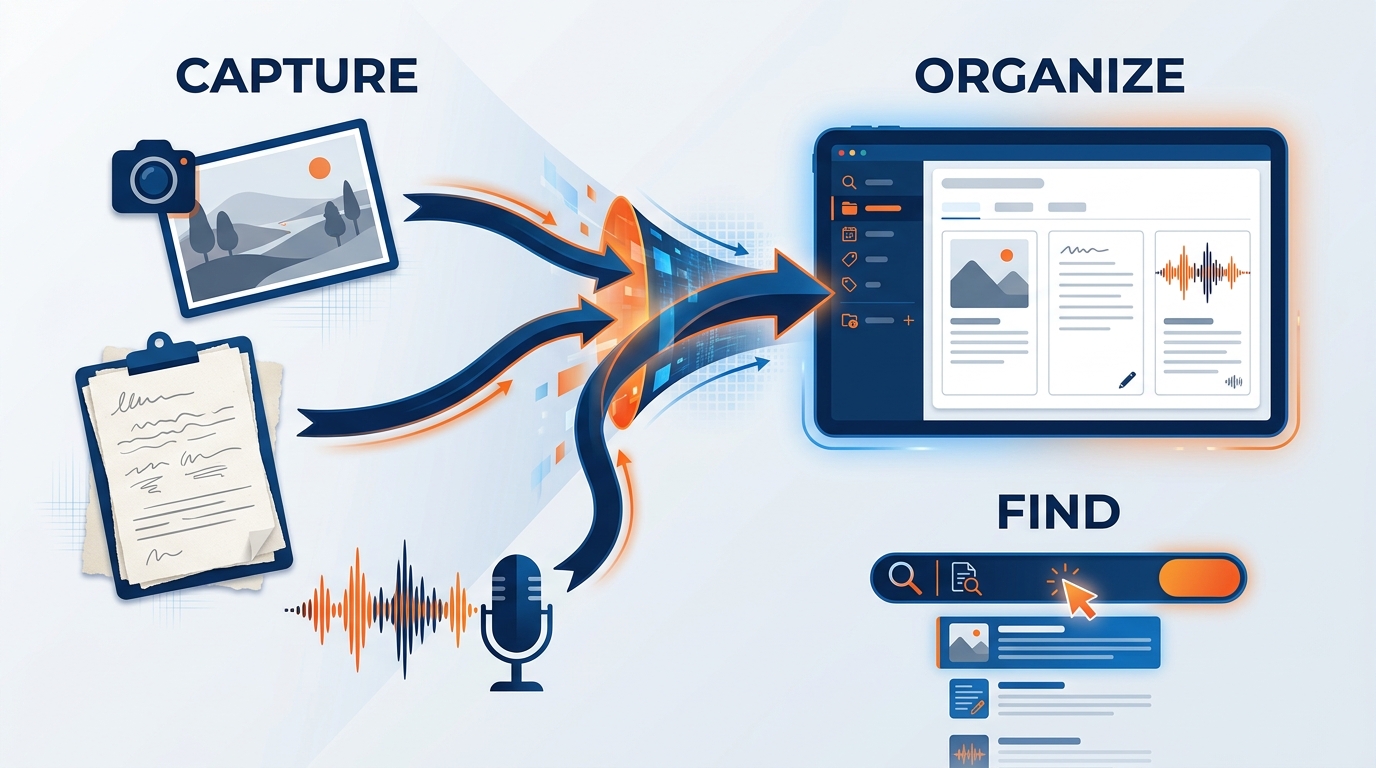
Figure 1:Copilot in OneNote changes how GES people capture, organize, and act on what they learn in the field. Four confirmed capabilities — summarize, create task lists, rewrite, and draft new content — work on the actual pages in your notebook, turning walkthrough scribbles and show-floor observations into structured, actionable records.
“Notes are only as valuable as the action they generate. Copilot closes the gap between capturing and acting.”
Think about the last venue walkthrough you did.
You were standing up. Hard hat under one arm, phone in your hand, the venue ops lead walking fast and talking faster. You learned that dock four cannot take a 53-foot trailer without a repositioning move, that the freight elevator in the north hall has a weight limit nobody has written down anywhere official, that the electrical crew’s union call time is a half hour earlier than the show organizer assumed, and that the ceiling rig points in hall B are on a different grid than the drawings show. You typed some of it. You photographed the dock. You wrote three words on a printed floor plan and shoved it in your bag.
Now think about what happened to all of that.
For most people in this business the honest answer is uncomfortable. Some of it made it into an email. Some lived in your head until you moved to another show and left with you. Most went nowhere. Eighteen months later the same show comes back to the same venue, a different GES team runs it, and somebody discovers dock four all over again — on move-in morning, with trucks stacked in the marshaling yard.
That is not a note-taking problem. It is an institutional memory problem, and it is the most expensive knowledge failure in the event business.
Copilot in OneNote is built to close that gap — not the act of taking notes, which OneNote always did, but the distance between capturing something and being able to use it. From a page of move-in observations to a punch list with owners. From shorthand scrawled at a marshaling yard gate to documentation a colleague can act on. From four years of scattered venue notes to an answer in ten seconds.
Microsoft’s documentation confirms Copilot in OneNote runs on Windows, Mac, iPad, and the web with a Microsoft 365 Copilot (Work) license, and on Windows with eligible M365 subscription plans. That coverage matters more here than almost anywhere. Most of the GES workforce is not at a desk. They are on show floors, in warehouses, in marshaling yards, in venues across 75+ countries. A tool that only works on a laptop in an office is a tool most of this company cannot use. OneNote is not that tool.
1.11. Why Notes Matter More in the AI Era, Not Less
There is a tempting misconception: if AI can summarize and recap automatically, why bother taking careful notes at all?
This gets the relationship backwards. The quality of Copilot’s output is directly proportional to the quality of the notes it works with. Hand the best production coordinator at GES a napkin with three illegible bullets and their output is limited by what you gave them. Hand them a site survey with dock dimensions, named venue contacts, and specific labor constraints, and you get something useful. Copilot organizes, synthesizes, and extends. It does not manufacture facts you never captured.
So the discipline matters more now, not less. A floor manager who captures structured move-in notes has an asset Copilot turns into punch lists, escalation summaries, and a lessons-learned document that outlives the show. An account manager whose client notebook holds four show cycles of history can be brought current on a relationship in ninety seconds.
OneNote was always the right tool for structured capture. Copilot does not change what OneNote is for. It multiplies the return on the time you already spend using it.
1.22. OneNote in the M365 Stack — Where It Fits and Why It Is Underused
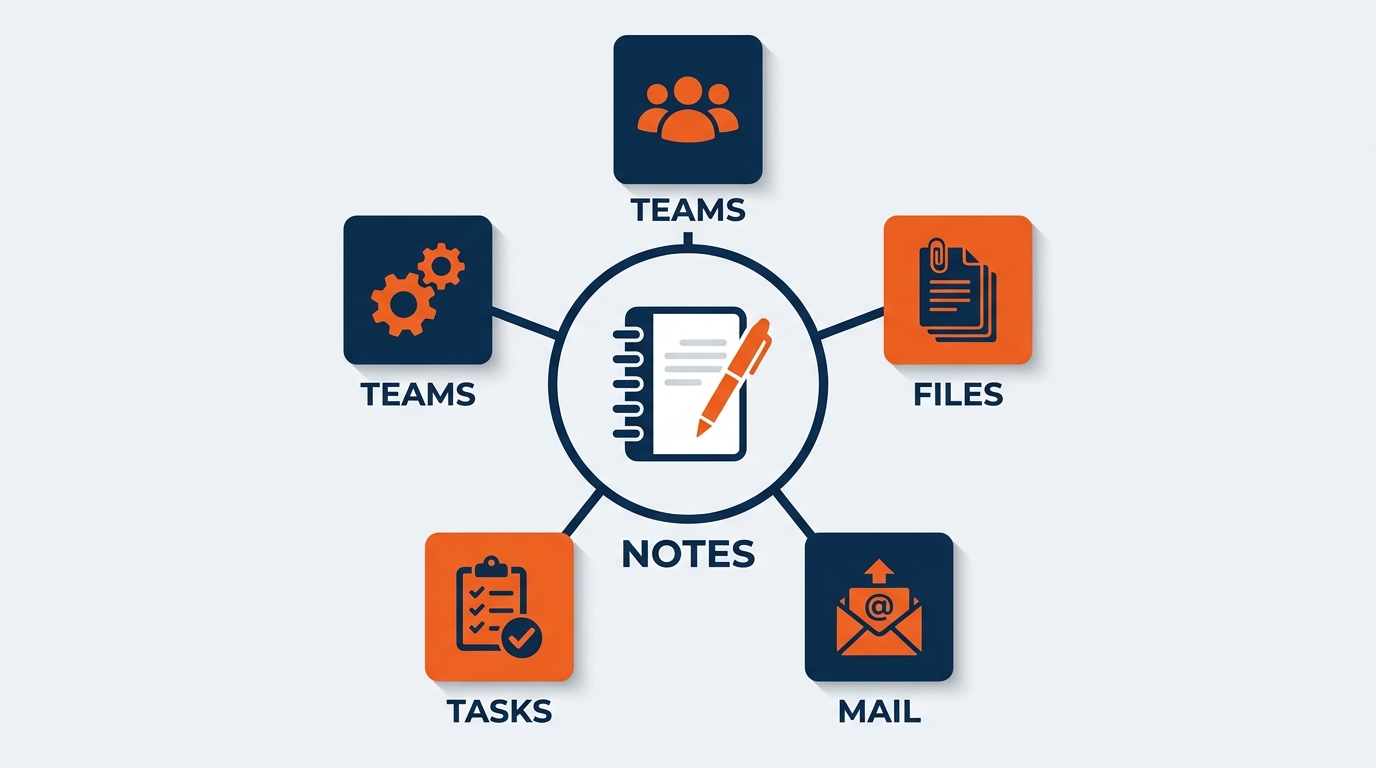
Figure 2:OneNote occupies the knowledge capture layer of the Microsoft 365 stack — between the communication tools above it and the storage infrastructure below. That placement makes it the connective tissue of the M365 knowledge ecosystem, and the place where what happens in a venue turns into something the company can keep.
Microsoft 365 is a knowledge ecosystem, not a bag of apps. Teams and Outlook are the communication layer — ephemeral by design. A Teams chat scrolls away; a pre-con call ends and the conversation dissipates. SharePoint and OneDrive are the storage layer, where finished documents live: show operations manuals, exhibitor service kits, floor plans, contracts. Excellent at retrieval, poor at the messy, iterative work of capturing knowledge while it is still forming.
OneNote is the knowledge capture layer in between — where the ephemeral gets distilled into something structured and persistent, and where the raw material for formal documentation gets organized before it is ready for final form. It is a notebook, not a document. Flexible, hierarchical, permanent.
In practice, most GES teams use Teams and SharePoint constantly and OneNote barely. The reasons are familiar: “I keep notes in email,” “I have my own system,” “I never set it up,” “I’m never at a computer anyway.”
Those are the answers you would expect from people who have never had an AI assistant living inside their notebook. A notebook that syncs across devices was never quite compelling enough to displace an existing habit. A notebook that also reads everything you have written, summarizes it on demand, extracts your commitments, and makes four years of venue history searchable is a categorically different proposition. The setup cost is one afternoon. The payoff compounds every show cycle.
1.33. How to Access Copilot in OneNote — Including on a Phone
Microsoft’s documentation confirms three access points, each suited to a different working moment.
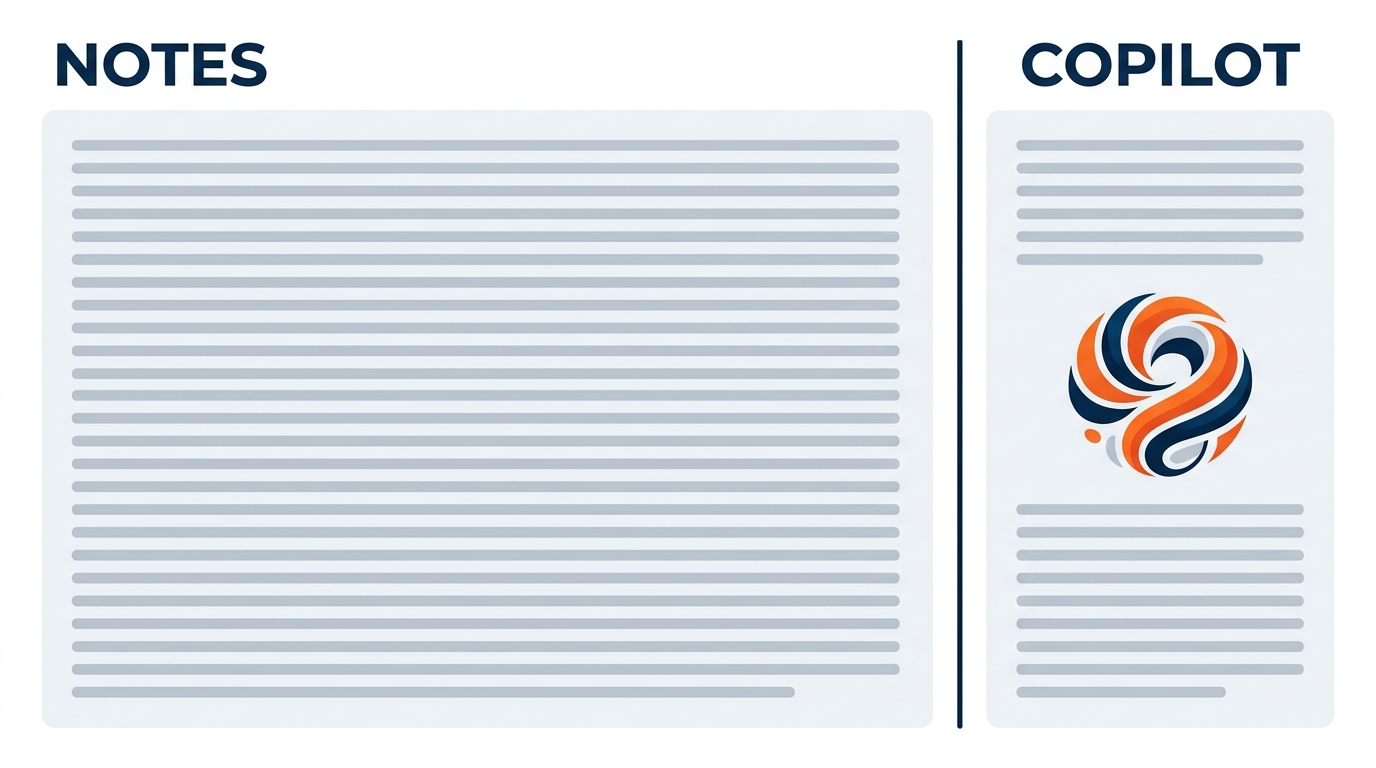
Figure 3:The Copilot pane opens on the right side of OneNote from the Home tab. From here you can enter prompts, get summaries and task lists, chat about your notes, and copy the output straight into another page, an email, or a Teams message.
The Ribbon Button (Home Tab). The primary access point. Click Copilot and the pane opens on the right while your page stays visible — the full interface, for longer summaries, multi-step requests, and iterative conversation.
The On-Canvas OneNote Icon. Triggers specific functions — summaries, rewrites, task lists, new content ideas — from the page context without opening the full pane. As of December 2025, according to SuperSimple365’s tracking of M365 feature rollouts, “Summarise Page,” “Create a Task List,” and “Rewrite Page” now open directly in the Copilot Chat pane.
Right-Click Context Menu. The fastest route to common operations.
One constraint from Microsoft’s documentation: Copilot in OneNote is not available if Windows Information Protection (WIP) is enabled on your device. On a managed device with WIP active, check with IT.
1.3.1The Mobile Reality
Here is the part that matters most for GES, and it is in almost no Copilot training material. Notes at this company are not taken at desks. They are taken standing up, in a noisy hall, on a phone, with one hand, while something is being unloaded. If your capture habit requires sitting down, you do not have a capture habit.
Photograph the physical artifact. Marked-up floor plans, the whiteboard in the show office, a handwritten dock schedule taped inside a freight door, a damaged crate label, a rig point that does not match the drawing. The photo is the note; the one-line caption you type under it is what makes it findable later.
Use ink freely. If you work from an iPad with a pencil during walkthroughs — many designers and site survey leads do — Microsoft confirms Copilot works with both typed and handwritten notes on the same page. Sketch the aisle configuration, annotate it, and Copilot still summarizes it alongside your typed content.
Talk your notes. Walking from the marshaling yard back to the show office is four minutes of dead time that can become the day’s log. Dictate roughly, capture everything, clean it up later with the rewrite function in Section 5. For anyone whose job happens on their feet, this is the highest-leverage habit in the chapter.
The through-line: capture fast and messy in the field, structure it later with Copilot. Before AI, messy capture stayed messy, so people either wrote nothing or wasted time writing neatly in bad conditions. That trade-off is gone.
1.44. Capability 1 — Summarizing Your Notes
Summarization is the capability that most immediately changes your relationship with your own notes, and one feature makes it far more useful professionally: when Copilot summarizes your notes, it cites its sources within the response.
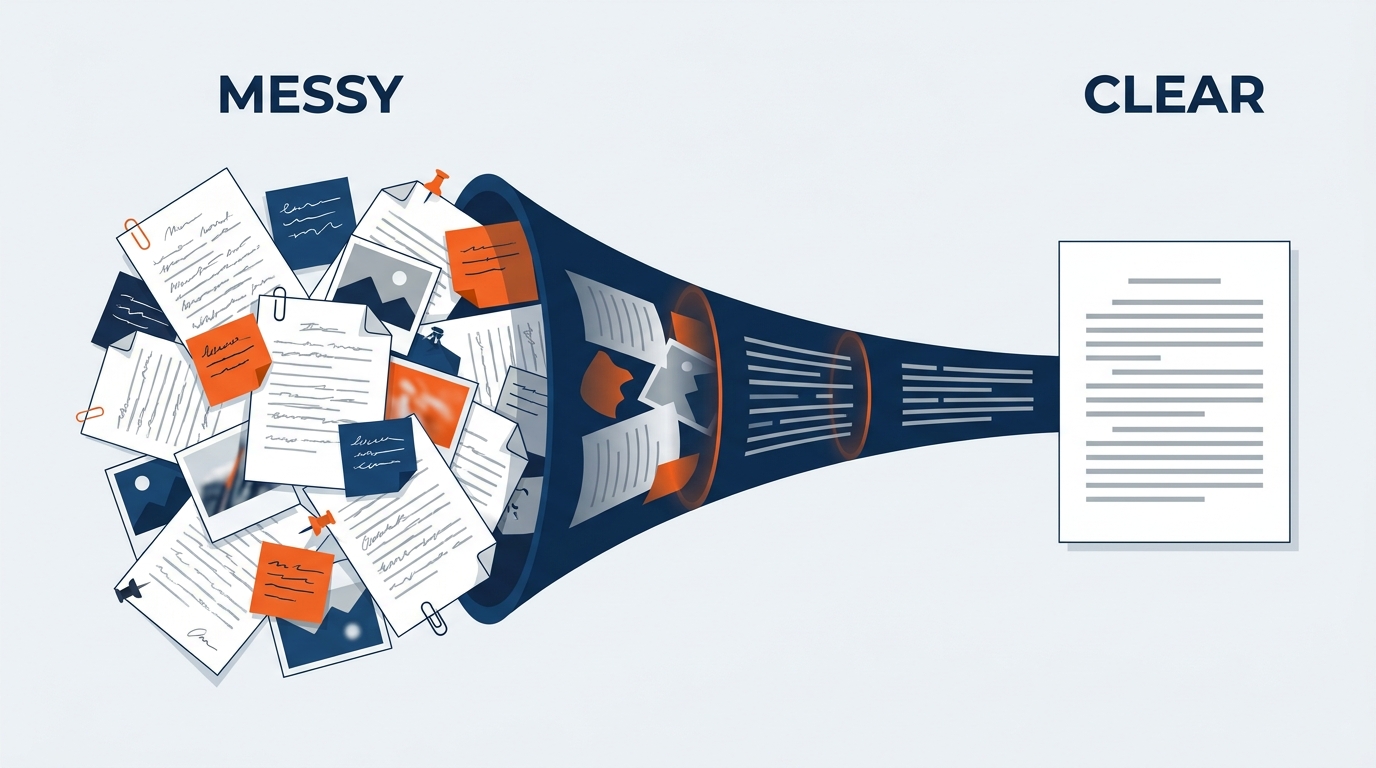
Figure 4:Raw walkthrough and show-floor notes become structured summaries with decisions, open questions, and action items — with Copilot citing the specific parts of your notes it drew from, so you can verify before anyone acts on it.
That citation mechanism is not a detail. On a show floor, a wrong number is not an inconvenience — it is a truck at the wrong dock at the wrong hour with labor on the clock. When Copilot tells you which part of your page a point came from, you can check it.
Microsoft’s documentation describes three levels of granularity: the full page, a section or topic (useful when a walkthrough page mixes freight logistics with rigging and power and different people need different parts), and a selected passage (surgical, ideal for dense material like a venue’s labor rules).
Microsoft’s own example prompt is instructive: “Create a summary of the notes on this page. Focus the summary on the chronological order of events and place the events into bullet points.” Naming a focus and a format separates a useful summary from a generic one. The more specific your instruction, the more useful the output. A copy button then moves the result anywhere — an email to the organizer, a Word doc for the show operations manual, the show’s Teams channel, a new recap page.
1.4.1GES Application: The Site Survey Debrief
A show operations manager finishes a two-hour walkthrough for a show that moves in eight weeks. The page holds dock configuration and trailer restrictions, the freight elevator weight limit, ceiling rig points that differ from the drawings, marshaling yard capacity and gate hours, union jurisdiction notes from the venue’s labor lead, two photos of a blocked service corridor, and an ink sketch of a revised aisle layout for hall B.
She prompts: “Summarize this page. Organize into: Freight and Material Handling, Rigging and Overhead, Labor and Jurisdiction, Floor Plan Implications, and Open Items. Use bullet points. Note anything that conflicts with the drawings.”
Thirty seconds later she has a five-part debrief. She checks the citations, corrects one dock number, and copies it into the show’s Teams channel and the venue notebook. The debrief that would normally have been written at 10 p.m. from memory is done before she leaves the building — and it is more accurate, because it was written while she was standing in it.
1.55. Capability 2 — Rewriting Notes for Clarity
The second capability turns rough, informal, incomplete notes into clear documentation — resolving the oldest tension in field note-taking: speed versus quality. During a walkthrough the right posture is fast and comprehensive: abbreviate, fragment, capture everything. But “I’ll clean this up later” almost never happens, because later is move-in.
Rewrite removes the trade-off. Microsoft confirms “Rewrite Page” as one of the four primary functions alongside Summarize, Create Task List, and Take Notes. The distinction from summarizing matters: summarize condenses, removing detail for clarity; rewrite transforms, reconstructing the same content with better structure and clearer language without necessarily shortening it. The detail stays; the rough edges go.
At GES, rewrite is most valuable for notes that become real documentation: a site survey going into the venue folder, a show-week log feeding the post-show report, a safety observation that must read cleanly for the record, a design debrief a fabrication team will build from.
Each prompt gives Copilot a destination — not “better” but specifically what better means here.
1.5.1GES Application: Dictated Notes to Formal Record
A floor manager finishes day two of move-in. His notes are ninety seconds of dictation captured while walking hall three, plus four photos: a booth set behind schedule, an aisle carpet run installed on the wrong line, an exhibitor whose freight was targeted for 07:00 and landed at 14:30, and an EAC working the north wall without current certificates of insurance on file.
He prompts: “Rewrite this page as a formal move-in day two log. Sections: Set Progress by Hall, Freight and Target Variances, Exhibitor Issues, Contractor and EAC Items, Safety Observations. Keep all booth numbers, times, and names exactly as I said them. Flag anything that needs a decision tomorrow.”
Two minutes of walking becomes the day’s official log — read by the off-site account manager, and source material for the post-show report six weeks later.
1.66. Capability 3 — Task Lists, Punch Lists, and Open Items
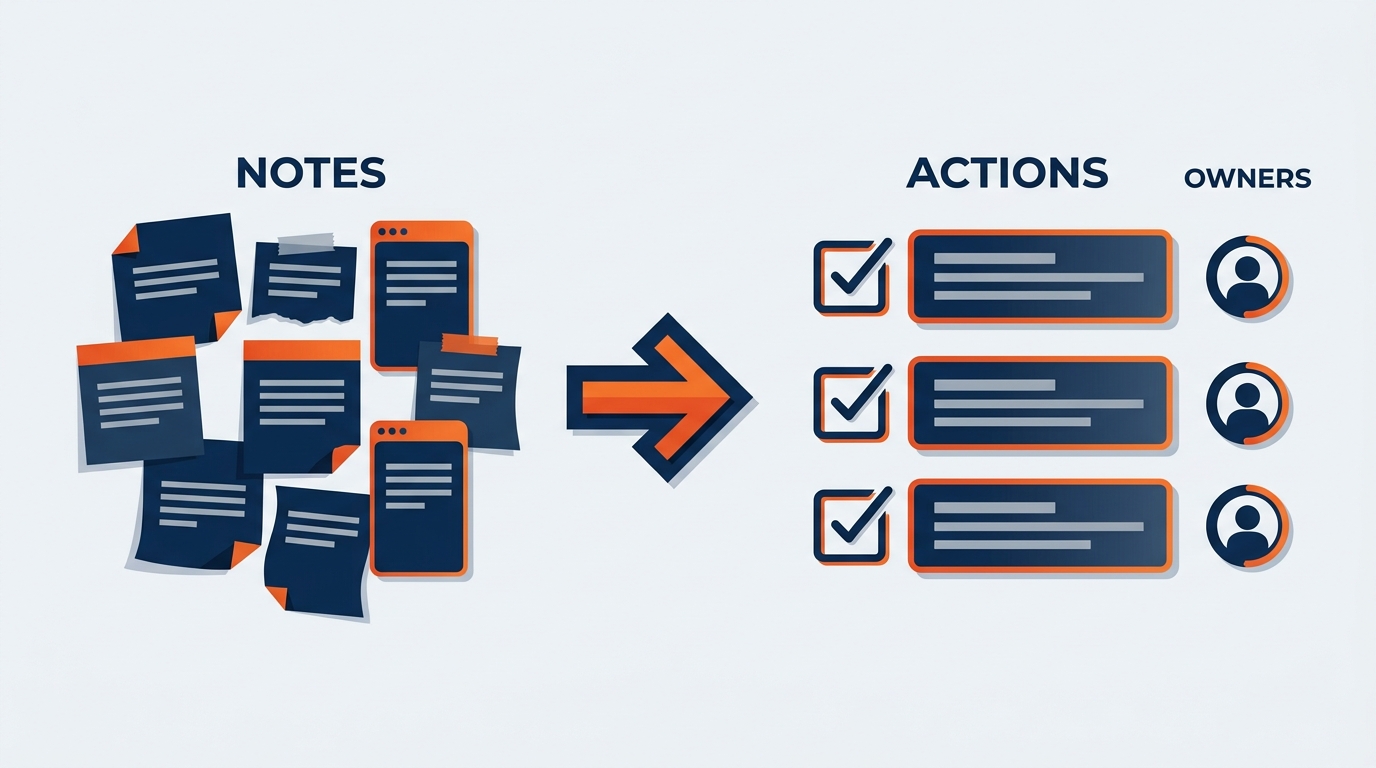
Figure 5:Copilot extracts commitments buried in running notes and organizes them into structured task lists with owners, deadlines, and priorities. On a show floor, this is the difference between a punch list and a memory.
Every pre-con, every walkthrough, every move-in day ends with commitments: things someone promised to do, questions that need answers, items that must be fixed before doors open. Uncaptured, they evaporate — and on a show with a fixed open date, evaporation shows up in an aisle, in front of a client.
Microsoft confirms Copilot in OneNote can create task lists from your notes, a page, or an entire section, incorporating deadlines and priorities when they appear in the source. Of the four capabilities this has the most direct effect on execution. Open Copilot on your notes, ask it to extract the action items, and copy the structured list into Microsoft Tasks, the show’s Teams channel, or a punch list section of the show notebook.
Specificity in, specificity out. “Talk to venue about the dock” produces a task that says talk to venue about the dock. “Marco (venue ops) to confirm by Thu whether dock 4 takes a 53’ trailer without a repositioning move” produces a task you can close. Prompts worth keeping:
“Create a task list from this page. For each item note the owner where stated, the deadline, and the hall or booth number it affects.”
“Extract all open items and split them into two lists: things GES owns as GSC, and things we are waiting on from the organizer, the venue, an EAC, or an exhibitor.”
“Create a prioritized punch list from this section. Rank by what must be closed before doors open tomorrow versus what can wait until move-out.”
That second split — what we own versus what we are waiting on — is the most useful structure in show operations. It separates what is in your control from what needs a phone call.
1.6.1GES Application: The Pre-Con Meeting
An account manager finishes a pre-con with the show organizer, the venue, and the GES operations team: ninety minutes covering the move-in sequence, revised freight targets for two exhibitor categories, a change to the aisle carpet spec, a late sponsorship signage package, union call times, and an organizer request to change the registration area layout. Commitments landed on all sides, captured in conversational flow — the order least useful afterwards.
She prompts: “Create a task list from this page. Organize as: (1) GES actions with owner and due date, (2) Items we are waiting on from the show organizer, (3) Items we are waiting on from the venue. Note anything with a date inside the next five business days.”
The output goes into the show notebook’s Open Items section and the Teams channel. When she runs the follow-up call ten days later, sections two and three are the agenda — already written.
1.77. Capability 4 — Drafting New Content from Your Notes
The fourth capability goes past transforming what exists: Copilot can draft new content grounded in your notebook. Microsoft’s documentation confirms this includes event plans, presentation outlines, meeting agendas and drafts with discussion points and objectives, brainstormed ideas, and new pages and sections.
This is where OneNote stops being a capture tool and becomes a generation platform. Ask Copilot to draft next week’s pre-con agenda from a section of site visit and organizer call notes, and it reflects the actual open items rather than a generic template. Ask it to brainstorm directions connecting a client’s brand objectives to the constraints you captured on the venue walkthrough. Ask it to outline a team session on what keeps going wrong at move-out, from four shows’ worth of lessons-learned notes.
1.7.1Using Chat for Analytical Requests
Copilot in OneNote also supports open chat with intelligent responses in the pane — follow-ups, refinements, exploration. That matters for analytical rather than mechanical questions:
“Across the notes in this section from the last four shows at this venue, what problems have recurred? Group by theme and tell me which pages you drew from.”
“I have a year of design review notes in this section. What client objections come up most often about sustainability and reuse? Rank by frequency.”
“Based on the move-in logs in this notebook, what consistently goes wrong in the first 24 hours, and what did we do that worked?”
These require reasoning across your content, not just condensing it. The chat interface exists for exactly this — and, as the next sections show, this is where the institutional memory payoff actually lands.
1.88. The Venue Notebook — Where Institutional Memory Actually Lives
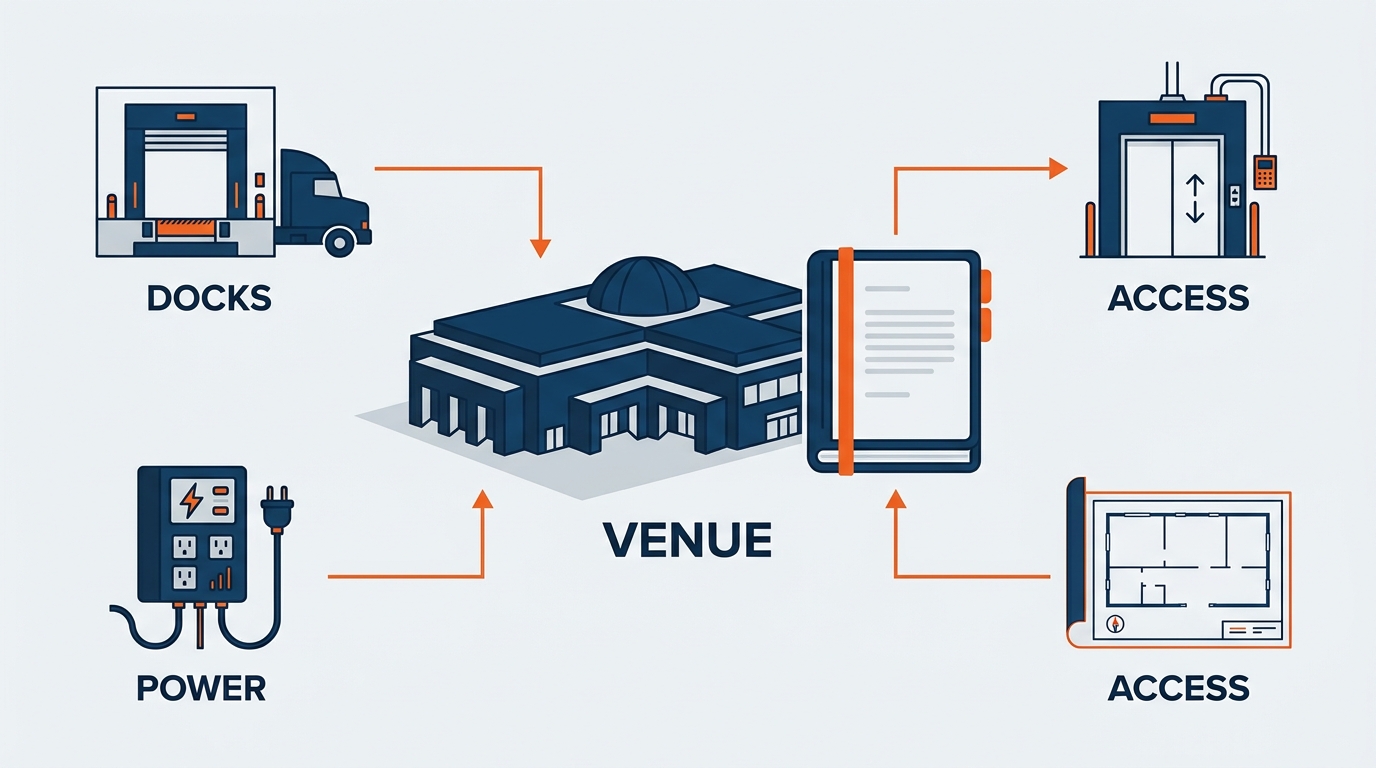
Figure 6:The Venue Notebook is the highest-value notebook in this chapter. Everything GES has learned about a building — dock configurations, union jurisdiction, freight quirks, rigging realities — accumulated across every show run there, and made searchable and summarizable by Copilot.
If you build only one notebook after reading this chapter, build this one.
GES runs 4,000+ live experiences a year from 24 global production and warehouse facilities. The same shows come back to the same buildings year after year. The people do not. A show operations manager rotates, a floor manager moves regions, a logistics coordinator leaves — and every time, hard-won, expensive, entirely undocumented knowledge about a specific building walks out with them.
That knowledge is specific: which dock cannot take a 53-foot trailer, which freight elevator has an undocumented weight limit, which union local claims jurisdiction over what and where the boundary actually falls in practice, which marshaling yard gate jams at shift change, where the ceiling grid diverges from the published drawings, which service corridor floods when it rains, which venue contact returns calls.
None of that is in a contract. Most of it is in no system at all. It lives in the heads of people who happened to be there — until it does not. A venue notebook is the fix, and Copilot is what makes it worth keeping, because a notebook nobody can search is just a slower filing cabinet.
1.8.1Recommended Venue Notebook Structure
Venue Profile — stable facts: halls, square footage, ceiling heights, exclusive service providers, in-house restrictions, key contacts with names and direct numbers.
Docks and Freight — dock count, dimensions, trailer restrictions, repositioning requirements, freight elevator capacities, marshaling yard capacity and gate hours, advance warehouse routing, drayage and material handling quirks, and what target windows actually look like here versus what the plan says. Photograph everything.
Labor and Jurisdiction — which trades cover what, call times, minimum calls, break rules, overtime thresholds, and how union jurisdiction is interpreted in this building, which frequently differs from how it reads on paper. Note EAC access rules too.
Utilities and Rigging — power drop locations and capacities, floor ports, rig point grids and where they diverge from drawings, weight limits, house lighting and rigging labor requirements.
Site Survey History — one page per walkthrough, dated, with the survey lead’s name. Where the raw field captures land. Do not clean them into oblivion; dated, specific, imperfect notes beat a polished summary that lost the detail.
Lessons Learned — one page per show run at this venue: what went wrong, what we changed, what we would do differently. This section pays for the entire notebook.
1.8.2What Copilot Does With It
Once three or four show cycles are in there, the notebook becomes something no individual could be:
“Summarize everything in the Docks and Freight section into a one-page brief for a show operations manager who has never worked this building.”
“Across the Lessons Learned section, what problems have occurred more than once at this venue? Group by theme and cite the pages.”
“Create a task list of everything in this notebook that should be verified on the next site survey because it may have changed.”
“Based on the Labor and Jurisdiction section, draft a briefing note for the crew leads covering the three things that most commonly get misunderstood here.”
That third prompt is quietly the most valuable in the chapter. Institutional knowledge decays — venues renovate, contracts change, locals renegotiate. A notebook that surfaces its own staleness stays trustworthy.
1.99. The Show Notebook — One Cycle, Start to Finish
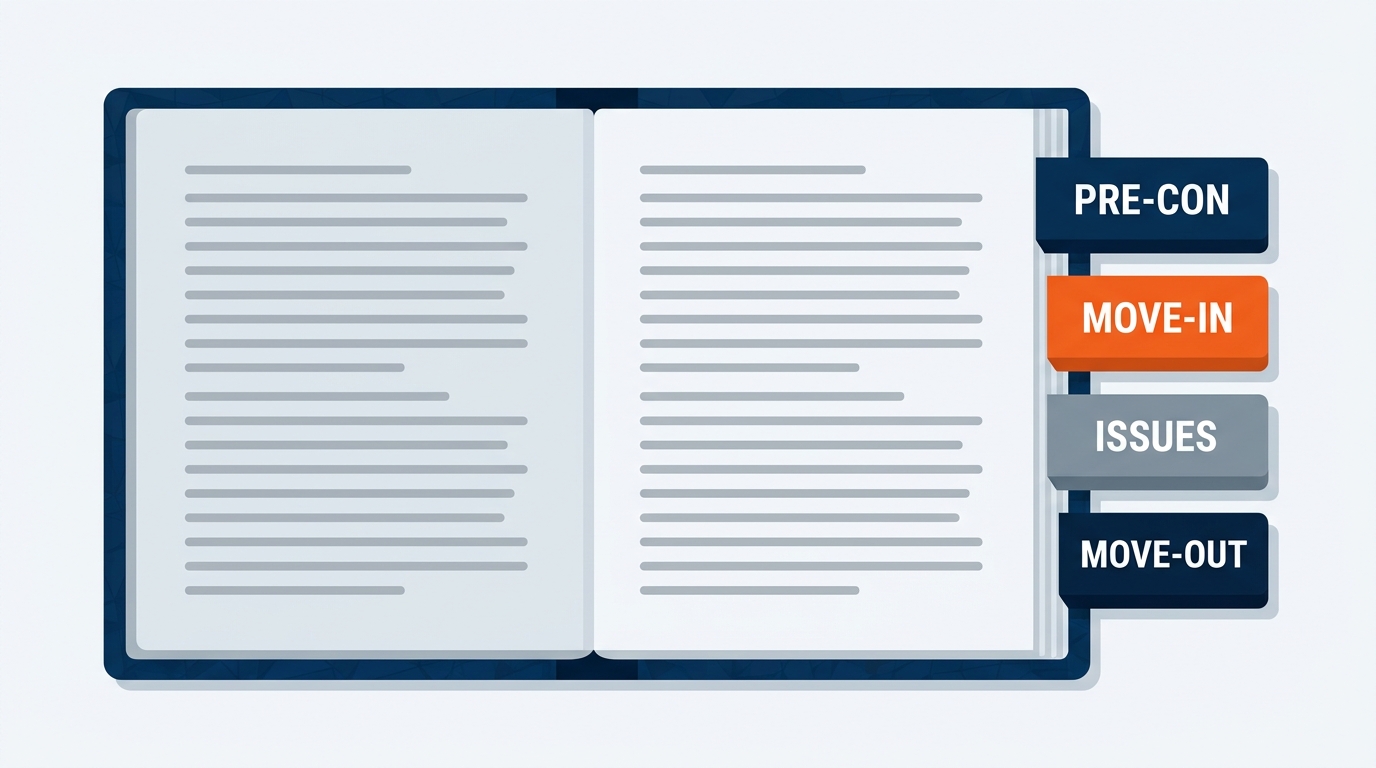
Figure 7:A Show Notebook carries one show cycle from kickoff through post-show reconciliation — planning calls, site surveys, daily logs, exhibitor issues, safety observations, and the lessons that feed next year’s edition.
Where the venue notebook is permanent, the show notebook is a cycle: it opens at kickoff, closes with the post-show report, and becomes the reference for next year’s edition.
Show Overview — dates, venue, organizer, scope of GES services as GSC, key contacts, and headline numbers: square footage, exhibitor count, hall assignments.
Pre-Con and Planning Calls — one page per call, dated. Where the Copilot meeting recaps from Chapter 9 get filed so they live somewhere durable instead of scrolling out of a Teams channel.
Site Surveys — walkthrough notes specific to this show, including anything unusual in the exhibitor service kit or the I&D plan. Venue-general findings get promoted into the venue notebook; show-specific findings stay here.
Move-In Daily Log — one page per day. The most valuable section during show week and the one most likely to be skipped. Dictate it on a phone at the end of each shift, then rewrite it with Copilot in ninety seconds.
Exhibitor Issues — one page per escalation: exhibitor, booth number, issue, what was promised, what was done, how it closed. Your record when the organizer asks, and your evidence when a charge is disputed.
Safety Walks — dated observations with photos, factual and neutral. Safety performance is a stated GES operating KPI, and observations that exist only in memory contribute nothing to it.
Move-Out and Lessons Learned — dismantle notes, freight-out and carnet issues, damage, and the candid retrospective.
Copilot prompts that earn their keep here:
“Summarize the Move-In Daily Log section into a chronological narrative of how move-in actually ran versus the plan.”
“From the Exhibitor Issues section, group the escalations by root cause and tell me which were within GES control.”
“Draft a post-show lessons-learned outline from this notebook. Separate what worked, what failed, and what we would change for next year’s edition.”
“Create a task list of everything in this notebook that must be resolved before final reconciliation.”
That last one is the difference between reconciliation as a reconstruction exercise and reconciliation as a review.
1.1010. The Account Notebook and the Design Ideation Notebook
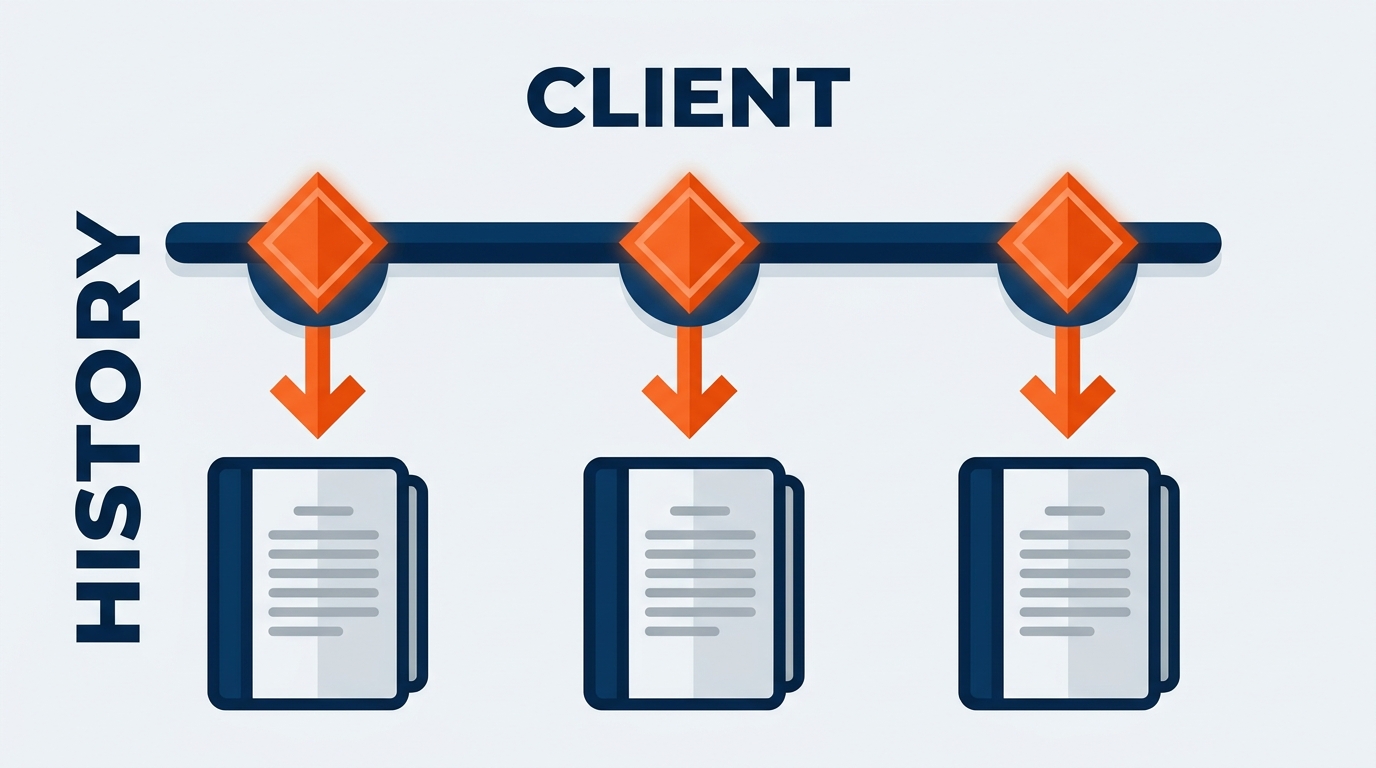
Figure 8:An Account Notebook holds the full arc of a client relationship across show cycles — profile, contacts, history, conversations, and open items — so that relationship knowledge survives a change of account manager.
1.10.1The Account Notebook
For account managers, this is the relationship’s memory — the venue notebook principle applied to people and programs instead of buildings.
Client Profile — who they are, what they exhibit, objectives, budget posture, how they measure success, sustainability commitments, and which parts of the GES Collective they use: GES Exhibitions, Spiro, onPeak, SHOWTECH, Visit by GES.
Key Contacts — one page per contact: name, title, decision authority, communication style, history with GES, and the small human details that make a relationship a relationship.
Show History — one page per show cycle: scope, spend, what was built, what went wrong, how it was resolved, what they said afterwards. Over three or four cycles this becomes the most valuable page set in the account.
Meeting Notes, Open Questions, and Next Steps round it out — dated pages for every call and visit, what we still need to learn or have asked for and not received, and the current active list refreshed from Copilot’s task extraction.
The prompt that makes this notebook indispensable, used the week someone inherits an account: “Summarize this notebook. Give me the client’s objectives, the history of our work with them across show cycles, the recurring issues, the open commitments, and the three things I most need to know before my first call.” Ninety seconds, and a new account manager walks into a client call informed rather than apologetic.
1.10.2The Spiro Design Ideation Notebook
Design work has a different shape. Ideas arrive out of order, half-formed, and their value is often not obvious until months later on a different project.
A designer’s ideation notebook is deliberately looser: Concepts (one page per idea, sketch photos, reference images, material samples shot on site), Client Briefs (objectives and constraints per project), Constraints and Learnings (what got built versus what was drawn, and why), and Material and Fabrication Notes (what performed, what shipped badly, what reused cleanly under Better Stands).
Copilot’s value here is not summarizing. It is retrieval and pattern-finding across a year of scattered thinking:
“Across the Concepts section, which ideas involved modular or reusable structures? Summarize each in two lines.”
“Based on this client’s brief and the constraints in the venue notebook for their next show, brainstorm five stand concepts that respect the ceiling height and rigging limits.”
“From the Constraints and Learnings section, what has repeatedly caused a design to change between concept approval and fabrication?”
That last question is hard to answer from memory and valuable to answer with evidence.
1.1111. Team Notebooks — Shared Knowledge in Teams and SharePoint
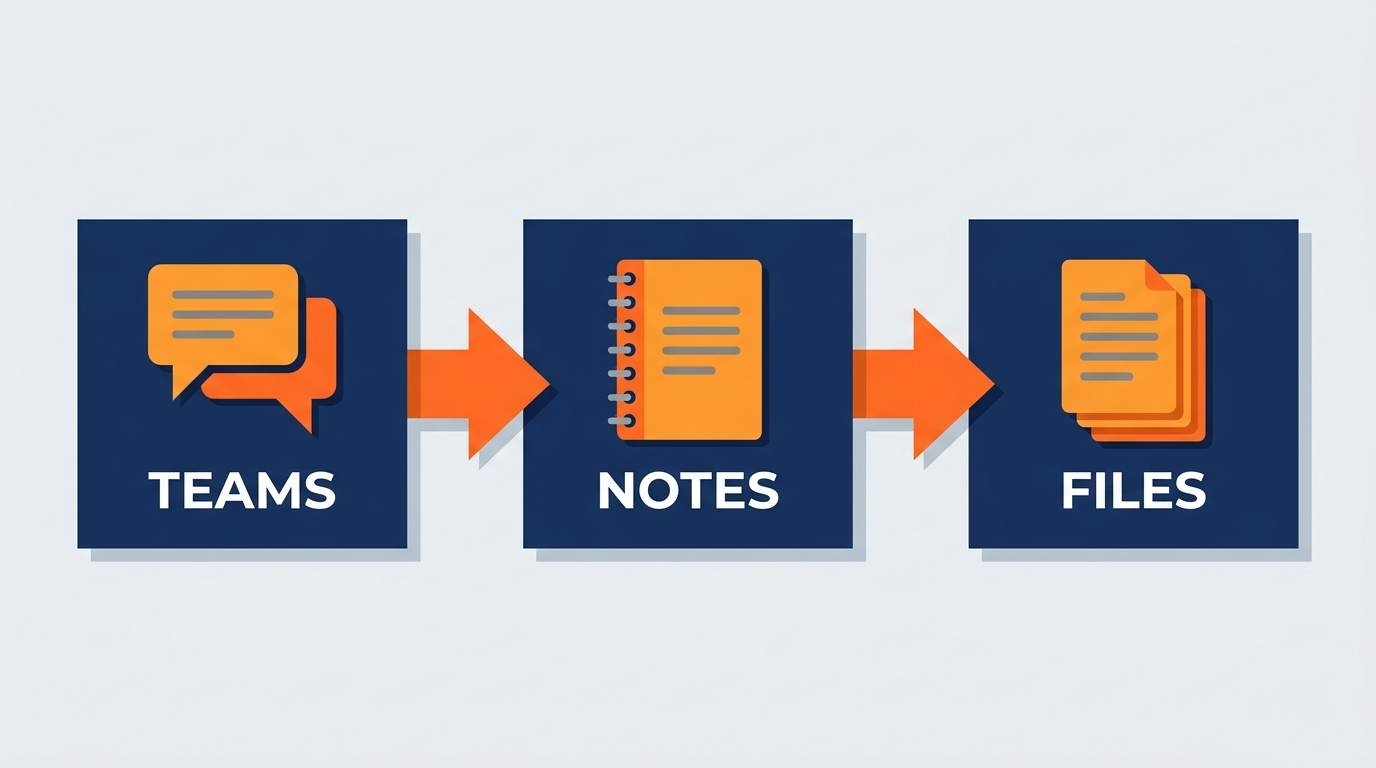
Figure 9:Teams, OneNote, and SharePoint form a triangular knowledge ecosystem — Teams generates the conversation, OneNote captures and organizes it, SharePoint stores and shares it. A show notebook that lives in SharePoint is available to the whole show team, in every time zone.
Individual notebooks are useful. Shared notebooks — stored in SharePoint, tied to a Teams team — turn a distributed show team into a single knowledge organism. In July 2025, according to Schneider IT’s tracking of M365 enterprise deployments, Copilot Notebooks gained real-time collaboration: multiple contributors working simultaneously with structure and annotations preserved.
Three earn their keep at GES. Show team notebooks — the show notebook from Section 9, shared, where the floor manager captures the daily log, the exhibitor services rep logs escalations, the logistics coordinator records freight variances, and the account manager files organizer call recaps. Everyone works one record instead of five. Facility and regional notebooks — venue notebooks shared across the region that services them, so Toronto and Las Vegas teams working the same touring show inherit each other’s findings. Onboarding notebooks — role guides, process documentation, glossary, accumulated practice, where a new exhibitor services rep can ask Copilot to summarize key processes or draft a 30-day learning plan instead of consuming a colleague’s show week with questions.
1.11.1The Curation Imperative
Schneider IT’s documentation flags the risk directly: “if a notebook omits crucial documents, Copilot can produce confident but incomplete answers — teams must curate notebooks.”
That is a property of every knowledge system, not a flaw. A maintained notebook produces reliable outputs. A stale one produces confident nonsense — worse than nothing, because it looks authoritative.
So someone must own each shared notebook: the show operations manager for a show notebook, the regional operations lead for a venue notebook. Ownership means ensuring key findings get captured, promoting show-specific learnings into the venue notebook where they generalize, and marking outdated information as historical rather than leaving it to mislead someone in 2028.
1.1212. The Note-Taking Discipline
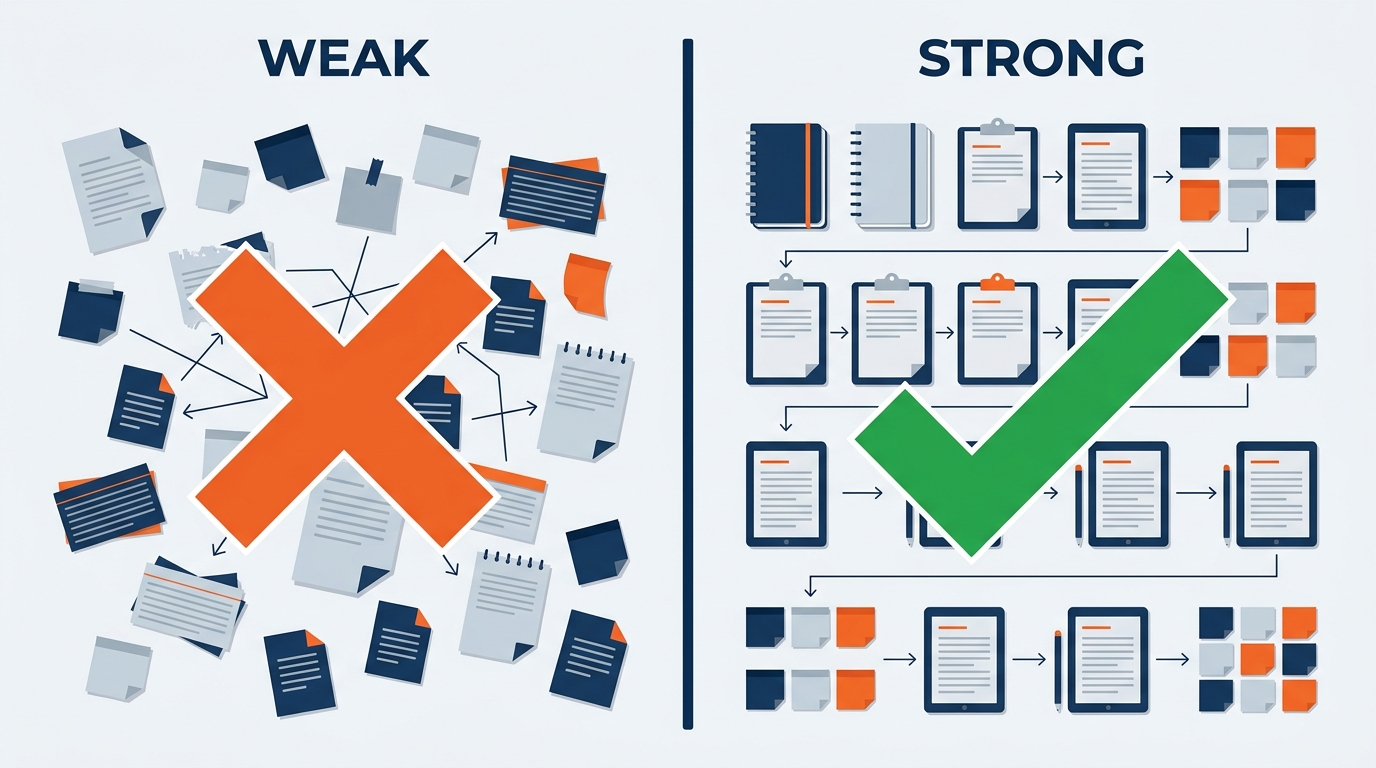
Figure 10:Good notes for AI are not more bureaucratic notes — they are notes with names, numbers, dates, and explicit commitments. Structure is what lets Copilot produce something you can act on.
Copilot’s output is bounded by the quality of the notes. Here is what that means concretely in the field.
Numbers, not adjectives. “Dock is tight” is unusable. “Dock 4 will not take a 53’ trailer without a repositioning move; usable depth approx. 42’” is a note that saves a show. Weights, dimensions, times, booth numbers, hall letters — capture the number.
Name people. “The venue guy said” loses meaning in a week. “Marco Silva, venue ops lead” keeps it — and makes the note searchable, which is how it gets reused.
State commitments explicitly. “Organizer to confirm revised freight targets for the pharma pavilion by Thursday COB.” Implicit commitments buried in narrative are easy for Copilot — and for you — to miss.
Timestamp show-week entries. During move-in, sequence is everything. A log entry recording when something was observed is evidence. One without is an opinion.
Context at the top, headers in the middle. Date, show, venue, hall, who was present, why you were there — Copilot uses this to frame everything below, and so will the colleague reading it next year. Then break the body by topic: freight, labor, rigging, exhibitor issues, so you can summarize one thread for one audience.
None of this takes meaningfully more time. It takes writing the number instead of the impression, the name instead of the role, and the commitment instead of the gist.
1.1313. What Copilot in OneNote Cannot Do
It cannot access information outside the notebook context. Unlike Copilot in Teams or Outlook, it works within the open page and notebook. It will not pull a floor plan from SharePoint, check your calendar, or read an organizer’s email thread unless that content is in your notebook.
It cannot be explicitly directed to specific sections or notebooks by name (as of December 2025). Per SuperSimple365’s tracking of Microsoft’s December 2025 UI update, users can no longer refer to “this section” or “this notebook” in prompts the way they previously could. Copilot works in the active page context — so organize so that what it needs is on the page you are working from.
It cannot guarantee accuracy. Copilot synthesizes; it does not verify. If your notes say the freight elevator holds 8,000 lbs and it holds 6,000, Copilot will faithfully repeat the error into a document that looks official. Source citations exist to help you check. The checking is yours.
It is not available if Windows Information Protection (WIP) is enabled. A Microsoft-confirmed constraint on some managed devices. Contact IT.
It does not replace judgment about what to capture. It cannot tell you that you should have photographed the rig points, or that the offhand comment from the venue’s labor lead was the most important thing said all morning. That judgment is the professional skill; Copilot is downstream of it.
Local-only notebooks are not fully supported. Notebooks not synced to OneDrive or SharePoint may have limited or no Copilot functionality — and, for a mobile workforce, will not be on your phone when you need them.
1.1414. Beyond the Notebook — How Copilot Cowork Extends This Work
Everything so far happens inside OneNote. But the most valuable thing about a show-week notebook is what gets made from it afterwards — and that is where Microsoft Copilot Cowork, generally available worldwide since June 16, 2026, changes the economics.
Copilot Chat is a conversation: one prompt, one response, you steer each step. Cowork is an assignment. You describe an outcome; it plans and executes multi-step work across Microsoft 365 and returns finished artifacts — documents, decks, spreadsheets, emails, Teams posts.
Two properties matter here. Cowork browses your Work IQ — SharePoint and OneDrive folders, files, emails, Teams content — assembling across sources, which is exactly the boundary Copilot in OneNote alone cannot cross. And it keeps working when your laptop is off, in a protected cloud environment. For someone who assigns a task at the end of a move-out day and reviews it on a phone the next morning at the airport, that is the entire point.
1.14.1A GES Example: Show Notebook to Finished Deliverables
Move-out finishes on a Thursday. The show operations manager’s notebook holds four daily move-in logs, eleven exhibitor issue pages, three safety walk records, the pre-con recaps, and a move-out page written at midnight. She opens Cowork and assigns this:
Outcome: A post-show lessons-learned document and a client-facing recap for the show organizer, both ready for my review by Monday morning.
Inputs: The show notebook for this event, the pre-con recaps in the show’s Teams channel, the freight and labor variance workbook in the show SharePoint folder, and the venue notebook for this building.
Definition of done: (1) An internal lessons-learned Word document — what worked, what failed, root cause, and recommendation for next year’s edition — saved to the show folder. (2) A client-facing recap in PowerPoint, six slides maximum, covering scope delivered, key metrics, and how issues were resolved. (3) A draft email to my director summarizing the three things I want changed for next year.
Constraints: Do not contact the organizer or any exhibitor. Keep all commercial and margin information out of the client-facing deck. Use neutral, factual language for anything relating to safety or incidents.
Approval scope: Show me the email before it is sent. Do not send anything externally under any circumstances.
Cowork works through it — reading the notebook, pulling the workbook, cross-referencing the venue notebook for recurring issues — and pauses for approval before the email. She reviews on Monday, corrects two attributions, approves, and the lessons-learned document lands in the venue notebook where next year’s team will find it. That is the whole chapter in one motion: field capture on a phone, structured by Copilot, assembled by Cowork, filed where institutional memory lives.
Note the shape of the request. It follows Cowork’s five-part pattern: Outcome, Inputs, Definition of done, Constraints, Approval scope. Vague assignments produce vague artifacts. This is the core skill, and Chapter 14 covers it in full.
1.1515. Try This — Build a Venue Notebook
1.16Glossary
Copilot Pane The sidebar panel that opens on the right side of OneNote via the Home tab. The primary interface for entering prompts, receiving responses, and copying output.
Summarize (OneNote) A confirmed capability that generates structured summaries of a page, a selection, or a topic, with cited sources indicating which parts of the notes were used.
Create Task List A confirmed capability that extracts action items and commitments from notes into a structured list, with deadlines and priorities where noted.
Rewrite Page A confirmed capability that transforms rough or informal notes into clearer, better-organized documentation without necessarily reducing length or detail.
Source Citations Copilot’s identification of which parts of your notes a summary drew from, enabling verification of the synthesis.
Team Notebook A notebook stored in SharePoint or associated with a Teams team, accessible to all members. Supports real-time collaboration as of Microsoft’s 2025 updates.
Windows Information Protection (WIP) A Windows security feature that, when enabled on a managed device, prevents Copilot in OneNote from functioning.
Venue Notebook A notebook holding everything GES has learned about a specific building — profile, docks and freight, labor and jurisdiction, utilities and rigging, site survey history, and lessons learned — accumulated across every show run there.
Show Notebook A notebook covering one show cycle from kickoff to post-show: pre-con recaps, site surveys, move-in daily logs, exhibitor issues, safety walks, and move-out lessons learned.
Account Notebook A notebook holding a client relationship across show cycles — profile, key contacts, show history, meeting notes, open questions, and next steps.
Ideation Notebook A loosely structured notebook used by Spiro designers for concepts, sketches, client briefs, constraints, and fabrication learnings, with Copilot used for retrieval and pattern-finding.
Knowledge Capture Layer OneNote’s role in the M365 ecosystem — between communication tools (Teams, Outlook) and storage (SharePoint, OneDrive), where observations become structured, searchable records.
Note-Taking Discipline Capturing notes with specific numbers, named individuals, explicit commitments, timestamps, and clear structure — the prerequisite for high-quality Copilot output.
On-Canvas Icon The Copilot icon accessible directly from a page, giving quick access to Summarize, Create Task List, and Rewrite without using the ribbon.
1.17Discussion
Before AI, a note’s value was fixed at the moment of capture: what you wrote was what you had. With Copilot, that value is dynamic — every note is potential raw material for summaries, punch lists, briefings, and pattern analysis generated on demand.
That shift raises a question worth working through as a team: if a well-structured set of notes is now an asset the whole company can query, what should GES be capturing that it currently is not?
Think about a venue or show you know well. What do you personally know about it that exists nowhere in writing? What happens to that knowledge when you move to another region or role?
Where has the company clearly lost knowledge between show cycles, and what would have prevented it?
Most of this workforce is not at a desk. What would a capture habit have to look like to survive a twelve-hour move-in day? Be specific about the tools and the moments.
Who should own a shared venue or show notebook, and what does “owning” it require week to week?
Where is the line between a notebook that is useful and one that creates risk — notes about incidents, contractor performance, or commercial terms?
1.18Chapter Summary and Leader’s Takeaway
OneNote has always been where knowledge goes to be organized. Copilot is what finally makes that organized knowledge work for you.
Summarize, with its source citations, turns a two-hour walkthrough into a verified debrief before you leave the building. Create Task List pulls commitments out of a dictated move-in log into a punch list with owners. Rewrite takes ninety seconds of talking into your phone in a noisy hall and produces documentation that belongs in the show file. Draft New Content turns accumulated notes into the agenda, the briefing, the design direction, and the lessons-learned outline that comes next. Cowork extends the chain further, assembling a whole notebook into finished deliverables while you sleep.
The notebook structures here — Venue, Show, Account, Ideation — are not arbitrary. They map to where GES actually loses knowledge: between show cycles, between regions, and between the person who learned something and the person who needed to know it.